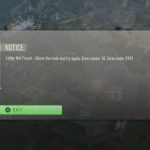
Encountering Error Code 2901 in Black Ops 6, especially when it screams “Lobby Not Found,” is more than just an inconvenience—it’s a roadblock to your game night. This specific error typically means your connection to the game’s matchmaking servers is hitting a snag, preventing you from joining friends, finding public matches, or even creating your own lobby. It’s a common frustration that can stem from anything from a simple network hiccup to a deeper entitlement issue with your Game Pass account. The good news? Most causes have clear, actionable fixes, and we’re here to walk you through them like a seasoned pro.
At a Glance: Solving Black Ops 6 Error 2901
- Verify Server Status First: Always check Activision’s official channels for Black Ops 6 server outages before diving into complex troubleshooting.
- Address Account Entitlements: Game Pass users, ensure your primary account and console settings are correctly configured.
- Stabilize Your Network: Strict NAT types and unstable internet are prime suspects; optimize your connection.
- Keep Software Updated: Outdated game files, drivers, or console firmware are frequent culprits.
- Targeted Platform Fixes: Apply specific steps for PC, Xbox, or PlayStation when general fixes fall short.
- Consider a Fresh Start: Reinstalling the game is often the ultimate solution for corrupted files.
Understanding the “Lobby Not Found” Headache
When Black Ops 6 throws Error Code 2901 your way, it’s essentially telling you that the game client can’t establish or maintain a stable connection with the necessary matchmaking services. This isn’t usually about your internet being completely down, but rather a specific failure in how your game communicates with Activision’s servers to find or create a lobby. It might manifest as an inability to search for matches, getting kicked out of pre-game lobbies, or even mid-match disconnects that send you back to the main menu with that infamous “Lobby not found” message. For a more expansive understanding of this pervasive issue and its broader implications, you can explore our comprehensive guide: Fix Error 2901 Lobby Not Found.
This specific error usually points to one of a few core issues:
- Account Access: Your game license or Game Pass subscription isn’t being recognized properly.
- Network Bottlenecks: Your home network or ISP is interfering with the game’s connection protocols.
- Server Side: Activision’s servers themselves are experiencing problems.
- Corrupted Software: Your game files or system software might be damaged or out of date.
Let’s break down how to systematically tackle each of these potential problems.
Checking the Obvious First: Server Status and Basic Resets
Before diving into deeper network configurations or reinstalling games, it’s crucial to rule out the simplest and most common causes. Sometimes, the issue isn’t on your end at all.
Is Activision Playing Ball? Checking Server Status
Imagine you’re trying to get into a concert, but the venue’s doors are closed for maintenance. That’s what happens if Activision’s Black Ops 6 servers are down.
Actionable Steps:
- Visit Activision Support: Head directly to Activision’s official support website for Black Ops 6. Look for a dedicated server status page.
- Community Check: Glance at official Black Ops 6 social media channels (Twitter/X, Reddit) or community forums. Players are usually quick to report widespread outages.
If servers are undergoing maintenance or experiencing an outage, the best (and only) fix is patience. Grab a snack, read a book, and wait for Activision to restore service. Trying further troubleshooting steps during an outage is a waste of time.
The Classic “Turn It Off and On Again”: Device Restarts
It might sound cliché, but a full restart often clears temporary glitches, refreshes network connections, and resolves minor software conflicts.
Actionable Steps:
- Game Restart: Fully close Black Ops 6 and relaunch it. Don’t just minimize; ensure it’s completely shut down.
- Router/Modem Power Cycle: Unplug your internet router and modem from their power outlets. Wait at least 30 seconds (this is important for a full power drain), then plug them back in. Allow them a few minutes to fully boot up and re-establish an internet connection.
- Gaming Device Restart:
- PC: Perform a full system restart.
- Xbox/PlayStation: Perform a full power cycle. This usually involves holding the console’s power button for 10 seconds until it shuts down, then unplugging it for a minute before restarting. This clears the console’s cache more effectively than a standard reboot.
Stabilizing Your Digital Lifeline: Internet & DNS
A wobbly internet connection is a prime suspect for “Lobby Not Found” errors. Even if you can browse the web, game-specific connections demand more stability and speed.
Actionable Steps:
- Verify Connection Stability: Run a speed test (e.g., Speedtest.net) on your gaming device. Pay attention not just to download/upload speeds, but also to ping (latency) and jitter. High ping or jitter indicates instability.
- Wired Connection (If Possible): If you’re on Wi-Fi, try connecting your console or PC directly to your router with an Ethernet cable. Wi-Fi introduces more latency and potential interference, which can cause drops.
- Change DNS Servers: Your Domain Name System (DNS) server translates website names into IP addresses. Sometimes, default ISP DNS servers can be slow or unreliable.
- How to change (general steps): Go into your device’s network settings (PC/console) and manually set the DNS.
- Recommended Public DNS:
- Google DNS: Primary 8.8.8.8, Secondary 8.8.4.4
- Cloudflare DNS: Primary 1.1.1.1, Secondary 1.0.0.1
- Example: On PlayStation, navigate to Settings > Network > Set Up Internet Connection > Custom > choose your connection type > IP Address Settings (Automatic) > DHCP Host Name (Do Not Specify) > DNS Settings (Manual), then input the new DNS server addresses.
Untangling Account & Entitlement Snafus
Error Code 2901 frequently ties back to how your gaming platform (especially Game Pass) recognizes your game ownership or account status. This is particularly common if you’re sharing Game Pass or have multiple accounts on one device.
Re-Syncing Your Activision Link
Sometimes, the link between your platform account and your Activision profile gets momentarily broken or cached incorrectly.
Actionable Steps (Specific for Game Pass PC):
- Launch via Game Pass: Ensure you launch Black Ops 6 directly through the Xbox App on PC or via Game Pass on console.
- Access Account Settings: Once in the game, navigate to Settings > Account & Network.
- Clear Cache & Re-login: A pop-up browser window often appears for Activision login. Before logging in, ensure you clear your browser’s cache and cookies within that window (look for a small settings cog or menu in the pop-up). Then, proceed to re-login to your Activision account. This forces a fresh authentication.
Your Console’s Digital Home: Home Xbox & Primary PlayStation
For Game Pass users or those sharing digital games, ensuring your console is set as the “home” or “primary” device for the account that owns the game/subscription is critical. This grants all users on that console entitlement to the digital content.
Actionable Steps:
- Xbox (Game Pass Specific):
- Go to Profile & system > Settings > General > Personalization > My home Xbox.
- Select “Make this my home Xbox.” If it’s already set, uncheck it, restart your Xbox, and then re-check it. This refreshes the entitlement.
- Case Snippet: “I kept getting 2901 on my secondary Xbox until I realized my main Game Pass account wasn’t set as ‘Home Xbox’ on this specific console. Changed that, and boom, lobby found instantly.”
- PlayStation:
- Ensure the account that purchased Black Ops 6 (or has PlayStation Plus, if relevant for online access) is activated as the “Primary PlayStation” on your console.
- This is typically found under Settings > Users and Accounts > Other > Console Sharing and Offline Play. Make sure it’s enabled.
- PC (Game Pass):
- Double-check that you are signed into the correct Microsoft account within the Xbox app itself – the one that holds the active Game Pass subscription for Black Ops 6.
Restoring Game Integrity: Updates and File Checks
Corrupted game files or outdated software components can introduce unexpected bugs, including matchmaking failures. Keeping everything up-to-date is a basic but often overlooked step.
The Update Imperative: Game, OS, Drivers
Software is a constantly evolving thing. Game developers release patches, operating systems get security fixes, and GPU manufacturers optimize drivers. Falling behind can cause compatibility issues.
Actionable Steps:
- Black Ops 6 Update: Ensure the game itself is updated to the absolute latest version. Game launchers (Battle.net, Steam, Xbox App) usually handle this automatically, but manually check for updates.
- Console Firmware:
- Xbox/PlayStation: Go to your console’s system settings and manually check for system software updates. Install any pending updates.
- Windows Update (PC):
- Go to Settings > Windows Update and check for all available updates. Install them and restart your PC.
- Graphics Drivers (PC – NVIDIA, AMD, Intel):
- Download and install the latest graphics drivers directly from your GPU manufacturer’s website (NVIDIA GeForce Experience, AMD Adrenalin Software, Intel Driver & Support Assistant). Outdated drivers can cause crashes or performance issues that indirectly impact game stability.
Scanning for Corruption: Verifying Game Files
Just like a few bad apples can spoil the bunch, a few corrupted game files can prevent Black Ops 6 from launching or connecting correctly.
Actionable Steps:
- Battle.net (PC):
- Open the Battle.net client.
- Navigate to the Call of Duty: Black Ops 6 page.
- Click the cogwheel icon (Options) next to the “Play” button.
- Select “Scan and Repair.” This process can take a while.
- Steam (PC):
- Open Steam and go to your Library.
- Right-click on Call of Duty: Black Ops 6.
- Select “Properties.”
- Go to the “Local Files” tab.
- Click “Verify integrity of game files…”
- Game Pass (PC Xbox app):
- Open the Xbox App on PC.
- Right-click on Call of Duty: Black Ops 6 in your game list.
- Select “Manage.”
- Go to the “Files” tab.
- Click “Verify and Repair.”
- Consoles (Xbox/PlayStation):
- Consoles don’t have a direct “verify files” option. The closest equivalent is reinstalling the game. While a drastic step, it ensures you have entirely fresh, uncorrupted game files.
Deep Dive into Network & System Quirks
If basic troubleshooting and account checks haven’t worked, it’s time to look at more intricate network configurations and platform-specific system fixes.
Taming Strict NAT Types: Port Forwarding Explained
Your NAT (Network Address Translation) type dictates how openly your console or PC communicates with other players’ devices. A “Strict” NAT type can severely limit your ability to join or host lobbies, often leading to Error Code 2901. “Open” or “Moderate” are preferred.
What is it? Think of your router as a bouncer at a club. A Strict NAT means the bouncer is very picky about who gets in and out, blocking most connections unless specifically told otherwise. Port forwarding is like giving certain applications (like Black Ops 6) a VIP pass, telling the bouncer to always let them through on specific “doors” (ports).
Actionable Steps:
- Find Your Router’s IP Address: Usually printed on the router itself, or found via your device’s network settings (e.g.,
ipconfigon PC). - Access Router Settings: Open a web browser, type your router’s IP address into the address bar, and press Enter. You’ll need your router’s admin username and password (often on a sticker, or default is “admin/password”).
- Locate Port Forwarding Settings: This varies greatly by router brand and model. Look for sections like “Port Forwarding,” “NAT,” “Virtual Servers,” or “Gaming.”
- Forward the Specific Ports: Create new port forwarding rules for your gaming device’s static IP address (it’s best to assign your console/PC a static IP within your router’s settings to prevent it from changing).
- Xbox Ports:
- UDP: 88, 500, 3544, 4500
- TCP & UDP: 3074, 53
- TCP: 80
- PlayStation Ports:
- TCP: 1935, 3478-3480
- UDP: 3478-3479
- PC Ports:
- TCP & UDP: 3074
- Note: PC launchers like Steam and Battle.net might also use additional dynamic ports. Focusing on 3074 is generally sufficient for Call of Duty.
- Important: If you’re unsure, consult your router’s manual or your ISP’s support. Improper port forwarding can create security vulnerabilities.
PC Specific Fixes: When Windows Fights Back (Error 0x800700c1)
Sometimes, underlying Windows system corruption can manifest as launch errors (like 0x800700c1, which might indirectly affect Black Ops 6’s ability to connect) or general instability.
Actionable Steps:
- System File Checker (SFC):
- Open Command Prompt as an administrator.
- Type
sfc /scannowand press Enter. This tool scans for and repairs corrupted Windows system files.
- Deployment Image Servicing and Management (DISM):
- If SFC finds issues it can’t fix, or as a proactive step, use DISM.
- Open Command Prompt as an administrator.
- Type
DISM /Online /Cleanup-Image /RestoreHealthand press Enter. This repairs the Windows image.
- Clear Temporary Files:
- Press
Windows Key + R, type%temp%, and press Enter. Select all files and delete them (skip any that are in use).
- Reinstall Xbox App/Launcher: If you’re on PC Game Pass, consider uninstalling and reinstalling the Xbox app itself. For Battle.net or Steam, a fresh install of the launcher might help if other issues persist.
Console Tune-Ups: Database & Network Resets
Consoles accumulate cache and network configurations that can sometimes become corrupted or outdated, impacting connectivity.
Actionable Steps:
- PlayStation – Rebuild Database:
- Turn off your PS console completely (don’t enter rest mode).
- Hold the power button until you hear two beeps (about 7 seconds) to boot into Safe Mode.
- Connect your controller via USB.
- Select option 5: “Rebuild Database.” This process can take a while but often fixes issues related to corrupted cache and system files without deleting your games or saves.
- Xbox – Reset Network Settings:
- Go to Settings > General > Network settings.
- Select “Advanced settings.”
- Choose “Alternate MAC address” and then “Clear.” Restart your Xbox.
- You can also try “Restore network settings to factory defaults” within this menu, but be aware this will erase any custom Wi-Fi passwords or static IP configurations you’ve set on the console.
When All Else Fails: Reinstallation & Support
Sometimes, you’ve tried everything, and the problem persists. At this point, a complete overhaul or professional help is the way to go.
The Ultimate Reset: Game Reinstallation
While tedious, a full reinstall of Black Ops 6 ensures you have a pristine copy of the game, free from any corrupted files that might have slipped through the “Scan and Repair” process.
Actionable Steps:
- Uninstall: Navigate to your platform’s game library (Battle.net, Steam, Xbox App, console dashboard) and select “Uninstall” for Black Ops 6.
- Delete Remaining Files (PC): After uninstalling, manually check the game’s installation directory (e.g.,
C:\Program Files (x86)\Call of Duty Black Ops 6) and delete any leftover folders or files. This ensures no old data persists. - Reinstall: Download and install the game again from scratch. This can be a multi-hour process depending on your internet speed.
- Console Precaution: If you play on console, check if Black Ops 6 stores any local save data that needs backing up to the cloud or a USB drive before uninstalling. Most modern games use cloud saves automatically, but it’s always wise to verify.
Calling in Reinforcements: Contacting Activision Support
If you’ve diligently worked through all the steps above and Error Code 2901 still haunts your Black Ops 6 experience, it’s time to escalate.
Actionable Steps:
- Gather Information: Before contacting support, compile a detailed list of:
- Your gaming platform (PC, Xbox, PS5, etc.)
- The exact error message (“Lobby not found” with 2901)
- All the troubleshooting steps you have already tried (be specific, e.g., “checked server status, restarted router, verified game files on Steam, forwarded ports 3074”).
- Any relevant network details (NAT type, ISP).
- Submit a Ticket: Visit Activision Support’s website and look for the Black Ops 6 support section. Submit a detailed support ticket with all the information you’ve gathered. The more thorough you are, the quicker they can assist.
Preventing Future Disconnects: Proactive Network Health
Beyond fixing the immediate Error Code 2901, adopting good network hygiene can significantly reduce your chances of encountering connection issues in Black Ops 6 and other online games.
Consider optimizing your network with latency reduction software. These tools, sometimes called VPNs for gamers or “game accelerators,” work by routing your internet connection through optimized servers. This can result in:
- Lower Ping: By finding shorter, less congested paths to game servers.
- Reduced Packet Loss: By bypassing problematic internet nodes.
- More Stable Connection: Leading to fewer disconnects and smoother gameplay, potentially preventing errors like 2901 from cropping up in the first place.
While not a direct fix for every cause of 2901 (like account entitlement issues), a consistently optimized network removes a major variable in online gaming stability.
Quick Answers: Your Top 2901 Questions
Q: Is Error Code 2901 always a problem with my internet?
A: Not necessarily. While network issues are a common cause, 2901 can also stem from Activision server outages, account entitlement problems (especially with Game Pass), corrupted game files, or outdated software. Always check server status first.
Q: Can a “Strict NAT Type” really cause Error Code 2901?
A: Yes, absolutely. A Strict NAT type severely restricts your connection with other players and game servers, making it difficult to join or create lobbies, which is a direct trigger for the “Lobby not found” message associated with 2901.
Q: I’m on PC Game Pass. Why is Error Code 2901 so common for me?
A: Game Pass users frequently encounter 2901 due to entitlement issues. Ensure you’re signed into the correct Microsoft account that owns Game Pass, and that your Activision account is properly linked and refreshed after clearing browser cache.
Q: Will reinstalling Black Ops 6 fix Error Code 2901 for sure?
A: Reinstalling is a strong final troubleshooting step, especially if the issue is due to corrupted game files that weren’t caught by verification tools. However, if the root cause is a server outage, a strict NAT, or an account issue, reinstalling won’t help unless those underlying problems are also addressed.
Your Action Plan for Error Code 2901
Don’t let Error Code 2901 keep you out of the action in Black Ops 6. Follow this structured approach:
- Check External Factors First:
- Verify Activision’s server status immediately.
- Power cycle your router, modem, and gaming device.
- Confirm a stable internet connection (wired is best).
- Address Account & Software:
- Re-login to your Activision account, clearing cache.
- Ensure your console is set as “Home Xbox” or “Primary PlayStation” for entitlement.
- Update Black Ops 6, your console/PC OS, and graphics drivers.
- Verify game file integrity using your launcher’s repair tool.
- Dive Deeper into Network (If needed):
- Change DNS servers (Google or Cloudflare).
- Consider forwarding game-specific ports on your router if you have a Strict NAT type.
- For PC, run SFC/DISM and clear temp files if you suspect system corruption.
- For consoles, try rebuilding the database (PlayStation) or resetting network settings (Xbox).
- Last Resort & Prevention:
- If all else fails, perform a full game reinstallation.
- Contact Activision Support with detailed information.
- Consider network optimization tools to prevent future connection woes.
By systematically working through these solutions, you’ll significantly increase your chances of banishing Error Code 2901 and getting back to enjoying Black Ops 6 without the dreaded “Lobby Not Found” message.