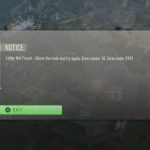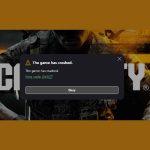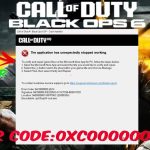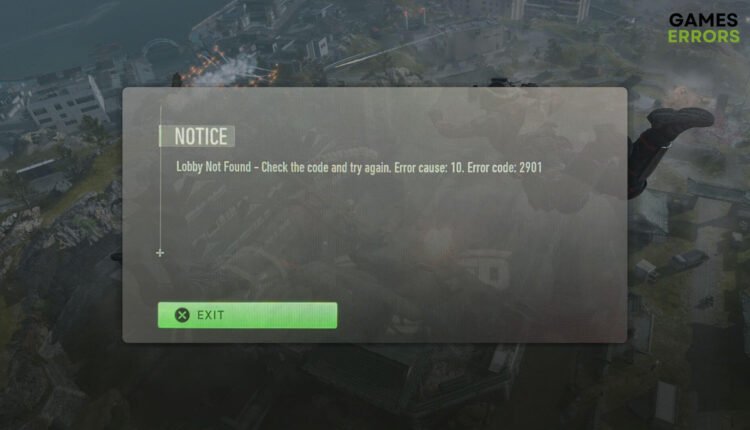
The frustration is real when you’re geared up for Black Ops 6, only to be met with the dreaded cod bo6 error code 2901 and the disheartening “Lobby not found” message. This isn’t just a minor glitch; it’s a roadblock that prevents you from diving into the game, accessing COD HQ, or even staying connected. While often associated with the game’s BETA or Xbox Game Pass users, this error can hit anyone, leaving you staring at a menu instead of leading your squad.
It feels like the game itself is rejecting you, but usually, the fix lies in understanding a few common culprits and systematically working through solutions. We’ll cut through the confusion and get you back into the action.
At a Glance: Your Quick Fix Toolkit
- Server Status First: Always check official Call of Duty and Xbox server updates.
- Restart Everything: Game, device, router – the classic trio often works wonders.
- Xbox Home Console: Critical for Game Pass users to ensure proper license recognition.
- Verify Game Files: Corrupted data is a frequent, silent killer of connections.
- Test Network: A temporary connection change can pinpoint ISP issues.
- Re-login Activision: Clear browser cache and re-authenticate your account.
Understanding the Disconnect: Why Cod Bo6 Error 2901 Happens
Before we dive into fixes, knowing why you’re seeing cod bo6 error code 2901 can save you a lot of guesswork. This error signals a breakdown in communication between your game client and the Black Ops 6 servers, often displaying as “Lobby not found.” The root causes typically fall into a few key categories:
- Server-Side Snags: Sometimes, the problem isn’t on your end at all. Activision or Xbox servers might be undergoing maintenance, experiencing unexpected outages, or simply overloaded. During high-traffic periods, especially with new releases or betas, server stability can fluctuate.
- Account and Licensing Lapses: This is a big one for Xbox Game Pass players. If your Game Pass account isn’t correctly set up (e.g., your console isn’t designated as your “home Xbox”) or you’re trying to share the game via a secondary account, the game’s licensing checks can fail, triggering Error 2901. Black Ops 6, in particular, has shown strict adherence against game sharing.
- Client-Side Complications: Your own setup can introduce issues. This includes unstable network connections, corrupted game files (a common occurrence with updates), or even outdated graphics drivers. Your Internet Service Provider (ISP) might also have specific routing issues or network restrictions impacting your connection to Black Ops 6 servers.
Pinpointing the exact cause immediately can be tough, which is why a systematic approach to troubleshooting is your best bet.
First Line of Defense: Immediate Checks and Restarts
When cod bo6 error code 2901 hits, start with the easiest and most common solutions. These often resolve transient issues without requiring deeper dives into your system.
1. Verifying Server Health and Stability
Before you touch any settings, confirm the servers are actually online. Trying to fix a client-side issue when the servers are down is like trying to drive a car with no gas – pointless.
- Action: Head to the official Call of Duty and Activision Support websites. Look for their dedicated server status pages. Also, check Xbox’s service status if you’re on console, as their network issues can affect Game Pass authentication.
- What to Look For: Red flags or orange warnings for “Online Services,” “Matchmaking,” or specific platform issues.
- Outcome: If servers are down, your best move is patience. Wait for an official “all clear” before troubleshooting further. If everything looks good, the problem likely lies elsewhere.
2. The Universal Troubleshooting Trio: Restart Everything
It sounds basic, but restarting devices clears temporary glitches and refreshes connections. It’s often the quickest way to resolve cod bo6 error code 2901.
- Restart the Game: Close Black Ops 6 completely, then relaunch it. This refreshes the game’s connection to the servers and reloads its assets.
- Restart Your Device: A full system restart of your PC or Xbox can clear up system-level conflicts or memory issues.
- PC: Go to Start > Power > Restart.
- Xbox: Hold the Xbox button on your controller, select “Restart console,” then “Restart.”
- Restart Your Network Hardware: Power cycling your router and modem can resolve IP conflicts or clear cached network data.
- Steps: Unplug your router and modem from their power sources. Wait 30-60 seconds. Plug the modem back in first, wait for its lights to stabilize, then plug in the router and wait for its lights to stabilize. This ensures a fresh connection to your ISP.
These initial steps are crucial for any network-related game error. For a broader understanding of common game errors and their overarching troubleshooting frameworks, you might find it helpful to consult our comprehensive guide on Fix Black Ops 6 Error 2901.
Navigating Account and Game Pass Headaches: Solving Licensing Blips
A significant portion of cod bo6 error code 2901 reports, especially during beta phases or for Game Pass users, stem from account and licensing issues. These solutions are highly specific and often overlooked.
1. Designating Your Home Xbox (Crucial for Game Pass)
If you play Black Ops 6 through an Xbox Game Pass subscription, ensuring your console is set as your “home Xbox” is vital. This tells Microsoft that your console is authorized to share your digital licenses, even if you’re offline or another user is logged in. Without this, the game might fail its licensing check.
- Why it Matters: The
cod bo6 error code 2901can appear if the game can’t confirm your entitlement, and a non-home Xbox might trigger this when trying to access online services. - Steps:
- Press the Xbox button on your controller to open the guide.
- Go to
Profile & system > Settings > General > Personalization. - Select
My home Xbox. - Check the box for
Make this my home Xbox. If it’s already checked, uncheck it, restart your console, then check it again.
- Pitfall: Be aware you can only change your home Xbox a limited number of times per year. Ensure you’re setting the correct console.
2. Using Your Primary Game Pass Account (No Game Sharing for BO6)
Black Ops 6 has shown stricter policies regarding game sharing compared to other titles. If you’re trying to play BO6 through a shared Game Pass subscription, it might not work.
- Action: Ensure you are logged into your Xbox with the primary account that holds the active Game Pass subscription.
- Activision ID Link: Make sure your Activision ID is correctly linked to that specific primary Game Pass Xbox account. If it’s linked to another account (e.g., a shared one), this could cause a conflict.
- Case Snippet: “I was getting Error 2901 constantly on my secondary Xbox profile, even though my main account had Game Pass. Switching to my main profile and making that console my ‘home Xbox’ instantly fixed it.” This highlights the importance of direct primary account usage.
3. Re-logging Your Activision Account (Clearing Cache Conflicts)
Sometimes the issue isn’t with Xbox authentication but with the game’s connection to your Activision profile. The in-game login process often uses an embedded browser, which can accumulate corrupted data.
- Steps:
- Launch Black Ops 6 via Game Pass.
- Navigate to
Settings(usually a gear icon) >Account & Network. - When a browser pop-up appears (asking you to log in or link accounts), pay close attention.
- Crucially: Find the option within that browser window to clear its cache and cookies. This is usually in a small menu or settings icon within the pop-up itself, not your system’s main browser.
- Once cleared, proceed to re-login to your Activision account. This forces a fresh authentication.
- Why it Works: Old login tokens or corrupted browser data can prevent a successful re-authentication with Activision’s servers, even if your Game Pass is active.
Fortifying Your Game Files and System Cache
Corrupted game installations or system-wide temporary files are silent assassins for game performance and connectivity. Addressing these can often resolve cod bo6 error code 2901 by ensuring the game runs smoothly and can access necessary resources.
1. Verifying Game File Integrity
Game files can become corrupted during downloads, updates, or even due to unexpected system shutdowns. Verifying them checks for missing or damaged data and repairs it automatically.
- For Battle.net (PC):
- Open the Battle.net client.
- Go to the Call of Duty: Black Ops 6 page.
- Click the
cogwheel icon(settings) next to the “Play” button. - Select
Scan and Repair, thenBegin Scan.
- For Steam (PC):
- Open your Steam Library.
- Right-click on Call of Duty: Black Ops 6.
- Select
Properties. - Go to the
Installed Filestab (orLocal Files). - Click
Verify integrity of game files....
- For Xbox App (PC):
- Open the Xbox app.
- Right-click on Call of Duty: Black Ops 6.
- Go to
Manage. - Navigate to the
Filestab. - Click
Verify and Repair.
- For Xbox Console: There isn’t a direct “verify files” option on consoles like PC launchers. Reinstalling the game (as a last resort) is the console equivalent.
2. Clearing Your Device’s Cache
Your device (PC or console) stores temporary data in a cache to speed up operations. Over time, this cache can become bloated or corrupted, leading to various issues, including cod bo6 error code 2901.
- PC Cache:
- DNS Cache: Open Command Prompt as administrator and type
ipconfig /flushdns. - Temp Files: Type
%temp%in the Run dialog (Windows Key + R), select all files, and delete them (skip any that are in use). - Xbox Console Cache:
- Press and hold the Xbox button on the front of the console for 10 seconds until it completely shuts down.
- Unplug the console’s power cable from the back.
- Wait for at least 30 seconds.
- Plug the power cable back in and turn on the console. This process clears the system cache without deleting game data.
- Benefit: Clearing cache often resolves mysterious performance hitches and connectivity problems by forcing the system to fetch fresh data.
Unsnarling Your Network: Beyond a Simple Restart
Even with perfect game files and account settings, a struggling network connection can still trigger cod bo6 error code 2901. Sometimes, your primary ISP might be the hidden culprit.
1. Testing with a Different Internet Connection (The Hotspot Test)
This is a powerful diagnostic step. If Black Ops 6 works on a different network, it strongly suggests your primary ISP or home network configuration is the problem.
- Steps:
- Mobile Hotspot: Enable a mobile hotspot on your smartphone.
- Connect Device: Connect your PC or Xbox to this mobile hotspot.
- Launch BO6: Try launching Black Ops 6 and joining a lobby.
- Outcome:
- If it works: Congratulations, you’ve narrowed the problem down to your primary home internet connection or router.
- Next Steps: Contact your ISP. Explain the error and the hotspot test results. They might need to check for line interference, network congestion, or specific routing issues affecting game servers. You could also try changing your router’s DNS settings to Google DNS (8.8.8.8, 8.8.4.4) or Cloudflare DNS (1.1.1.1, 1.0.0.1).
- If it doesn’t work: The issue is likely not your primary ISP, but rather client-side (game files, account) or server-side. Continue with other troubleshooting.
- Expert Tip: Pay attention to your NAT type. A “Strict” NAT type can severely restrict your ability to connect to multiplayer lobbies. While less directly linked to Error 2901, ensuring an “Open” or “Moderate” NAT type is always beneficial for online gaming.
The Overlooked Players: Graphics Drivers and Full Reinstall
Sometimes, the solutions are less obvious, or the problem is deeply embedded. These steps address those scenarios.
1. Updating Graphics Drivers (PC Specific)
While cod bo6 error code 2901 is a connectivity error, outdated graphics drivers can cause instability that indirectly affects the game’s ability to maintain a stable connection or even load certain assets required for matchmaking. Some players have reported success with this.
- For NVIDIA users: Download GeForce Experience or visit the official NVIDIA drivers page.
- For AMD users: Download AMD Radeon Software or visit the official AMD drivers page.
- For Intel users: Visit the official Intel driver support page.
- Steps: Always perform a clean installation of new drivers, if the option is available, to avoid conflicts with old driver files.
2. Reinstalling Black Ops 6 (The Nuclear Option)
If all other troubleshooting fails, a complete reinstall of Black Ops 6 ensures you have a fresh, uncorrupted copy of the game. This is time-consuming due to game file sizes but eliminates any possibility of deeply embedded file corruption.
- Steps:
- Uninstall Black Ops 6 through your platform’s client (Battle.net, Steam, Xbox App, or console system settings).
- Ensure any remaining game folders are deleted after uninstallation.
- Restart your PC or console.
- Re-download and reinstall the game.
- When to Use: Only after exhausting all other options and confirming server status is normal.
Still Stuck? When to Call for Backup
If you’ve systematically worked through every solution and cod bo6 error code 2901 persists, it’s time to enlist official support.
- Contact Activision Support:
- Provide Details: Explain all the troubleshooting steps you’ve already taken. This saves time and shows you’ve done your due diligence.
- Error Code: Clearly state
cod bo6 error code 2901and the “Lobby not found” message. - Platform: Specify your platform (PC, Xbox, Game Pass).
- Account Info: Be ready to provide relevant account details.
- Why it’s Important: Activision support can access specific server-side data related to your account and connection attempts, potentially identifying an issue that is beyond your local troubleshooting capabilities. They might also be aware of known, unpublicized issues affecting specific regions or configurations.
Your BO6 Error 2901 Troubleshooting Playbook
Facing cod bo6 error code 2901 can be daunting, but a structured approach simplifies the process. Here’s a quick-start guide:
- Immediate Check: Is it a server outage? (Check official CoD/Xbox status pages).
- If yes, wait.
- If no, proceed.
- Basic Resets:
- Restart Black Ops 6.
- Restart your PC/Console.
- Restart your Router/Modem.
- Account Specific (Xbox Game Pass):
- Set your current Xbox as your “Home Xbox.”
- Ensure you’re using the primary Game Pass account.
- Re-login Activision account (clearing browser cache/cookies in the pop-up).
- Game & System Health:
- Verify integrity of game files (Battle.net, Steam, Xbox App).
- Clear your device’s system cache.
- Network Deep Dive:
- Test with a mobile hotspot or alternative internet connection.
- If it works on hotspot, contact your ISP.
- If not, continue.
- Advanced/Last Resort:
- Update Graphics Drivers (PC).
- Reinstall Black Ops 6.
- Escalate: Contact Activision Support with detailed troubleshooting steps taken.
Quick Answers to Your Cod Bo6 Error 2901 Questions
Q: Is cod bo6 error code 2901 always a server issue?
A: No. While server outages are a common cause, the error frequently stems from account licensing problems (especially with Xbox Game Pass), corrupted game files, or your local network configuration. Always check server status first, but be prepared to troubleshoot locally.
Q: Can a VPN help fix Error 2901?
A: Sometimes, yes. If your ISP is experiencing routing issues to Black Ops 6 servers, a VPN can reroute your connection through a different path, potentially bypassing the problem. However, VPNs can also introduce their own latency or connection issues, so use it as a diagnostic tool rather than a permanent fix unless it consistently resolves the problem.
Q: Why does cod bo6 error code 2901 seem more common with Game Pass?
A: Game Pass introduces an additional layer of licensing verification. If your console isn’t set as your “home Xbox” or you’re attempting to play via a shared account, the game’s entitlement checks can fail, leading to Error 2901. Black Ops 6’s stricter game sharing policy may also contribute to this.
Q: Will reinstalling the game delete my progress?
A: No, uninstalling Black Ops 6 will not delete your game progress. Player progress, statistics, unlocks, and purchases are tied to your Activision account and stored on Activision’s servers. Reinstalling the game only replaces the local game files.
Q: What if I’m on PC and not using Game Pass, but still get Error 2901?
A: In this case, focus on server status, basic restarts, verifying game files (via Battle.net or Steam), clearing PC cache, and network troubleshooting (especially the mobile hotspot test). The account-specific Game Pass steps won’t apply to you.
Getting Back in the Fight: Your Next Steps
Encountering cod bo6 error code 2901 is definitely frustrating, but it’s rarely an insurmountable challenge. The key is to be systematic and patient. Start with the easiest checks—server status and restarts—then move methodically through account verifications, game file integrity, and network diagnostics. For many, simply designating their “home Xbox” or clearing an embedded browser cache will solve the problem.
Don’t be afraid to utilize the mobile hotspot test; it’s a powerful way to isolate whether the problem is your local network or something else entirely. If you’ve tried everything and the lobby still remains stubbornly “not found,” remember that Activision Support is there to provide more tailored assistance. With a bit of troubleshooting, you’ll be back in the Black Ops 6 action, dominating lobbies, and leaving that error code in the dust.

- Cod Bo6 Error Code 2901 Fixes for Lobby Not Found Issue - May 23, 2026
- Cod BO6 Error Cause 10 Linked to Game Pass Server Woes - May 22, 2026
- How to Fix Error Cause 10 Error Code 2030 BO6 - May 21, 2026