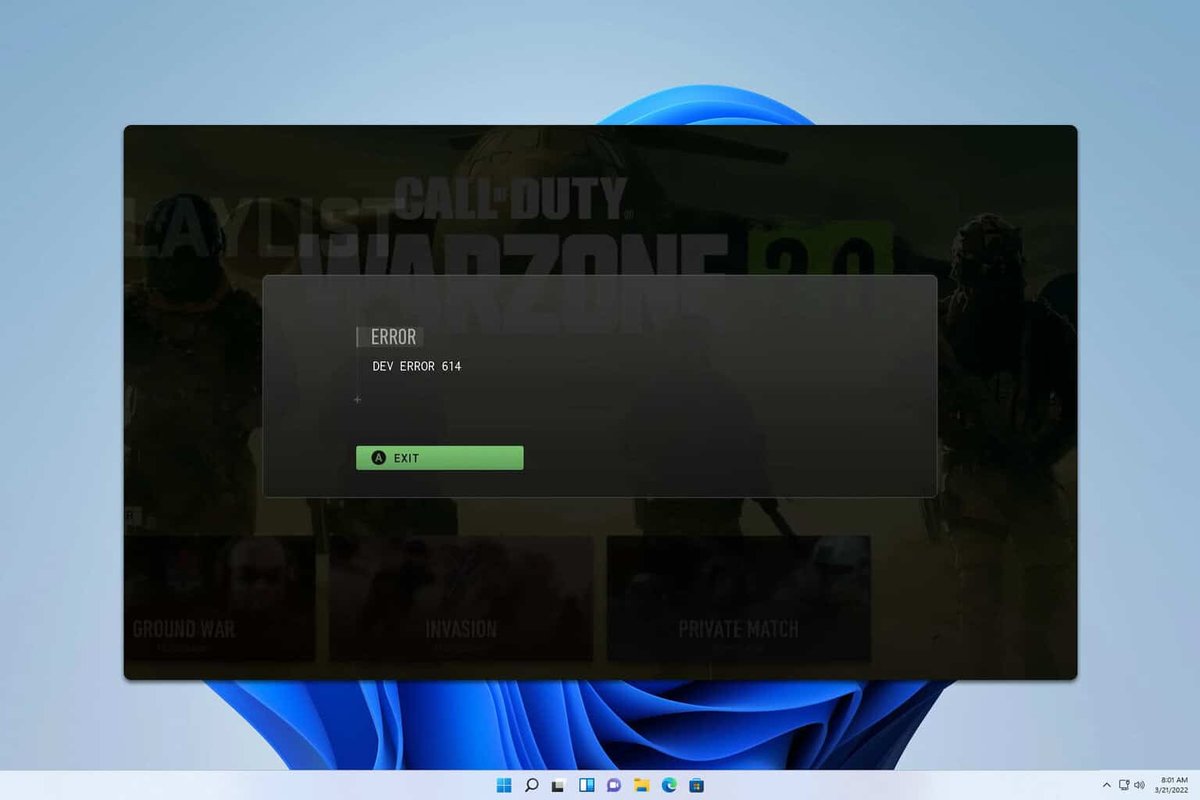
When error code 2901 MW3 pops up on your screen, preventing you from joining a lobby, it’s more than just a minor inconvenience—it’s a roadblock to your Modern Warfare III gameplay. This frustrating “Lobby Not Found” message often signals a deeper issue, whether it’s related to your game client, network, or even how your Activision account interacts with the broader Call of Duty ecosystem. You’re ready to jump into the action, and instead, you’re stuck staring at an error, wondering why you can’t connect.
This isn’t a rare occurrence; many players encounter this very error across various Call of Duty titles. Understanding the root causes, from server hiccups to local network woes, is the first step toward getting back into the fight.
At a Glance: Your MW3 Error 2901 Fix Checklist
- Server Status Check First: Always confirm Activision’s server status and your platform’s network health before diving into complex troubleshooting.
- Restart Everything: A quick restart of your game, console/PC, and router can often resolve temporary glitches.
- Account Refresh: Re-logging into your Activision account within the game can re-establish crucial server connections.
- Verify Game Files: Corrupted or missing game files are a common culprit; use your game launcher’s repair tool.
- DNS & Network Tune-Up: Optimizing your DNS settings can improve connection stability and resolve routing issues.
- Xbox Home Setting Check: For Xbox Game Pass users, ensuring your console is set as your “Home Xbox” can be critical.
Decoding Error Code 2901 in Modern Warfare III
While “error code 2901” might seem generic, in the context of Modern Warfare III and the broader Call of Duty HQ (the centralized launcher for titles like MW3, Warzone, and Black Ops 6), it almost universally points to a “Lobby Not Found” scenario. This means your game client is struggling to establish a stable connection with game servers or locate available matches. It’s not just about finding players; it’s about the entire handshake process that allows your system to interact with Activision’s backend.
Think of it like trying to meet friends at a specific restaurant: if you don’t have the right address, or the restaurant is closed, or your phone’s GPS is faulty, you’ll never find the lobby. Error 2901 is your game’s way of saying it can’t complete this crucial “finding the restaurant” step. This issue isn’t exclusive to one platform or connection type, affecting players on PC (Battle.net, Steam), Xbox, and PlayStation alike.
Common Suspects Behind the Lobby Not Found Message
Before diving into solutions, it’s helpful to understand the usual suspects. Pinpointing the cause can save you time. For MW3’s error code 2901, the issues generally fall into these categories:
- Activision and Platform Server Status: The most straightforward cause is often server-side. Activision might be performing maintenance, or there could be unexpected outages impacting Modern Warfare III’s matchmaking services. Xbox Live, PlayStation Network, Steam, or Battle.net could also be experiencing issues, preventing your game from authenticating correctly.
- Account Configuration and Permissions: Especially for console players, how your Activision account is linked to your platform account (e.g., Xbox, PlayStation) or how Game Pass subscriptions are managed can lead to access issues. If your Game Pass isn’t correctly designated as a “home Xbox” or if your Activision ID isn’t tied to the primary Game Pass account, the game might struggle to grant you lobby access.
- Client-Side Glitches and Corruptions: Your local game installation can also be the problem. Corrupted game files, outdated graphics drivers, or even a build-up of temporary cache data can prevent the game from running properly or connecting to servers.
- Network Interferences: Your internet connection, router, or Internet Service Provider (ISP) can introduce various forms of interference. This might include unstable Wi-Fi, restrictive NAT types, firewall settings, or even specific routing issues from your ISP that prevent a clean connection to Call of Duty servers.
Your Tactical Playbook: Fixing Error Code 2901 in MW3
Let’s move from understanding the problem to implementing solutions. These steps are designed to be progressive, starting with the simplest and moving to more involved troubleshooting. Remember to test your game after each significant step.
Step 1: The First Line of Defense – Server & Device Checks
Before you start digging deep, confirm the game’s health from the source and give your systems a fresh start.
Acknowledge the Call of Duty Server Status
This is your absolute first check. If Activision’s servers are down or undergoing maintenance, no amount of troubleshooting on your end will fix the issue.
- Activision Support Page: Visit the official Activision Support website. Look for service alerts or outages related to Modern Warfare III.
- Platform Status: Check the status pages for your gaming platform: Xbox Live Status, PlayStation Network Status, Steam Status, or Battle.net Support.
- Social Media: Official Call of Duty and Activision Support Twitter accounts often provide real-time updates.
If any services are reported as down, the best solution is patience. Wait until they are operational again.
The Universal Restart Protocol
It sounds simple, but restarting devices often clears temporary glitches, refreshes network connections, and resolves software conflicts.
- Restart MW3: Completely close the game and restart it. Don’t just minimize it.
- Restart Your Console/PC: Perform a full shutdown and restart. For consoles, consider a “power cycle” by holding the power button for 10 seconds (Xbox) or unplugging it for 30 seconds (PlayStation) after shutdown.
- Restart Your Router/Modem: Unplug your internet router and modem from the power outlet for at least 30 seconds. Plug them back in and wait for all indicator lights to stabilize before relaunching MW3. This refreshes your public IP address and clears your network’s cache.
Step 2: Account and Game Integrity Checks
If servers are fine and restarts didn’t work, the issue might be closer to home—with your account’s connection or your game files.
Re-sync Your Activision Account
Your Activision account acts as your gateway to Modern Warfare III’s online features. A quick re-login can refresh the connection tokens and resolve authentication issues.
- Launch MW3: Get into the game as far as you can.
- Navigate to Settings: Go to the in-game settings menu.
- Find Account & Network: Look for a section related to “Account & Network” or similar.
- Log Out of Activision Account: Find the option to log out of your Activision account. Confirm this action.
- Clear Browser Cache (Optional but Recommended): If you’ve logged into your Activision account recently on a web browser, clear its cache and cookies before re-logging in. This ensures you’re getting a fresh session.
- Log Back In: Go back to the game’s Account & Network settings and log back into your Activision account. You might need to re-enter your credentials or use a QR code/web link to verify.
This process forces the game to re-authenticate your account with Activision’s servers, often resolving backend connection issues that manifest as error 2901.
Verify Modern Warfare III Game Files
Corrupted or missing game files can lead to all sorts of strange errors, including connection problems. Each platform has a built-in tool for this:
- Battle.net (PC):
- Open the Battle.net client.
- Select “Modern Warfare III” from your game list.
- Click the cogwheel icon (Options) next to the “Play” button.
- Select “Scan and Repair.”
- Click “Begin Scan.” Let the process complete.
- Steam (PC):
- Open your Steam Library.
- Right-click on “Call of Duty: Modern Warfare III.”
- Select “Properties.”
- Go to the “Installed Files” tab (or “Local Files” on older versions).
- Click “Verify integrity of game files…” Let Steam check and download any missing or corrupted files.
- Xbox App / Game Pass (PC):
- Open the Xbox App.
- Right-click on “Call of Duty: Modern Warfare III” in your library.
- Select “Manage.”
- Go to the “Files” tab.
- Click “Verify and Repair.”
- PlayStation (Console): PlayStation doesn’t have a direct “verify files” option. Instead, you’d typically need to rebuild the database (Safe Mode Option 5) or reinstall the game. We’ll get to reinstalling later, but rebuilding the database can sometimes help with general system file integrity.
- To rebuild database: Turn off console completely. Hold power button until you hear two beeps (about 7 seconds) to enter Safe Mode. Connect controller via USB. Select “Rebuild Database.”
- Xbox (Console): Xbox also lacks a direct file verification tool for individual games. Clearing the cache (power cycle) or reinstalling are the main options.
Update Graphics Drivers (PC Specific)
Outdated graphics drivers can cause stability issues, frame drops, and sometimes even connection problems as the game struggles to render correctly.
- Identify Your GPU: Know if you have NVIDIA, AMD, or Intel integrated graphics.
- Visit Manufacturer’s Website:
- NVIDIA Drivers
- AMD Drivers
- Intel Drivers
- Download Latest Drivers: Select your specific GPU model and download the latest “Game Ready” or recommended drivers.
- Perform a Clean Installation: During the installation process, choose the “Custom” or “Clean Installation” option if available. This removes old driver files that might cause conflicts.
Step 3: Deep Dive into Account and Network Settings
These steps address more specific configuration issues, particularly relevant for Xbox users or anyone experiencing network-related blockages.
Adjust Xbox Home Settings (Xbox Users with Game Pass)
This is a critical fix if you’re playing Modern Warfare III through Xbox Game Pass on your Xbox console and encountering error 2901. Game Pass permissions can sometimes get tangled, especially in shared console environments.
- Press the Xbox Button: On your controller, open the guide.
- Go to Profile & system > Settings.
- Navigate to General > Personalization > “My home Xbox.”
- Check Current Status: See if your console is currently set as your home Xbox.
- Select “Make this my home Xbox”: If it’s not already, activate this setting. This grants full game rights to anyone using that console, leveraging the Game Pass subscription.
- Restart Console: A full restart after this change is recommended.
Self-Correction Snippet: “I once saw a player pull their hair out over error 2901 after lending their Xbox to a friend. The friend set it as their home Xbox, revoking the primary console’s Game Pass privileges. Changing it back instantly fixed the ‘Lobby Not Found’ error for MW3.”
Address Game Pass Account Usage and Activision ID Linkage
While Game Pass itself supports game sharing (allowing others on your home Xbox to play your downloaded games), the Activision ID linked to your Call of Duty profile is more strict. For titles within the CoD HQ, including MW3, your Activision ID needs to be linked to the primary Xbox account that holds the Game Pass subscription.
- What this means: If you have an Xbox Game Pass subscription on “Account A,” but you’re trying to play MW3 with your Activision ID linked to “Account B” (which is just sharing Account A’s Game Pass benefits), this can cause an authorization conflict leading to error 2901.
- The Fix: Ensure your Activision ID is directly linked to the Xbox account that owns the Game Pass subscription. If necessary, you may need to unlink and relink accounts via the Activision website (support.activision.com) to ensure proper synchronization. Game sharing a Game Pass subscription with your Xbox account is one thing; game sharing the right to connect to Activision servers for specific titles can be another entirely.
Tune Your Network Settings: DNS Adjustment
Changing your Domain Name System (DNS) servers can often resolve connectivity issues by providing a faster, more reliable route to game servers, bypassing potential bottlenecks with your ISP’s default DNS. Cloudflare’s 1.1.1.1 is a popular, fast, and privacy-focused choice.
- Access Network Settings:
- PC (Windows): Go to Settings > Network & Internet > Ethernet (or Wi-Fi) > Change adapter options. Right-click your active connection > Properties > Internet Protocol Version 4 (TCP/IPv4) > Properties.
- Xbox: Go to Profile & system > Settings > General > Network settings > Advanced settings > DNS settings > Manual.
- PlayStation: Go to Settings > Network > Set Up Internet Connection > Custom (Wi-Fi or LAN) > IP Address Settings (Automatic) > DHCP Host Name (Do Not Specify) > DNS Settings (Manual).
- Set Primary DNS: Enter
1.1.1.1 - Set Secondary DNS: Enter
1.0.0.1 - Save Changes: Apply the new settings and restart your game and potentially your console/PC.
Quick Insight: “DNS is like your internet’s phone book. If your ISP’s ‘phone book’ is slow or outdated, it might struggle to find the ‘number’ for Activision’s servers. Cloudflare’s DNS is often faster and more up-to-date.”
Try a Different Internet Connection
This step is primarily for diagnosing if your ISP or home network is the root cause. If MW3 works on another connection, you’ve narrowed down the problem significantly.
- Mobile Hotspot: Enable a mobile hotspot on your smartphone.
- Connect Your Device: Connect your PC or console to this mobile hotspot.
- Launch MW3: Attempt to join a lobby.
If Modern Warfare III connects successfully via the hotspot, it strongly indicates an issue with your primary internet connection, router, or ISP. At this point, contact your ISP, explain the situation, and mention that the game works on an alternative connection. They might need to check your line, router, or specific network configurations.
Step 4: The Last Resort – Reinstallation
If all other steps have failed, a full reinstallation of Modern Warfare III is the final, most drastic troubleshooting measure. This ensures you have a completely fresh set of game files, free from any deep-seated corruption or misconfigurations.
- Uninstall MW3:
- Battle.net/Steam/Xbox App: Find MW3 in your library, right-click (or click options/manage), and select “Uninstall.”
- Console: Go to your game library, highlight MW3, press the Options button (PlayStation) or Menu button (Xbox), and select “Uninstall.”
- Delete Remaining Files (PC Only): After uninstalling, manually check the installation directory (e.g.,
C:\Program Files (x86)\Call of Duty Modern Warfare III) and delete any leftover folders or files. Also, check%ProgramData%and%LocalAppData%for any lingering CoD-related folders. - Restart PC/Console: Perform a full restart.
- Reinstall MW3: Download and install the game again from your respective launcher (Battle.net, Steam, Xbox App, PlayStation Store). Ensure you have a stable internet connection for the download.
This is a time-consuming step, but it often resolves persistent issues that file verification or other fixes couldn’t touch.
Beyond the Fix: Preventing Future Error 2901 Encounters
While this guide focuses on resolving the current “error code 2901 MW3” nightmare, proactive measures can help you avoid it in the future.
- Stay Updated: Regularly update your game, game launcher, graphics drivers, and operating system. Developers often release patches that address known bugs and improve stability.
- Monitor Server Status: Make it a habit to quickly check official server status pages before you jump into a gaming session, especially if you anticipate issues.
- Wired Connection: Wherever possible, use a wired Ethernet connection for your gaming device. Wi-Fi can be prone to interference and packet loss, which can lead to connection errors.
- Router Firmware: Ensure your router’s firmware is up to date. Manufacturers often release updates that improve network performance and security.
- Avoid Unnecessary Background Apps: Close bandwidth-heavy applications or downloads running in the background while playing to free up resources and ensure your game has optimal network access.
For a broader understanding of how this “Lobby Not Found” issue impacts other titles like Black Ops 6, you can dive into our main guide on Fix Black Ops 6 Error 2901, as many of the underlying causes and solutions for Error Code 2901 are shared across the Call of Duty HQ ecosystem.
Quick Answers: Addressing Common Error 2901 Questions
Is error code 2901 MW3 specific, or does it appear in other Call of Duty games?
No, error code 2901 is not specific to Modern Warfare III. It’s a common “Lobby Not Found” error that appears across multiple Call of Duty titles, especially those integrated into the Call of Duty HQ client (like MW3, Warzone, and Black Ops 6). The underlying causes and fixes are often similar.
Does my internet speed matter for error 2901?
While a very slow connection can certainly cause issues, error 2901 is more often related to the stability and routing of your internet connection rather than just raw speed. Packet loss, high ping, or an unstable connection are bigger culprits than simply having a lower download speed, as these disrupt the consistent data flow required for online gaming.
Should I contact Activision Support immediately if I see error 2901?
It’s generally recommended to try the common troubleshooting steps outlined in this article first. Many error 2901 issues are client-side or network-related and can be resolved without needing official support. If you’ve exhausted all these steps and the problem persists, then contacting Activision Support with a detailed account of your troubleshooting efforts is the next logical step.
What is the “CoD HQ” connection, and how does it relate to MW3 and error 2901?
The “CoD HQ” (Call of Duty Headquarters) is Activision’s unified launcher and hub for current Call of Duty titles. Modern Warfare III runs within this HQ. This means that server status, account authentication, and certain client-side issues (like shared game files or launcher problems) can affect all games within the HQ. An error like 2901 might stem from the CoD HQ itself, impacting MW3’s ability to connect.
Can a VPN help fix error 2901?
Sometimes, yes. A VPN can potentially bypass ISP routing issues or geographical restrictions that might be causing connectivity problems. If your ISP is experiencing congestion or routing problems to Activision’s servers, a VPN could reroute your connection through a different path, potentially resolving the error. However, VPNs can also introduce latency, so it’s a diagnostic tool rather than a guaranteed fix.
Your Path Back to the MW3 Lobby: A Quick Start Guide
Facing error code 2901 is frustrating, but with a systematic approach, you can resolve it and get back to Modern Warfare III. Here’s a quick decision tree to guide your troubleshooting:
- Is it a broader issue?
- Check server status first: Activision, Xbox, PlayStation, Steam, Battle.net. If servers are down, wait.
- If servers are up, proceed.
- Basic Troubleshooting:
- Restart everything: Game, console/PC, router/modem. Test.
- Re-login Activision account: Inside MW3’s settings. Test.
- Game File & Driver Integrity:
- Verify/Repair game files: Use your platform’s built-in tool (Battle.net, Steam, Xbox App). Test.
- Update graphics drivers (PC): Perform a clean installation. Test.
- Network & Account Configuration:
- Xbox Home Setting (Xbox Game Pass users): Make your console “My home Xbox.” Test.
- DNS Change: Set primary to
1.1.1.1and secondary to1.0.0.1. Test. - Test with mobile hotspot: If it works, contact your ISP. Test.
- Final Step:
- Reinstall MW3: As a last resort, uninstall and reinstall the game completely.
By following these steps methodically, you stand an excellent chance of eliminating error code 2901 and diving back into the Modern Warfare III action. If you’ve tried everything here and the issue persists, gathering details of your attempts will greatly assist Activision Support in providing further tailored help.

- How To Fix Error Code 2901 MW3 Lobby Not Found - May 9, 2026
- Understanding and Fixing Error Cause 10 Error Code 2029 - May 8, 2026
- Error Code 2901 Fixes for Black Ops 6 Lobby Not Found - May 7, 2026