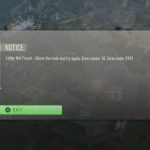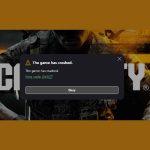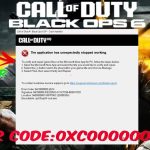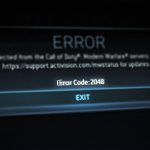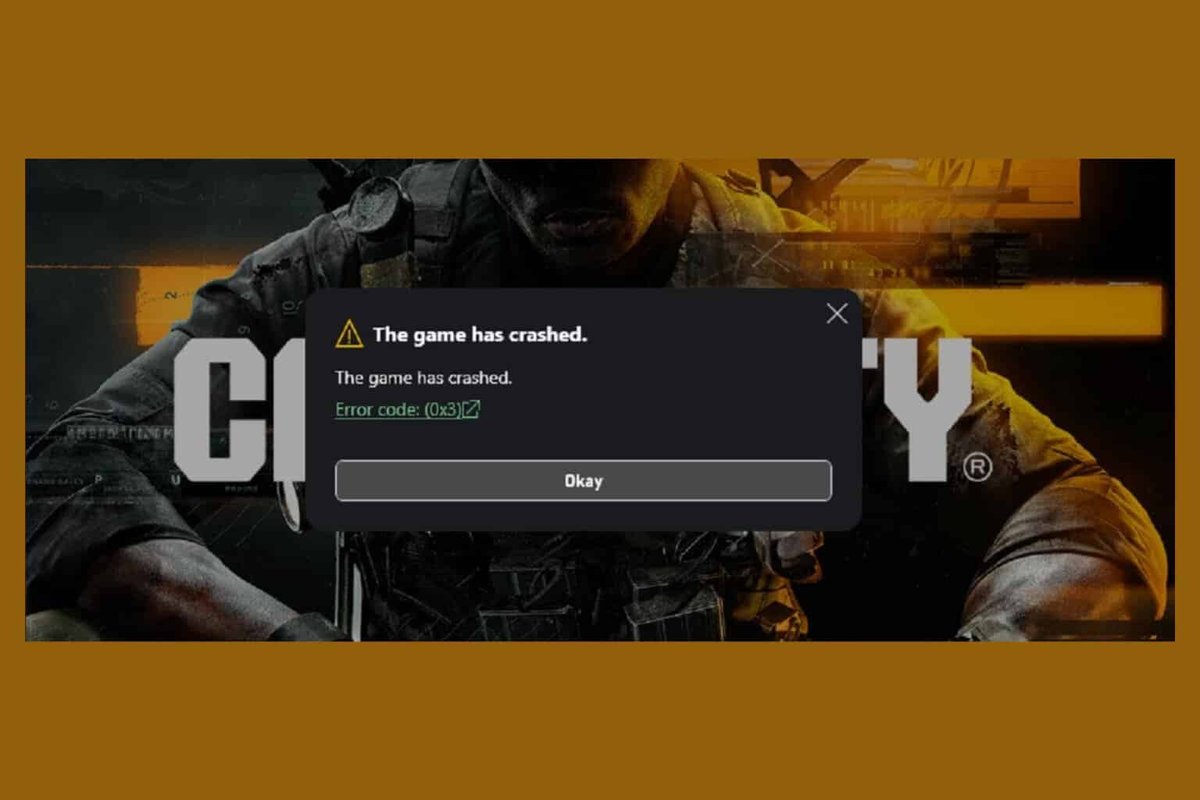
Experiencing “Error Code 2030 BO6” in Black Ops 6 can abruptly pull you out of the action, leaving you staring at a disconnected screen instead of diving into your next match. This error often points to a hiccup in your game’s ability to maintain a stable connection to the server, manifesting as unexpected disconnects from game sessions, failure to join a party, or even an inability to load into a match despite finding one. It’s a frustrating barrier that demands a structured approach to troubleshooting.
At a Glance: Solving Error Code 2030 BO6
- Verify Server Status: Always check official Activision and platform server pages first for ongoing outages or maintenance.
- Optimize Your Network: Focus on stable DNS settings and ensuring an open NAT type for robust connectivity.
- Refresh Game & System: Simple restarts of your game, console/PC, and router can resolve transient network glitches.
- Ensure Game Integrity: Corrupt game files or outdated drivers are common culprits; verify your installation and update all essential software.
- Platform-Specific Checks: Game Pass users, pay close attention to Home Xbox settings and Activision ID linking.
- Test Alternatives: If all else fails, trying a different internet connection can quickly diagnose ISP-related issues.
Understanding the Disconnect: What 2030 Means for Black Ops 6
When Black Ops 6 throws up “Error Code 2030 BO6,” it’s generally signaling a failure in maintaining a persistent connection with the game servers. Unlike a “Lobby Not Found” error (like the notorious 2901), 2030 usually occurs when the game attempts or is in the process of establishing or maintaining a session. Think of it as a dropped call rather than a number that never rings. This could stem from anything from your local network’s instability, an overloaded game server, or even a specific block from your Internet Service Provider (ISP).
Navigating these network complexities requires a systematic approach. Many of the underlying issues that cause “Lobby Not Found” errors can also trigger a 2030 disconnect, especially those related to network configuration or server health.
Initial Triage: Quick Checks for Immediate Relief
Before diving into complex network settings, start with the fundamentals. These simple steps often resolve transient issues without much fuss.
Checking Official Server Status
Your first port of call should always be the official channels. Games, especially massive online titles like Black Ops 6, rely on complex server infrastructures that undergo maintenance or can experience unexpected outages.
- Where to Look: Visit the official Activision Support page, the Xbox Status page (if you’re on Xbox), or the dedicated Call of Duty service status page.
- What to Do: If servers are undergoing maintenance or experiencing issues, your best bet is to wait. Trying to force a connection during an outage is futile and can sometimes exacerbate local issues. An “all clear” on their end points to a problem on your end.
Restarting Your Gaming Ecosystem
The classic “turn it off and on again” advice holds significant weight in tech troubleshooting. This isn’t just a cliché; it flushes temporary data, resets network connections, and can clear minor software glitches.
- Game Restart: Simply close Black Ops 6 completely and relaunch it. On consoles, ensure you’ve quit the game application fully, not just suspended it.
- Console/PC Reboot: Perform a full restart of your Xbox, PlayStation, or PC. This clears system memory and reinitializes all processes.
- Router/Modem Power Cycle: This is crucial. Unplug your internet router and modem from power for at least 60 seconds. This allows them to clear their cache and re-establish a fresh, potentially more stable connection with your ISP. After plugging them back in, wait a few minutes for all indicator lights to stabilize before trying Black Ops 6 again.
- Example: Imagine your router as a busy air traffic controller. Sometimes, it just needs a coffee break to clear its head and sort out all the incoming and outgoing “flights” (data packets).
Optimizing Your Network: Building a Stronger Bridge
Many instances of “Error Code 2030 BO6” stem from an unstable or improperly configured network connection. Fine-tuning these settings can make a significant difference.
Adjusting Your DNS Settings
DNS (Domain Name System) acts like a phonebook for the internet, translating website names (like activision.com) into IP addresses that computers understand. Default ISP DNS servers can sometimes be slow or unreliable, leading to connection timeouts.
- Why it Helps: Using a public, reliable DNS server (like Cloudflare or Google) can speed up this translation process and improve connection stability to game servers.
- Steps to Change DNS:
- On PC (Windows):
- Open Control Panel > Network and Internet > Network and Sharing Center.
- Click on your active connection (e.g., “Ethernet” or “Wi-Fi”) > Properties.
- Select Internet Protocol Version 4 (TCP/IPv4) and click Properties.
- Choose “Use the following DNS server addresses.”
- Enter 1.1.1.1 as the Primary DNS and 1.0.0.1 as the Secondary DNS (Cloudflare DNS). Alternatively, use Google DNS: Primary 8.8.8.8, Secondary 8.8.4.4.
- Click OK on both windows.
- On Xbox:
- Press the Xbox button to open the guide.
- Go to Profile & system > Settings > General > Network settings.
- Select Advanced settings > DNS settings > Manual.
- Enter the Primary DNS (e.g., 1.1.1.1) and Secondary DNS (e.g., 1.0.0.1).
- Note: After changing DNS, a router restart is often recommended to ensure the new settings propagate correctly.
Understanding NAT Types for Smoother Connections
NAT (Network Address Translation) type describes how your router handles incoming and outgoing connections. A “Strict” or “Moderate” NAT can restrict your ability to connect with other players or game servers, often leading to errors like 2030. An “Open” NAT is ideal for online gaming.
- NAT Types Explained:
- Open: Best. You can connect to any player.
- Moderate: Okay. You might experience some issues connecting to players with strict NAT.
- Strict: Worst. You can only connect to players with Open NAT.
- How to Check: Most consoles show your NAT type in their network settings. On PC, some games (or external tools) can report it.
- Improving Your NAT Type: This often involves accessing your router’s settings.
- UPnP (Universal Plug and Play): Enabling UPnP on your router can sometimes automatically open necessary ports. It’s the easiest method but can occasionally be less secure or less reliable than manual port forwarding.
- Port Forwarding: This involves manually directing specific network traffic (ports used by Black Ops 6) from your router directly to your console or PC. This is highly effective but requires a bit more technical know-how. You’ll need to know Black Ops 6’s specific ports (which can vary by platform and game version, often found on Activision’s support site) and your device’s static IP address.
- DMZ (Demilitarized Zone): Placing your gaming device in the DMZ essentially exposes it directly to the internet, giving it an Open NAT. While effective, it bypasses router security for that device and is generally considered a last resort due to security implications.
- Recommendation: Start with ensuring UPnP is enabled on your router. If that doesn’t yield an Open NAT, research Black Ops 6’s specific ports for your platform and consider port forwarding. For broader context on network fixes for Call of Duty issues, you might find more general strategies helpful by checking guides like this one: Fix Black Ops 6 Error 2901.
Using a Wired Ethernet Connection
Wi-Fi is convenient, but it’s susceptible to interference, signal degradation, and latency spikes. A wired Ethernet connection offers unparalleled stability and speed.
- The Advantage: Eliminates wireless interference, reduces latency, and provides a consistently faster data stream, all of which are critical for preventing disconnects.
- Case Snippet: A player reported persistent “Error Code 2030 BO6” disconnects every 10-15 minutes on Wi-Fi, especially during peak hours. Switching to a direct Ethernet cable from their router to their PC immediately resolved the issue, highlighting the impact of wireless instability.
Client-Side Integrity: Ensuring Your Game is Healthy
Sometimes, the issue isn’t your network but the game itself—or rather, its local installation.
Updating Graphics Drivers
Outdated or corrupted graphics drivers can cause a myriad of issues, from performance drops to outright game crashes and, yes, even connection-related errors if the game client isn’t running optimally.
- Where to Update:
- NVIDIA: Use GeForce Experience or download directly from NVIDIA’s website.
- AMD: Use AMD Software: Adrenalin Edition or download from AMD’s website.
- Intel: Use Intel Driver & Support Assistant or download from Intel’s website.
- Best Practice: Always download drivers directly from the manufacturer’s official website. Perform a “clean installation” if the option is available to remove old driver remnants.
Re-logging into Your Activision Account
Your Activision account acts as your primary identity within Call of Duty. A stale login session or a corrupted authentication token can interfere with game services.
- Steps:
- Launch Black Ops 6 through your platform (e.g., Game Pass, Steam, Battle.net).
- Navigate to the in-game settings menu.
- Find “Account & Network” or similar.
- Select the option to log out of your Activision account.
- It’s a good idea to clear your browser’s cache and cookies on the device you use for Activision services, just to ensure a completely fresh start.
- Log back into your Activision account within the game.
Verifying Game Files
Corrupted or missing game files can lead to unpredictable behavior, including crashes and connectivity errors, as the game struggles to load necessary assets or execute specific functions.
- Platform-Specific Steps:
- Steam:
- Open your Steam Library.
- Right-click on Call of Duty: Black Ops 6 > Properties.
- Go to the “Installed Files” tab.
- Click “Verify integrity of game files.”
- Battle.net:
- Open the Battle.net client.
- Select the Call of Duty tab (usually under “All Games”).
- Click the cogwheel icon (Options) next to the Play button.
- Choose “Scan and Repair” > “Begin Scan.”
- Game Pass (Xbox App on PC):
- Open the Xbox app.
- Right-click on Call of Duty: Black Ops 6 in your library.
- Go to “Manage” > “Files” tab.
- Click on “Verify and Repair.”
- Xbox Console: Console file verification is typically less granular. A full reinstall is often the equivalent.
Platform-Specific Considerations for Game Pass Users
For those playing Black Ops 6 through Xbox Game Pass, specific account and console settings can be critical. These issues frequently contribute to connectivity errors, including 2030.
Setting Your Home Xbox
Xbox Game Pass subscriptions are tied to a specific account. If you’re game sharing or playing on multiple consoles, ensuring the original Game Pass account has its console designated as the “Home Xbox” is vital. This authorizes content sharing and can prevent validation errors that manifest as connection problems.
- Steps:
- Power on your Xbox console.
- Press the Xbox button on your controller to open the guide.
- Navigate to Profile & system > Settings > General > Personalization.
- Select “My home Xbox.”
- Check the box for “Make this my home Xbox.”
- Why this matters: If your console isn’t designated as the home Xbox for the account that owns the Game Pass subscription, the game might struggle to authenticate your access, leading to server disconnects.
Linking Activision ID to the Main Game Pass Account
If you are using a shared Xbox Game Pass account or have multiple Xbox profiles, ensure your Activision ID is correctly linked to the specific Xbox profile that has the Game Pass subscription active.
- Importance: A mismatch or incorrect linking can cause authentication failures when the game tries to connect you to its online services, resulting in errors like 2030.
- How to Check/Link: You typically manage Activision account links through the Activision website or sometimes within the game’s account settings. Ensure the correct Xbox Gamertag is associated with your Activision ID.
Advanced Troubleshooting and Last Resorts
If the standard solutions haven’t resolved your “Error Code 2030 BO6,” it’s time to consider more drastic steps.
Testing a Different Internet Connection
This is a powerful diagnostic tool. If your game works perfectly on another network, it strongly indicates that your primary ISP or home network configuration is the root cause.
- Method:
- Try tethering your PC or console to a mobile hotspot for a quick test. Be mindful of data caps.
- If possible, try taking your gaming setup to a friend’s house or another location with a different internet provider.
- What it Tells You:
- If it works on another connection: Contact your primary ISP. They might be blocking certain ports, have network congestion issues in your area, or require specific settings for gaming. Provide them with details about “Error Code 2030 BO6” and any troubleshooting steps you’ve already taken.
- If it still doesn’t work: The problem likely lies with your game installation or platform account, not your internet connection.
Reinstalling Black Ops 6
A clean slate can sometimes be the only way to fix deeply entrenched file corruptions or installation issues. While time-consuming, it ensures every game file is fresh and properly installed.
- Steps:
- Uninstall: Completely uninstall Black Ops 6 from your PC or console.
- Clear Residual Files: On PC, after uninstalling, manually check the installation directory (e.g.,
Program Files (x86)\Call of Duty HQ) and delete any leftover folders to ensure a truly clean removal. On consoles, a standard uninstall usually suffices. - Reinstall: Download and reinstall the game from scratch.
- Pro Tip: During reinstallation, temporarily disable any firewall or antivirus software (remember to re-enable them afterward) to prevent them from interfering with the download or installation process.
Practical Playbook: Your Troubleshooting Flow for 2030
Here’s a streamlined approach to tackling “Error Code 2030 BO6”:
- Immediate Checks:
- Verify Activision/Platform Server Status.
- Restart Game, Console/PC, and Router/Modem.
- Network Fundamentals:
- Change DNS to 1.1.1.1/1.0.0.1 (or 8.8.8.8/8.8.4.4).
- Check and aim for an “Open” NAT type (start with UPnP, consider port forwarding).
- Switch to a Wired Ethernet Connection (if not already).
- Client & Account Integrity:
- Update Graphics Drivers to the latest version.
- Log out and re-login to your Activision Account.
- Verify Game Files (Steam, Battle.net, Xbox App).
- Game Pass Specifics (if applicable):
- Ensure your Home Xbox is correctly set.
- Confirm Activision ID is linked to the primary Game Pass account.
- Diagnostic & Last Resort:
- Test with a Different Internet Connection (e.g., mobile hotspot).
- Perform a complete Reinstallation of Black Ops 6.
Quick Answers: Common Questions About Error 2030
Q: Is “Error Code 2030 BO6” the same as “Lobby Not Found” (Error 2901)?
A: Not exactly. While both are connectivity issues, 2901 typically prevents you from finding a lobby altogether. 2030 usually implies you’ve either found a lobby but failed to join it, or you were disconnected during a game session. They share many root causes related to network instability or server issues.
Q: Can my firewall or antivirus cause “Error Code 2030 BO6”?
A: Absolutely. Overly aggressive firewalls or antivirus software can sometimes mistake game traffic for a threat and block its connection to servers, leading to disconnects. Temporarily disabling them for a test (and ensuring you re-enable them after) can help diagnose this. Adding Black Ops 6 to your firewall’s whitelist is a more permanent solution.
Q: How often do I need to check for server maintenance?
A: It’s a good first step if you encounter any unexpected connection issue. Activision and platform providers usually announce planned maintenance, but unforeseen outages can happen. Checking once is usually sufficient to rule it out before you dive into troubleshooting your local setup.
Q: Will contacting Activision Support help immediately?
A: Activision Support is your ultimate resource if all troubleshooting steps fail. However, they’ll typically ask you to perform many of these same steps first. Provide them with a detailed list of what you’ve already tried and any specific error messages you’re receiving for the fastest resolution.
Q: My internet seems fine for other games, why just Black Ops 6?
A: Different games use different servers, network protocols, and port configurations. What works for one game might not work for another. Black Ops 6, being a demanding online title, might be more sensitive to specific network conditions or require a more “open” connection than other applications. Your ISP might also have specific traffic shaping rules that impact certain types of game data.
Staying Connected: Proactive Measures
Once you’ve resolved “Error Code 2030 BO6,” adopting a few best practices can help prevent future headaches:
- Keep Software Updated: Regularly update your game, console/PC operating system, and especially your graphics drivers.
- Monitor Announcements: Stay informed about Activision’s official announcements for planned server maintenance or known issues.
- Invest in Stability: Use a wired Ethernet connection whenever possible. If Wi-Fi is your only option, ensure your router is placed optimally, away from interference, and consider a newer, gaming-focused router.
- Understand Your ISP: Familiarize yourself with your ISP’s policies on gaming traffic, port blocking, or router configurations.
By diligently working through these solutions, you’ll not only fix “Error Code 2030 BO6” but also gain a deeper understanding of your network setup, ensuring a more stable and enjoyable Black Ops 6 experience.

- Cod Bo6 Error Code 2901 Fixes for Lobby Not Found Issue - May 23, 2026
- Cod BO6 Error Cause 10 Linked to Game Pass Server Woes - May 22, 2026
- How to Fix Error Cause 10 Error Code 2030 BO6 - May 21, 2026