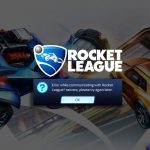
Few things are more frustrating than settling in for a gaming session only to be met by an arcane error code. These digital roadblocks can halt your progress, disconnect you from friends, or even prevent a game from launching entirely. But what are these codes, and why do they appear? Think of error codes as your system’s way of telling you, “Hey, something’s not quite right here!” They’re crucial clues, pointing to underlying issues ranging from compatibility conflicts and outdated drivers to corrupted game files or network hiccups. Understanding these signals is the first, most empowering step toward a fix.
This super pillar hub is designed to demystify those cryptic messages, guiding you through common game error codes across various platforms and empowering you with actionable solutions. We’ll explore the big picture first, then drill down into specific scenarios, connecting you to detailed guides that help you get back to playing.
Decoding the Digital Roadblocks: What Error Codes Mean
At their core, error codes are diagnostic messages. They provide a specific label for a specific problem, allowing developers and users alike to pinpoint issues more efficiently than a generic “something went wrong.” Whether it’s a number, a string of letters, or a combination, each code usually correlates to a known cause. While they might seem intimidating, learning to interpret them can turn a game-stopping problem into a solvable puzzle.
Conquering PC Gaming Error Codes: Your Troubleshooting Arsenal
PC gaming is a vibrant, flexible ecosystem, but that flexibility sometimes comes with a need for hands-on troubleshooting. Many error codes stem from the interplay of hardware, software, and operating system components. Before diving into specific codes, it’s always wise to start with a few universal PC troubleshooting steps.
General Troubleshooting for PC Gamers
When facing any PC game error, try these foundational solutions first:
- Restart Your Computer: The classic fix for a reason! It clears temporary glitches and resets processes.
- Update Your Graphics Card Drivers: Outdated drivers are a leading cause of performance issues and crashes.
- Check for Operating System Updates: Ensure Windows (or your OS) is fully updated.
- Verify Game File Integrity: Platforms like Steam or Epic Games Store allow you to scan and repair corrupted game files.
- Meet Minimum Requirements: Confirm your PC hardware aligns with the game’s minimum system specifications.
- Uninstall and Reinstall the Game: A fresh installation can resolve deep-seated file corruption.
- Run a Virus Scan: Malware can interfere with game processes and system stability.
Common PC-Specific Error Codes and Their Solutions
Let’s look at some of the most prevalent error types you might encounter on your Windows gaming rig:
- DirectX Errors: Often manifest as crashes on startup or graphical anomalies. Keeping DirectX updated and verifying game files are your primary defenses.
- “DLL Not Found” Errors: These pop up when a crucial dynamic link library file is missing. Reinstalling Microsoft Visual C++ Redistributable packages is frequently the answer, and running
sfc /scannowin Command Prompt can help repair system files. - Error Code 0xC000007B: A common game-launching blocker. This often points to mixed 32-bit and 64-bit dependency issues. Reinstalling DirectX, .NET Framework, and Visual C++ (ensuring you get both versions) and running the game as an administrator are key steps.
- Network Connection Errors: If you can’t connect to online services or face frequent disconnections, start by ensuring a stable internet connection and power cycling your router. Updating network card drivers and whitelisting the game in your firewall are also crucial. If you’re encountering server connection issues, checking the game’s official status page can be invaluable; for example, you might want to look into rocket league server status if you’re having trouble connecting to a match.
- Incompatible Hardware Errors: Games refusing to start or running with severe lag often indicate your system isn’t quite up to snuff. Verify minimum requirements, update your GPU drivers, and try lowering in-game graphics settings.
- Blue Screen of Death (BSOD): A full system crash, usually during intense gaming. Tools like BlueScreenView can help you pinpoint the problematic driver. Also, check RAM and disk health, and revert any CPU/GPU overclocks.
- “Game Not Responding” or “Black Screen of Death”: These generic but frustrating errors can stem from corrupt game files, OS incompatibility, or deeper hardware/software conflicts.
- Game-Specific Errors: Some games have unique error codes that point to very specific internal issues. For instance, if you’re running into error code 2901 black ops, that code likely has a designated solution detailed by the game’s developer. Always check game-specific forums or support pages for these.
Navigating Nintendo Switch Error Codes: Console-Specific Solutions
Nintendo Switch error codes, typically a series of numbers like XXXX-YYYY or X-YYYYY-ZZZZ, are the console’s way of signaling a problem. These range from internet issues to hardware malfunctions or software conflicts, and they’re designed to protect your system and data.
Categorized Switch Error Codes and Solutions
The Switch categorizes its errors, making troubleshooting more logical:
Game-Specific Error Codes
These are often tied to particular titles or online components. For example, 2306-0820 might mean a demo session is over, or 2-AABQA-1021 points to an internet issue during an online match. The primary fix is usually to check your internet, update the game software, or understand the specific context of the error.
Hardware Error Codes
These are serious and often require professional intervention. Codes like 2153-0321 (audio hardware) or 2139-0006 (general hardware malfunction) mean it’s time to contact Nintendo Support. Other codes, like 2168-0002, might suggest corrupted hardware or even pirated content, urging a system clean-up and update before a potential repair.
Software Error Codes
Problems within the system software or individual game data fall here. If you see 2164-0020 or 2122-0082, deleting and reinstalling the problematic software is often the fix. Codes like 2162-0101 or 2306-0819 typically mean you need a software or system update. EShop download issues (2813-0071) usually resolve with a simple console restart.
General System Error Codes
These cover a broad range of issues that affect overall console functionality. 2162-0002 (a crash error with multiple causes) often responds to a restart, Joy-Con charging, and updating all Switch components. Other codes like 2813-6838 for eShop card issues require careful re-entry and regional checks. More severe codes, like 2124-4007, signify a console ban and demand immediate contact with Nintendo Support. Even on other consoles, similar networking errors can arise; for instance, you might ask why does my xbox say “temporary network problem” when its online services are struggling.
Internet Connection Error Codes
A vast category, indicated by codes like 2110-1100, 2811-7001, or 2618-0513. These point to issues with your network.
General Solutions for Switch Internet Errors:
- Check Your Connection: Ensure your Wi-Fi is stable and you’re entering the correct password.
- Power Cycle: Turn off your modem and router, wait 30 seconds, then turn them back on.
- Proximity and Obstructions: Move your Switch closer to the router and remove physical interference.
- Router Firmware: Update your router’s firmware if possible.
- DNS Settings: Try using manual DNS settings (e.g., Google DNS 8.8.8.8 and 8.8.4.4).
- Switch Software Update: Always ensure your console’s software is current.
- Restart Console: A simple restart can often resolve temporary connection glitches.
Proactive Prevention: Minimizing Future Error Codes
An ounce of prevention is worth a pound of cure, especially in gaming. By adopting good habits, you can significantly reduce the likelihood of encountering frustrating error codes:
- Stay Updated: Keep your games, operating system, and drivers (for PC) or system software (for Switch) consistently updated. Enable automatic downloads where available.
- Maintain Stable Internet: A consistent connection is vital for online gaming. Position your console or PC within good Wi-Fi range and minimize interference.
- Handle Hardware with Care: Avoid drops, protect from extreme temperatures, and keep dust build-up to a minimum.
- Monitor Storage Space: Full drives can cause system errors. Regularly check your storage and delete unneeded files or games.
- Use Official Accessories: Especially on consoles, unofficial accessories can sometimes cause compatibility issues or even system damage.
- Keep Controllers Charged: Low battery can lead to connection issues.
When to Call for Backup: Contacting Support
Sometimes, despite your best efforts, an error persists. For Nintendo Switch users, certain hardware failure codes like 2153-0321, 2168-0002, 2139-0006, and 2153-1540 are clear signals to contact Nintendo Support immediately. Similarly, if basic troubleshooting fails for persistent connection or software problems, or if you face a console ban (2124-4007), reaching out to official support is your best course of action. PC gamers can contact game developers directly for game-specific issues or their hardware manufacturers for driver or component-related problems.
Empowering Your Gaming Experience
Facing specific game error codes can be a disheartening experience, but it doesn’t have to mean the end of your gaming session. By understanding the common causes and applying targeted solutions, you can often resolve these issues yourself. Use this hub as your ongoing resource, diving into the specific pillar guides linked throughout whenever a new challenge arises. Your journey to smoother, uninterrupted gaming starts here.

- Is League Down Right Now? Check Server Outage Status - June 5, 2026
- Check Rocket League Maintenance Status Before You Play - June 4, 2026
- Rocket League Servers Down? Players Report Connection Issues - June 3, 2026