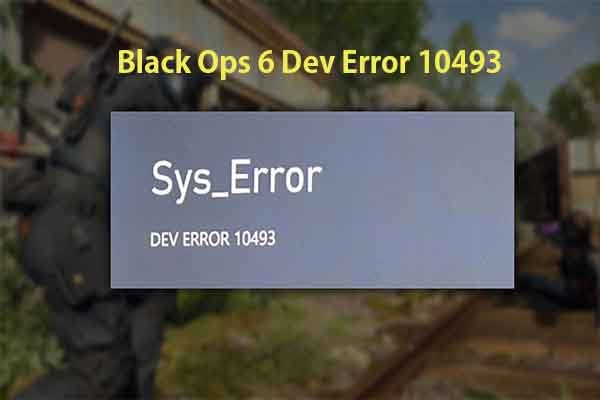
Experiencing the dreaded “Lobby not found” message in Black Ops 6, especially when you’re hyped for a match, is one of the most frustrating things a player can encounter. This persistent message, often tied to black ops 6 error code 2901, can abruptly end your gaming session before it even begins. It’s not just a minor glitch; it’s a direct roadblock preventing you from diving into the action, leaving you staring at menus rather than engaging in combat.
This isn’t always a simple “turn it off and on again” fix. Error Code 2901 can stem from a surprisingly wide range of issues, from your Game Pass settings to deep-seated network conflicts or even server-side hiccups beyond your control. Understanding these varied causes is the first step toward getting back into the game.
At a Glance: Key Fixes for Error Code 2901
- Verify Server Status: Always check official Call of Duty and Xbox server health first.
- Game Pass Configuration: Ensure your Activision ID is linked to your primary Game Pass account and set your Xbox as “home.”
- System Reboot: Restart your game, console/PC, and network hardware (router/modem).
- File Integrity Check: Scan and repair game files via Battle.net, Steam, or Xbox App.
- Clear Cache: Perform a full power cycle on your console or clear cache on PC platforms.
- Update Everything: Keep your game and graphics drivers current.
Unpacking Error Code 2901: Why Your Lobby Isn’t Found
When Black Ops 6 throws up “Lobby not found” with Error Code 2901, it essentially means the game client on your device couldn’t establish a stable or recognized connection to a game server or lobby host. Think of it like trying to join a party where the host doesn’t recognize your invitation, or the venue itself is closed. The causes are typically split between server-side issues (not your fault) and client-side problems (which you can often troubleshoot).
Server-side problems usually involve Activision or Xbox performing maintenance, experiencing an outage, or simply being overwhelmed by high player traffic. These are transient issues that resolve themselves with time. Client-side issues, however, range from your local network acting up to corrupted game data, outdated software, or even specific account configuration errors. pinpointing the exact cause of this specific black ops 6 error code requires a systematic approach.
The Xbox Game Pass Conundrum: Account Linkage and “Home Xbox” Hurdles
One of the most frequent — and often overlooked — culprits behind black ops 6 error code 2901 for players accessing the game through Xbox Game Pass relates directly to account management. The Game Pass ecosystem, while convenient, introduces specific requirements for shared access and primary account designations.
Navigating Shared Accounts and Activision IDs
If you’re playing Black Ops 6 via a shared Xbox Game Pass account, particularly one that isn’t designated as your console’s “home” Xbox, you’re likely to hit Error 2901. Game sharing, while common for many Xbox titles, isn’t typically supported for Black Ops 6 in a way that allows seamless online play for secondary users.
Actionable Steps:
- Direct Game Pass Subscription: The most straightforward fix is ensuring you have your own Game Pass subscription directly tied to the Microsoft account you’re using.
- Activision ID Linkage: Verify that your Activision ID is correctly and exclusively linked to the primary Xbox Game Pass account you’re playing with.
- Launch Black Ops 6 through your Game Pass.
- Navigate to the game’s Settings (usually a gear icon).
- Select “Account & Network.”
- When a browser pop-up appears for your Activision account, make sure to clear its cache and cookies before attempting to re-login. This often resolves stale login tokens that can cause connectivity issues. Re-login to your Activision account, confirming the correct Xbox account is linked.
Designating Your Home Xbox
For Xbox users, the “Home Xbox” setting plays a critical role in game licensing and access. If the Game Pass account owner hasn’t designated your current console as their home Xbox, or if you’re trying to play on a console that isn’t the primary one, you might encounter Error 2901.
How to Set Your Home Xbox:
- On your Xbox console, press the Xbox button to open the guide.
- Go to Profile & system > Settings > General > Personalization > My home Xbox.
- Select “Make this my home Xbox.”
- If it’s already set, consider unchecking it, restarting your Xbox, then re-checking it to refresh the license.
This action grants all users on that console access to the Game Pass owner’s games and subscriptions, often resolving licensing conflicts that manifest as “Lobby not found” errors.
Beyond the Game Pass: Universal Troubleshooting Tactics
While Game Pass settings are a common trigger, Error Code 2901 can also stem from more general issues. These require a systematic approach to narrow down the cause and implement a fix. For a full breakdown of Error 2901’s common triggers and initial troubleshooting steps, refer to our comprehensive guide on how to Fix BO6 Lobby Not Found Error.
Ruling Out Server-Side Woes: The First Check
Before diving into complex troubleshooting, always verify if the problem is even on your end.
- Official Status Pages: Visit the official Call of Duty Service Status and Xbox Support pages. Look for any reported outages, maintenance schedules, or high traffic warnings. If servers are down or under heavy load, your best bet is to simply wait. Trying to force a connection during these times is futile.
- Community Reports: Check social media (e.g., Twitter/X for Activision Support) or community forums. Sometimes, players report issues before official channels update.
The Power of a Fresh Start: Restarting Components
It sounds simple, but a full restart often clears temporary glitches and refreshes network connections.
- Game Restart: Close Black Ops 6 completely and relaunch it.
- Device Restart: Power cycle your PC, PlayStation, or Xbox. A full shutdown (not just rest mode) is crucial.
- Network Hardware Restart: Unplug your router and modem from the power outlet for at least 30 seconds, then plug them back in. Wait a few minutes for all lights to stabilize before testing the game again. This refreshes your IP address and clears network cache.
Client-Side Culprits: Deep Diving into Your System
If server status is clear and simple restarts don’t work, the black ops 6 error code 2901 is likely rooted in your local setup.
Rebuilding Blocks: Verifying Game Files
Corrupted or missing game files can lead to all sorts of unpredictable errors, including connectivity failures. Verifying the integrity of game files ensures all necessary components are present and undamaged.
- Battle.net (PC):
- Open the Battle.net launcher.
- Go to the Call of Duty: Black Ops 6 page.
- Click the cogwheel icon (Options) next to the “Play” button.
- Select “Scan and Repair.”
- Click “Begin Scan” and let the process complete.
- Steam (PC):
- Open Steam and go to your Library.
- Right-click on “Call of Duty: Black Ops 6.”
- Select “Properties.”
- Go to the “Installed Files” (or “Local Files”) tab.
- Click “Verify integrity of game files…”
- Xbox App (PC via Game Pass):
- Open the Xbox App.
- Right-click on “Call of Duty: Black Ops 6.”
- Select “Manage.”
- Go to the “Files” tab.
- Click “Verify and Repair.”
Fresh Start Mentality: Clearing Cache
Console and PC systems store temporary data (cache) to speed up operations. Over time, this cache can become corrupted and interfere with game functions.
- PlayStation (PS4/PS5):
- Completely turn off your PlayStation (do not put it in Rest Mode).
- Once off, unplug the power cord from the console and the wall for at least 30 seconds.
- Plug everything back in and restart your console.
- Xbox (Xbox One/Series X|S):
- Completely turn off your Xbox.
- Unplug the power brick from the console and the wall for at least 30 seconds.
- Plug everything back in and restart your console.
- PC (Manual DNS Flush & Game Cache): While game launchers usually handle specific game cache, a DNS flush can sometimes help with network-related caching issues.
- Open Command Prompt as Administrator.
- Type
ipconfig /flushdnsand press Enter. - Restart your PC.
The Update Imperative: Game & Driver Hygiene
Outdated game clients or graphics drivers can cause compatibility issues and connectivity errors.
- Game Updates: Ensure Black Ops 6 is updated to its latest version. Game launchers (Battle.net, Steam, Xbox App) usually handle this automatically, but manually checking for updates can’t hurt.
- Graphics Drivers: Update your graphics card drivers (NVIDIA, AMD, Intel) to the latest stable version. Visit your card manufacturer’s official website for the correct drivers.
ISP Interventions: When Your Internet Provider Plays Hardball
Sometimes, the issue isn’t with your game or console but with how your Internet Service Provider (ISP) handles connections to game servers.
- Stable Connection Check: Run a speed test (e.g., Speedtest.net) to ensure your internet connection is stable and delivering expected speeds. Packet loss or high latency can cause connection drops.
- Firewall/Antivirus Interference: Temporarily disable your PC’s firewall or any third-party antivirus software. If the game connects, you’ll need to create an exception for Black Ops 6 within your security software. Re-enable them immediately after testing to maintain system security.
- Different Connection Test: If all else fails, try connecting your device to a different internet source. This could be a mobile hotspot, a friend’s Wi-Fi, or a secondary ISP if you have one. If the game works on a different connection, it strongly suggests your primary ISP might be blocking specific ports or having routing issues with Activision’s servers. Contacting your ISP would be the next step.
Your Practical Playbook: A Quick Decision Guide
Facing black ops 6 error code 2901 can feel like a maze. Here’s a quick decision-making flow to help you prioritize your troubleshooting efforts:
- Initial Assessment (5 min):
- Is it Activision/Xbox servers? Check official status pages.
- Yes: Wait it out.
- No: Proceed to step 2.
- Basic Resets (10 min):
- Restart game, console/PC, router/modem.
- Does it work?
- Yes: Great! Back to gaming.
- No: Proceed to step 3.
- Game Pass Specifics (15 min, if applicable):
- Re-login Activision account, clearing browser cache/cookies.
- For Xbox, confirm “Make this my home Xbox” setting.
- Does it work?
- Yes: Account/licensing was the issue.
- No: Proceed to step 4.
- System Deep Dive (30-60 min):
- Verify game files (Battle.net, Steam, Xbox App).
- Clear console cache (power cycle).
- Update game and graphics drivers.
- Does it work?
- Yes: File corruption or outdated software was the culprit.
- No: Proceed to step 5.
- Network Isolation (15-30 min):
- Temporarily disable firewall/antivirus.
- Try a different internet connection (mobile hotspot).
- Does it work?
- Yes: Identify and resolve conflict with security software, or contact your ISP.
- No: Proceed to step 6.
- Last Resort:
- Contact Activision Support with all the troubleshooting steps you’ve already performed.
Quick Answers for Stubborn Issues
“Is Error Code 2901 always my fault?”
No, absolutely not. As outlined, server-side issues (maintenance, outages, high traffic) are common reasons for this black ops 6 error code. Always check official status pages first. If their servers are experiencing problems, no amount of troubleshooting on your end will fix it.
“Can a VPN help with Error 2901?”
Sometimes, but it’s not a guaranteed fix. If your ISP is routing your connection inefficiently or blocking certain game traffic, a VPN might reroute your connection through a different server, potentially bypassing the issue. However, VPNs can also introduce latency, which isn’t ideal for online gaming. Use it as a diagnostic tool rather than a permanent solution. If a VPN makes it work, it strongly indicates a problem with your local network’s routing or your ISP.
“I tried everything, and it’s still not working. What now?”
At this point, you’ve exhausted most user-level troubleshooting. It’s time to escalate. Contact Activision Support directly. Provide them with a detailed list of all the steps you’ve already taken. This will help them narrow down the potential cause and offer more specific guidance, potentially linking your issue to a known bug or a deeper server-side problem.
The Final Push to Lobby Entry
Dealing with black ops 6 error code 2901 can be a test of patience, but remember that for every problem, there’s usually a solution. By systematically working through the potential causes, from Game Pass account settings and server checks to detailed client-side diagnostics and network troubleshooting, you significantly increase your chances of getting back into the fight. Keep your software updated, your network healthy, and your account settings in check, and you’ll be one step closer to leaving the “Lobby not found” message in the past.

- Fix Black Ops 6 Error Code 2901 Lobby Not Found - May 15, 2026
- Resolving Error Code 2981 Black Ops 6 Game Connection Issues - May 14, 2026
- Fixing Error Code 2030 Black Ops 6 Connectivity Issues - May 13, 2026