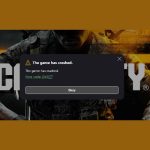
Experiencing the dreaded “lobby not found error code 2901 mw3 pc” can abruptly halt your gaming session, leaving you staring at a connection error instead of engaging in the next intense match. This particular issue, common across various Call of Duty titles, often points to a breakdown in communication between your PC, the game’s servers, or your local network. It’s a frustrating roadblock, but one that’s typically solvable with a systematic approach.
At a Glance
- Understand the Root Causes: Error 2901 on MW3 PC stems from server issues, corrupted files, outdated drivers, or network problems.
- Prioritize Server Status: Always check official Activision server health first—it’s the quickest potential fix.
- Systematic Troubleshooting: Follow a logical sequence: restarts, file verification, updates, then deeper network checks.
- PC-Specific Solutions: Learn how to use Battle.net/Steam tools for file integrity and manage graphics drivers effectively.
- When to Call for Backup: Recognize when the problem is beyond your control and requires ISP or Activision Support intervention.
Deciphering Error 2901: Why Your MW3 PC Can’t Find a Lobby
When Call of Duty: Modern Warfare III on your PC flashes “Lobby not found” with error code 2901, it’s essentially telling you it can’t establish or maintain a stable connection to Activision’s game servers. This isn’t just a simple internet drop; it’s a specific communication failure that can manifest in several ways, from being unable to join any game to getting disconnected mid-match. While the error message itself is concise, the underlying reasons can be diverse.
On a PC, these issues often boil down to a few key areas: Activision’s own infrastructure experiencing hiccups, your game client being out of sync, or something on your local network preventing a clean connection. We’ll focus on how to systematically eliminate each possibility to get you back into the action.
First Line of Defense: Server Checks & Basic Resets
Before diving into complex troubleshooting, always start with the simplest and most effective steps. Many “lobby not found” errors are resolved right here.
Verifying MW3 Server Status
The most common culprit for Error 2901 is often not on your end at all. Activision’s servers, like any massive online infrastructure, undergo maintenance, experience unexpected outages, or get overwhelmed during peak times.
- Action Plan:
- Activision Online Services: Visit the official Activision Online Services Status page. Look specifically for Modern Warfare III (MW3) and your PC platform (Battle.net/Steam).
- Platform-Specific Status: Check the Battle.net Support page or Steam Status for any reported issues that might impact game connectivity.
- Community Forums: Browse social media (e.g., Twitter/X accounts for Call of Duty or Activision Support) and community forums like Reddit for real-time player reports. If many others are reporting the same issue, it’s a server-side problem, and patience is your best course of action.
- Outcome: If servers are down or experiencing issues, your work here is done for now. Wait for restoration and try again.
The Power Cycle Protocol: A Universal Fix
Never underestimate the power of a full restart. This simple action clears temporary glitches, refreshes network connections, and reloads game data from a clean state.
- Action Plan:
- Quit MW3 Completely: Close the game application through your taskbar or Task Manager.
- Exit Game Launcher: Fully quit Battle.net or Steam. Ensure it’s not just minimized to the system tray.
- Restart Your PC: Perform a full shutdown and restart of your computer. This clears cached data and refreshes system processes.
- Router/Modem Restart: Unplug your internet router and modem from power for at least 30 seconds. Plug them back in and wait for all indicator lights to return to normal (typically 2-3 minutes). This refreshes your internet connection and clears any transient network errors.
- Outcome: Many temporary network and software conflicts causing Error 2901 are resolved by this comprehensive reset.
Optimizing Your PC Setup for MW3
If basic restarts didn’t solve the “lobby not found error code 2901 mw3 pc,” it’s time to look at your game files, drivers, and account settings specific to your PC environment.
Game File Integrity: A Must-Do Audit
Corrupted or incomplete game files are a frequent cause of instability and connection errors. This can happen during downloads, updates, or even due to unexpected PC shutdowns. Verifying game file integrity checks your installed files against the official versions and replaces any that are damaged or missing.
- Action Plan (Choose Your Launcher):
- For Battle.net Users:
- Open the Battle.net desktop app.
- Select Call of Duty: MWIII from your games list.
- Click the cogwheel icon (Options) next to the “Play” button.
- Choose “Scan and Repair” from the dropdown menu.
- Click “Begin Scan” and allow the process to complete. This can take several minutes, depending on your system and the extent of the corruption.
- For Steam Users:
- Open the Steam client.
- Go to your “Library.”
- Right-click on “Call of Duty: Modern Warfare III.”
- Select “Properties.”
- Navigate to the “Installed Files” tab.
- Click “Verify integrity of game files…” and let Steam run its check.
- Outcome: This process ensures your MW3 installation is pristine, eliminating file corruption as a source of Error 2901. It’s like giving your game a fresh, clean slate without a full reinstallation.
Driver & Game Updates: Staying Current is Key
Outdated software, whether it’s the game itself or your PC’s graphics drivers, can introduce compatibility issues that manifest as connection errors or crashes. Always ensure everything is up-to-date.
- Action Plan:
- Update Graphics Drivers:
- NVIDIA: Use GeForce Experience or download directly from the NVIDIA website.
- AMD: Use AMD Software: Adrenalin Edition or download from the AMD website.
- Intel: Use the Intel Driver & Support Assistant or download from the Intel website.
- Best Practice: Perform a “clean installation” if the option is available within your driver software. This removes old driver files that might cause conflicts.
- Update Call of Duty: MWIII:
- Battle.net: The launcher usually prompts you for updates, but you can manually check by selecting MWIII and looking for an “Update” button instead of “Play.”
- Steam: Steam typically handles game updates automatically. You can verify by right-clicking MWIII in your library > Properties > Updates tab to ensure it’s set to “Always keep this game updated.”
- Outcome: Keeping your drivers and game client current minimizes compatibility issues and ensures you’re running the most stable version, crucial for online connectivity.
Addressing Account & Licensing Glitches (PC Perspective)
While the broader context of Error 2901 mentions Game Pass and Xbox-specific account issues, on PC, the primary account concerns for MW3 revolve around your Activision ID and the launcher accounts (Battle.net/Steam). A glitch in the login or cached data can sometimes prevent proper server authentication.
- Action Plan:
- Re-login to Activision Account (In-Game):
- Launch MW3.
- Access the Settings menu (often represented by a gear icon).
- Navigate to the “Account & Network” section.
- Look for an option to “Logout” or “Unlink” your Activision account. If present, log out.
- When prompted, log back into your Activision account. Sometimes, this re-establishes a clean connection.
- Clear Launcher Cache:
- Battle.net: Close the Battle.net app completely. Open your File Explorer and type
%ProgramData%in the address bar. Delete theBattle.netfolder. Also, go to%LocalAppData%and delete theBattle.netandBlizzard Entertainmentfolders. Restart Battle.net. - Steam: Close Steam. Go to
C:\Program Files (x86)\Steam(or wherever you installed Steam). Delete theappcachefolder. Restart Steam. - Outcome: Refreshing your account login and clearing cached data can resolve authentication failures or corrupt stored login information that prevents you from accessing lobbies.
Advanced Network Troubleshooting for MW3 PC
If the problem persists, the “lobby not found error code 2901 mw3 pc” likely points to a deeper issue with your network configuration or your Internet Service Provider (ISP).
Bypassing ISP Quirks: The Mobile Hotspot Test
This is a powerful diagnostic step. If MW3 connects successfully using a different internet source, it strongly suggests your primary ISP or home network hardware (router, modem) is the root cause.
- Action Plan:
- Enable Mobile Hotspot: On your smartphone, enable its mobile hotspot feature.
- Connect PC to Hotspot: Connect your gaming PC to this mobile hotspot.
- Launch MW3: Try launching Call of Duty: MWIII and joining a lobby.
- Outcome:
- If MW3 works: This indicates your main home internet connection (ISP, router, modem) is problematic. You should then contact your ISP, explaining the issue and the diagnostic steps you’ve taken. You might need a new IP address, a router firmware update, or specific port forwarding advice for MW3.
- If MW3 still doesn’t work: The issue is likely with your PC’s software, game installation, or Activision’s servers themselves, narrowing down your troubleshooting focus.
Firewall & Antivirus Interference
Your PC’s security software, while essential, can sometimes be overzealous and block legitimate game connections. Windows Firewall or a third-party antivirus might be silently preventing MW3 from communicating with servers.
- Action Plan:
- Check Windows Firewall:
- Go to “Start” > type “Windows Security” > “Firewall & network protection.”
- Click “Allow an app through firewall.”
- Look for “Call of Duty: Modern Warfare III” and its associated launcher (Battle.net/Steam Client). Ensure both “Private” and “Public” boxes are checked. If not listed, click “Change settings” and then “Allow another app…” to add the game’s executable.
- Temporarily Disable Third-Party Antivirus: For diagnostic purposes, temporarily disable any third-party antivirus software you have running. Try launching MW3. If it works, you’ll need to add MW3 and its launcher as exceptions within your antivirus program’s settings.
- Outcome: Confirming that your security software isn’t blocking MW3 ensures a clear path for game data. Remember to re-enable your antivirus if it wasn’t the issue.
DNS Flush & IP Release/Renew
Your PC uses a Domain Name System (DNS) server to translate website names (like activision.com) into IP addresses. Sometimes, cached DNS entries or an old IP address can cause connectivity issues. Flushing these can often clear up communication problems.
- Action Plan:
- Open Command Prompt as Administrator:
- Go to “Start” > type “cmd” > Right-click “Command Prompt” > “Run as administrator.”
- Execute Commands: Type the following commands one by one, pressing Enter after each:
ipconfig /flushdns(clears your DNS cache)ipconfig /release(releases your current IP address)ipconfig /renew(obtains a new IP address)
- Restart PC: After executing these commands, perform a full PC restart before attempting to launch MW3 again.
- Outcome: This refreshes your PC’s network configuration, similar to a mini-router restart but focused on your machine’s network settings.
The Deeper Dive: When to Seek Broader Solutions
Even with these targeted MW3 PC fixes, some “lobby not found error code 2901” issues can stem from more fundamental network or account-level problems that apply across Call of Duty titles. For instance, underlying issues with how your Activision account is authenticated or deeper network configurations can sometimes be the culprit, irrespective of the specific game.
Sometimes, the core network and account principles apply across Call of Duty titles. For a more exhaustive look at underlying causes that might extend beyond MW3 PC, you might find the broader guide on the Black Ops 6 Lobby Not Found Fix helpful. That resource offers a wider perspective on troubleshooting methodologies that can cross-pollinate with MW3 PC issues.
If you’ve exhausted all PC-specific and general network troubleshooting steps and you’re still encountering Error 2901, it’s time to escalate.
- Contact Activision Support: Provide them with all the troubleshooting steps you’ve already tried. They can investigate your account status, server-side data, and provide more personalized solutions.
- Contact Your ISP: If the mobile hotspot test confirmed your ISP as the likely cause, give them a detailed account of the issue and your diagnostic steps. They may need to troubleshoot your line, provision your connection, or suggest router changes.
Practical Playbook: A Decision Tree for Error 2901
Here’s a streamlined approach to tackling “lobby not found error code 2901 mw3 pc,” prioritizing the most effective and least invasive steps first.
- Check Server Status (Activision & Your Launcher):
- Is MW3 down for maintenance or experiencing outages?
- Yes: Wait it out.
- No: Proceed to step 2.
- Perform Full System Restarts:
- Restart MW3, Battle.net/Steam, your PC, and your router/modem.
- Still Error 2901? Proceed to step 3.
- Verify Game File Integrity:
- Use Battle.net’s “Scan and Repair” or Steam’s “Verify integrity of game files” for MW3.
- Still Error 2901? Proceed to step 4.
- Update Everything:
- Ensure your graphics drivers are up-to-date (clean install if possible).
- Confirm MW3 is on its latest version.
- Still Error 2901? Proceed to step 5.
- Refresh Account & Cache:
- Log out and re-login to your Activision account within MW3.
- Clear the cache for your Battle.net or Steam launcher.
- Still Error 2901? Proceed to step 6.
- Test Your Network Connection:
- Try connecting your PC to a mobile hotspot and launch MW3.
- Works on Hotspot: Contact your ISP.
- Still Error 2901: Proceed to step 7.
- Advanced Network Refresh:
- Check Windows Firewall/antivirus for MW3 exceptions.
- Perform
ipconfig /flushdns,ipconfig /release,ipconfig /renewin Command Prompt, then restart PC. - Still Error 2901? Contact Activision Support, providing a summary of all steps taken.
Quick Answers: Your MW3 PC Lobby Not Found FAQ
Why does Error 2901 happen specifically on PC?
On PC, Error 2901 often relates to the interaction between the game client (MW3), the chosen launcher (Battle.net or Steam), your operating system’s network stack, and graphics drivers. Unlike consoles, which have a more standardized environment, PC variables like custom hardware, background applications, and diverse driver versions can introduce unique conflicts.
Is “lobby not found error code 2901” always my internet’s fault?
No, absolutely not. While network issues are a common cause, server-side problems at Activision, corrupted game files on your PC, outdated drivers, or even account authentication glitches can all trigger Error 2901. It’s crucial to systematically check all possibilities before blaming your internet connection.
Can using a VPN help or hurt with Error 2901?
A VPN can both help and hurt. If your ISP is routing your connection poorly to Activision’s servers, a VPN might route you through a different, more stable path, resolving the issue. However, a poorly configured VPN, one with high latency, or one connecting to a server far from your game region can introduce connectivity problems, making the “lobby not found” error worse. Use it as a diagnostic tool, but typically try to play without one first.
How often do I need to check for driver updates?
For graphics drivers, it’s generally good practice to check for updates when a new major game releases, or if you encounter performance issues or errors like 2901. For MW3, NVIDIA and AMD frequently release “Game Ready” drivers specifically optimized for new Call of Duty titles. Aim for at least once every few months or immediately after a major game patch.
What if only MW3 has this issue, but other online games work fine?
If other online games connect perfectly, it strongly suggests the problem is specific to MW3’s installation, its interaction with Activision’s servers, or its requirements for network ports. In this scenario, focus heavily on verifying MW3 game files, ensuring the game is updated, checking Activision server status, and clearing the Battle.net/Steam cache, as these are the most common unique points of failure for a single game.
Your Next Steps to Rejoining the Fight
Encountering “lobby not found error code 2901 mw3 pc” can feel like hitting a wall, but it’s rarely an unfixable problem. The key is to approach troubleshooting methodically, starting with the simplest solutions and progressing to more complex ones. Most often, a full system restart, a quick server status check, or verifying your game files will get you back into the match. Remember, patience and persistence are your best allies in overcoming these technical hurdles. If all else fails, don’t hesitate to reach out to Activision Support with a clear summary of your efforts. Happy gaming!

- Lobby Not Found Error Code 2901 MW3 PC Simple Fixes - May 1, 2026
- Fixing Error Cause 10 Error Code 2901 in Black Ops 6 - April 30, 2026
- Error Cause 10 Bo6 Often Means Server Or Account Issue - April 29, 2026