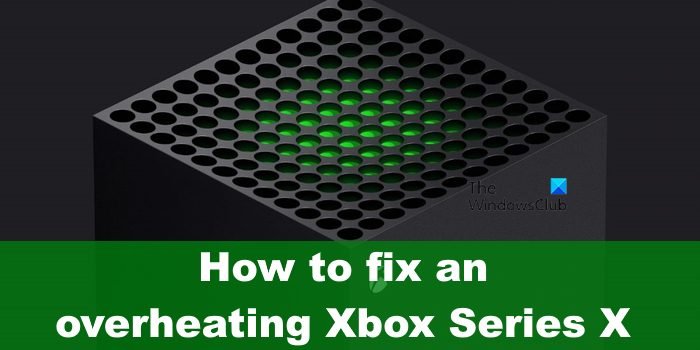
Your Xbox Series X is a powerhouse, built for seamless gaming. So when it suddenly freezes mid-game, it’s not just frustrating; it’s a jarring halt to your immersive experience. The immediate thought is, “How do I fix my Xbox Series X freezing?” This isn’t just about a brief glitch; persistent freezing can signal underlying issues that, if ignored, might lead to more severe problems. Let’s dive deep into understanding why your console might be locking up and, more importantly, how you can swiftly get back into the game.
At a Glance: Your Quick Fixes for Xbox Series X Freezing
- Power Cycle First: A full power cycle (hard reset) is your best initial step to clear temporary glitches and system cache.
- Check for Updates: Outdated system software or games are prime culprits for stability issues.
- Manage Storage: A full or fragmented drive can slow down and freeze your console.
- Monitor for Overheating: Ensure proper ventilation and clean vents to prevent thermal shutdowns.
- Review Quick Resume: This convenient feature can sometimes cause game instability; consider closing games fully.
- When in Doubt, Reinstall: Corrupted game files are a common cause of game-specific freezing.
Unpacking the Freeze: More Than Just a Crash
A freeze differs slightly from a game crash. A crash typically exits you to the dashboard or shuts down the console entirely. A freeze, however, often leaves your game image static on the screen, sometimes with looping audio, completely unresponsive to controller input. This state often precedes a full crash or requires a hard reset to recover. It’s a clear signal that your Xbox Series X is struggling with something, be it software, hardware, or environmental stress.
Understanding the common culprits is the first step towards a lasting solution. Many issues that cause a full game crash—like software bugs, overheating, or storage woes—can manifest as a freeze first. Identifying the root cause is key to implementing an effective fix.
The Immediate Response: Unfreezing Your Xbox Series X
When your screen locks up, you need a quick way out. Here’s the go-to sequence to regain control.
The Soft Reset: Quick Bailout
If your controller is still somewhat responsive, or if the freeze is momentary and you want to prevent a full hard reset:
- Hold the Xbox Button: On your controller, press and hold the glowing Xbox button.
- Select “Restart Console”: If the menu appears, navigate to “Restart console” and select it. This attempts a graceful reboot, clearing temporary memory without a full power down.
Why this helps: It’s the least intrusive way to reset the system. If the freeze was a one-off software hiccup, this often resolves it.
The Power Cycle: The Ultimate Cache Cleaner
This is your most reliable first aid for persistent freezing. It’s more thorough than a soft reset because it completely drains residual power, effectively clearing the system’s cache. Think of it as hitting the “reset everything” button for your console’s temporary data.
- Full Console Shutdown: Press and hold the Xbox button on the front of your console for a full 10 seconds. You’ll hear it power down. Don’t just tap it; hold it until the light goes out.
- Unplug the Power: Disconnect the power cord from the back of the Xbox Series X. Crucially, wait at least 30 seconds, or even up to 5 minutes. This extended wait time ensures that all internal capacitors discharge, fully clearing the console’s volatile memory (cache).
- Reconnect and Power On: Plug the power cord back in, then press the Xbox button on the console or your controller to turn it back on.
Why this helps: A power cycle is incredibly effective at resolving a wide range of issues caused by corrupted temporary files, system glitches, or memory leaks that accumulate over time. It gives your Xbox a truly fresh start. Many common game crashes, often preceded by freezing, can be resolved with this technique. If you’re encountering freezing alongside other game stability issues, a thorough power cycle is a fundamental step to troubleshoot. For a broader look at resolving similar game stability issues, you might find more comprehensive guidance on how to fix Xbox Series X game crashes.
Proactive Measures: Preventing Future Freezes
Once you’ve un-frozen your console, the goal shifts to preventing it from happening again. This involves a more systematic approach to your Xbox Series X’s health.
Keep Everything Updated: The Software Shield
Outdated software is a classic source of instability. Developers constantly release patches to fix bugs, improve performance, and address compatibility issues that could lead to freezing.
- System Software First:
- Navigate to Settings > System > Updates.
- Ensure “Keep my console up to date” is checked, and manually check for any available updates.
- Analogy: Running an outdated console OS is like trying to drive a car with worn-out tires; it’s asking for trouble, especially on bumpy roads.
- Game Updates Matter:
- From your home screen, go to My Games & Apps.
- Select Manage > Updates. Install any pending updates.
- Case Snippet: Many players reported frequent freezing in a popular open-world game shortly after launch. The developer quickly released a day-one patch that specifically addressed memory leaks causing these freezes. Without the update, the game was nearly unplayable for some.
Storage Health: The Silent Performance Killer
Your Xbox Series X’s storage isn’t just for holding games; it’s actively used for game assets, saves, and system functions. A struggling storage drive can cause significant performance degradation, leading to freezes.
- Free Up Space:
- Go to My Games & Apps > Games.
- Highlight games you no longer play, press the Menu button (three horizontal lines), and select Uninstall.
- Aim to keep at least 15-20% of your internal SSD free. When storage gets too full, the system struggles to manage data and create necessary temporary files.
- Pitfall: Many users fill their SSDs to capacity, not realizing that modern consoles need “breathing room” for optimal operation.
- Check External Storage:
- If you use an external HDD or SSD, disconnect it and see if the freezing stops. Faulty external drives, or even slow ones, can bottleneck your system.
- If you suspect an external drive is the problem, try formatting it (after backing up any data). Ensure it’s a fast, reliable drive, ideally USB 3.0 or higher.
- Decision: If a game consistently freezes when installed on an external drive but runs fine on the internal SSD, the external drive is likely the culprit.
- Reinstall Problematic Games:
- Corrupted game files are a very common cause of game-specific freezing. The installation process might have encountered an error, or a recent update didn’t apply correctly.
- Uninstall the game completely.
- Perform a full power cycle (as described above).
- Reinstall the game. Ideally, install it on the internal SSD first to rule out external drive issues.
Overheating Vigilance: Keeping Your Cool
An overheated Xbox Series X will inevitably slow down, stutter, and eventually freeze or shut down to protect its components.
- Ensure Proper Ventilation:
- Your Xbox Series X needs space. Position it vertically or horizontally with at least 4-6 inches of clear space on all sides, especially around the large top vent (if vertical) or side vents (if horizontal).
- Avoid enclosed cabinets or placing it on thick carpet that can block airflow.
- Example: Placing an Xbox Series X inside a cramped entertainment unit with a closed back can significantly trap heat, leading to rapid temperature increases.
- Clean Vents Regularly:
- Dust is the enemy of electronics. Over time, dust accumulates inside the console, acting as an insulating blanket and blocking airflow.
- Gently use compressed air to clear dust from the visible vents. Hold the can upright and use short bursts to avoid moisture buildup.
- Warning: Never use a vacuum cleaner directly on the vents, as static electricity can damage components.
- Listen to Your Fan:
- A loud, constantly whirring fan can indicate your console is working overtime to dissipate heat. While normal during intense gaming, if it’s consistently loud even in menus or during light loads, it’s a red flag.
- If you suspect overheating despite good ventilation, it might be time for deeper internal cleaning or a service check.
Network Stability: For the Connected Gamer
While less common for a full console freeze, an unstable internet connection can certainly cause online games to lock up or kick you out, sometimes mimicking a freeze.
- Check Your Connection:
- Go to Settings > General > Network settings > Test network connection.
- Look for high latency, packet loss, or slow download/upload speeds.
- Tip: If you’re relying on Wi-Fi, try connecting your Xbox directly to your router with an Ethernet cable. A wired connection is almost always more stable and faster.
Deeper Dives: Specific Scenarios & Hardware Checks
Sometimes the freeze is tied to specific features or even hardware.
The Quick Resume Conundrum
Quick Resume is fantastic, letting you jump back into multiple games instantly. However, it’s not without its quirks. Sometimes, leaving a game suspended in Quick Resume for an extended period, or if the game itself isn’t perfectly optimized for the feature, can lead to instability, including freezes, when you try to resume it.
- Bypass Quick Resume: If a game frequently freezes upon resuming:
- When you’re done playing, instead of just switching games or turning off your Xbox, quit the game completely from the Xbox dashboard (highlight the game, press the Menu button, then select “Quit”).
- This ensures the game starts fresh each time, bypassing any potential Quick Resume conflicts.
- Decision: If consistently quitting a game resolves freezing issues, Quick Resume was likely the culprit for that particular title.
Game-Specific Freeze Points
Not all freezes are your Xbox’s fault. Some games, especially new releases or those with complex engines, can have inherent bugs that cause freezes on all platforms.
- Research Online: If a specific game keeps freezing, do a quick search online (e.g., “[Game Name] Xbox Series X freezing”). Check official forums, Reddit, or game support pages.
- Example: A particular bug in a popular RPG caused inventory screens to freeze the game for several seconds. The community quickly identified it, and the developer later patched it.
- Contact Developer Support: If it’s a known, unaddressed issue, reporting it directly to the game developer can help expedite a fix.
Peripheral and Cable Integrity
Don’t overlook the simple things. Faulty cables or external devices can also introduce instability.
- HDMI Cable: A damaged or loose HDMI cable can cause display issues that might appear like a freeze. Try a different HDMI port on your TV, or swap the cable entirely.
- Power Cable: Ensure the power cable is securely connected to both the console and a working wall outlet. Try a different outlet to rule out power strip or surge protector issues.
- External Drives: As mentioned, a failing external drive can wreak havoc. If you use one, try disconnecting it entirely and see if the problem persists when playing games from the internal SSD.
The “Last Resort” Button: Factory Reset
If you’ve exhausted all other troubleshooting steps and your Xbox Series X continues to freeze regularly, a factory reset is often the most comprehensive software solution. It effectively wipes the console’s operating system clean and reinstalls it, removing any deeply embedded corruption.
- Navigate to Reset Options:
- Go to Settings > System > Console info > Reset console.
- Choose Your Reset Type:
- “Reset and keep my games & apps”: This is often the best first option for troubleshooting. It resets the console’s operating system but preserves your installed games and apps. You’ll still need to re-log into your profile and redo some settings.
- “Reset and remove everything”: This option completely wipes the console clean, returning it to factory settings as if it were brand new. Crucially, this will delete all your games, apps, save data, and profiles. Only choose this if “Reset and keep my games & apps” failed, and ensure all important game saves are synced to the cloud (which Xbox does automatically for most games if you’re online).
Why this helps: A factory reset eliminates almost all software-related causes of freezing, acting as a clean slate. It’s a powerful diagnostic tool; if the console still freezes after a full factory reset, it strongly points towards a hardware issue.
When It’s Beyond Software: Hardware Concerns
After trying every software fix, if your Xbox Series X still succumbs to freezing, it’s time to consider a potential hardware problem. These are rarer but can include issues with the internal SSD, CPU, GPU, or other core components.
- Signs of Hardware Failure:
- Freezing occurs consistently across multiple games, including simple menu navigation.
- Freezing happens even after a full factory reset.
- Unusual noises (grinding, clicking) or error codes accompany the freeze.
- The console runs excessively hot despite adequate ventilation.
- Contact Microsoft Support: If you suspect a hardware issue, your next step is to contact Xbox Support.
- Have your console’s serial number ready.
- Detail all the troubleshooting steps you’ve already tried.
- Most Xbox Series X consoles come with a one-year manufacturer’s warranty, which covers hardware defects. Don’t delay if you’re within this period.
Your Freeze-Proofing Playbook: A Quick Decision Guide
Facing a freeze? Here’s a quick-fire sequence to troubleshoot:
- Immediate Freeze:
- Try Soft Reset (Xbox button on controller, Restart console).
- If unresponsive, perform a Power Cycle (Hold console Xbox button for 10s, unplug for 30s-5mins).
- Persistent Freezing (General):
- Check for System Updates (Settings > System > Updates).
- Clear Storage (Delete unused games, ensure 15-20% free space).
- Ensure Proper Ventilation & Clean Vents (Physical inspection, compressed air).
- Check Network Connection (Settings > General > Network settings, consider Ethernet).
- Persistent Freezing (Specific Game):
- Check for Game Updates (My Games & Apps > Updates).
- Reinstall the Game (Uninstall, Power Cycle, Reinstall on internal SSD).
- Bypass Quick Resume (Quit game fully after playing).
- Research Game-Specific Issues (Online forums, developer support).
- All Else Fails (Last Resort):
- Factory Reset (“Reset and keep my games & apps” first, then “Reset and remove everything” if necessary).
- Still Freezing?
- Contact Microsoft Support – likely a hardware issue.
Quick Answers: Your Freezing FAQs
Why does my Xbox Series X keep freezing?
Xbox Series X freezing often stems from software glitches (outdated OS/games, corrupted files), overheating due to poor ventilation, full or problematic storage drives, or occasional conflicts with features like Quick Resume. Hardware faults are less common but can also be a cause.
Does Quick Resume cause freezing?
Sometimes, yes. While a great feature, Quick Resume can occasionally lead to game instability or freezes, especially if a game has been suspended for a long time or if there are underlying game-specific bugs. Quitting games completely before turning off your Xbox or switching games can help prevent this.
How often should I power cycle my Xbox?
It’s a good practice to perform a full power cycle (hard reset) at least once every few weeks, or whenever you notice any performance hiccups, slowdowns, or minor glitches. It effectively clears the system cache and can prevent many issues before they become major.
Can a full hard drive make my Xbox freeze?
Absolutely. A nearly full internal SSD can significantly impact your Xbox Series X’s performance. The system needs free space to operate efficiently, create temporary files, and manage game assets. When storage is constrained, it can lead to slowdowns, stuttering, and ultimately, freezing. Aim to keep at least 15-20% of your storage free.
When should I contact Xbox Support for freezing?
You should contact Xbox Support if you’ve diligently tried all the major troubleshooting steps, including power cycling, checking for updates, managing storage, monitoring for overheating, trying a factory reset, and the freezing still persists across multiple games or even on the dashboard. This often indicates a potential hardware problem requiring professional diagnosis.
A freezing Xbox Series X is a nuisance, but rarely a death knell. By systematically working through these troubleshooting steps, you’re not just fixing the immediate problem; you’re also building a healthier, more stable gaming environment for the long run. Regular maintenance, smart storage management, and vigilance against overheating are your best defenses. Game on, knowing you’ve got the tools to tackle those frustrating freezes.

- Fixing Error Cause 10 Error Code 2901 in Black Ops 6 - April 30, 2026
- Error Cause 10 Bo6 Often Means Server Or Account Issue - April 29, 2026
- Bo6 Lobby Not Found Error Cause 10 Prompts Easy Fixes - April 29, 2026