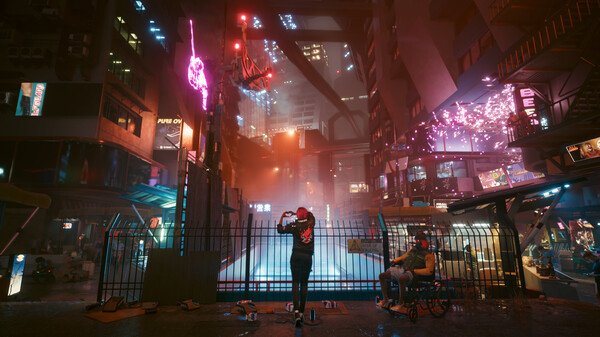
Night City can be unforgiving, and when your game is suffering from Cyberpunk constantly crashing, it pulls you right out of the chrome-plated action. It’s frustrating to be mid-heist, only for your screen to freeze or dump you back to your desktop without a single error message. This isn’t just a minor glitch; constant instability can make the game unplayable, and pinning down the exact cause often feels like trying to find a needle in a digital haystack.
We get it. You’ve invested in a fantastic game, and you want to experience it smoothly. This deep dive focuses specifically on those persistent, often silent crashes, equipping you with targeted strategies to diagnose and fix the root causes, turning your frustrating crashes into smooth, uninterrupted gameplay.
At a Glance
- Target Drivers First: Outdated or corrupted graphics drivers are the most frequent culprits; always start here.
- System Check-Up: Verify game file integrity and ensure your hardware isn’t overheating or struggling under load.
- Trim the Fat: Disable background apps, overlays, and, crucially, test without mods to pinpoint conflicts.
- Settings Sweet Spot: Aggressively lowering demanding graphics options can often stabilize an otherwise shaky experience.
- Clean Slate: Sometimes, a complete reinstallation is the only way to banish persistent file corruption.
Understanding the Instability: Why Cyberpunk Crashes Persist
Cyberpunk 2077, even after significant updates like 2.0, remains a graphically intensive and complex game. This complexity means there are numerous points of failure, from the moment you click ‘Play’ to the most demanding combat sequences. Crashes aren’t always a sign of a broken game; they’re often a symptom of a mismatch between the game’s demands and your system’s capabilities or configuration.
Common crash scenarios include silent desktop returns during startup, mid-cutscene freezes, random in-game crashes, or even issues when loading a save. These usually point to a few core problems: a system overwhelmed, conflicting software, corrupted game files, or outdated system components. The key is to systematically eliminate these possibilities, moving from the simplest, most common fixes to more in-depth diagnostics.
First Line of Defense: Graphics Drivers and Game Integrity
When Cyberpunk is constantly crashing, your graphics drivers are the prime suspect. They’re the bridge between the game and your GPU, and any instability here can wreak havoc. Similarly, corrupted game files can lead to unpredictable behavior, including silent crashes.
Updating or Rolling Back Your Graphics Drivers
Always ensure your graphics drivers are up-to-the-minute. Both NVIDIA and AMD frequently release game-ready drivers optimized for new titles or major game updates.
The Clean Install Advantage:
Simply updating over an existing driver isn’t always enough. Residual files from older drivers can cause conflicts. A “clean install” ensures all previous driver components are removed before installing the new ones.
- NVIDIA: Use the custom installation option in the GeForce Experience installer and check the “Perform a clean installation” box.
- AMD: Utilize the “Factory Reset” option during the Adrenalin Software installer or use the AMD Cleanup Utility.
When to Roll Back:
Sometimes, a brand-new driver can introduce unforeseen bugs. If your crashes started immediately after a driver update, consider rolling back to the previous stable version. Windows Device Manager allows you to roll back drivers for your display adapter. If that option isn’t available, you’ll need to manually download and install an older, known-stable driver version from your GPU manufacturer’s website.
Verifying Game File Integrity
Corrupted or missing game files are a frequent, silent culprit. Your game launcher can check and repair these automatically.
- Steam: Right-click Cyberpunk 2077 in your Library > Properties > Installed Files > “Verify integrity of game files…”.
- GOG Galaxy: Select Cyberpunk 2077 in your Library > Settings icon (next to ‘Play’) > Manage Installation > Verify / Repair.
This process scans all game files against the official versions and replaces any that are damaged or missing. It’s a quick, non-invasive step that resolves many common crashing issues.
Case Snippet: A user reported crashes primarily when entering specific districts. Verifying game files through Steam revealed a handful of corrupted texture files specific to those areas. After repair, the crashes ceased.
Taming the Beast: System Resources and Software Conflicts
Cyberpunk 2077 can be a demanding game. Even if your hardware meets the minimum specs, a cluttered system or conflicting background processes can push it over the edge, leading to crashes.
Closing Background Applications and Overlays
Every program running in the background consumes CPU, RAM, and GPU resources. Overlays (like those from Steam, Discord, NVIDIA GeForce Experience, or AMD Adrenalin) are particularly notorious for conflicting with games and causing instability.
Action Steps:
- Task Manager Cleanup: Press
Ctrl + Shift + Escto open Task Manager. Go to the “Processes” tab and end any non-essential applications that are consuming significant resources (e.g., web browsers with many tabs, streaming apps, other game launchers). - Disable Overlays:
- Steam: Settings > In-Game > Uncheck “Enable the Steam Overlay while in-game.”
- Discord: User Settings > Game Overlay > Toggle off “Enable in-game overlay.”
- NVIDIA GeForce Experience: Open GFE > Settings > General > Toggle off “In-Game Overlay.”
- AMD Adrenalin: Open Adrenalin Software > Performance > Metrics > Disable “In-Game Overlay.”
Running the game with administrator privileges can also resolve permission-related crashes. Right-click the Cyberpunk 2077 shortcut or executable and select “Run as administrator.”
Adjusting In-Game Graphics Settings
While you might want to see Night City in all its glory, demanding settings are a common reason for Cyberpunk constantly crashing, especially if your hardware is borderline or thermal throttling.
A Systematic Approach to Lowering Settings:
- Start with Presets: If you’re currently on “Ultra,” try “High” or even “Medium” to establish a baseline of stability.
- Key Impact Settings:
- Texture Quality: Directly impacts VRAM usage. Lowering this can significantly reduce crashes related to memory limits.
- Shadow Quality/Resolution: Shadows are incredibly demanding. Reduce these first.
- Volumetric Fog/Cloud Quality: Visually impactful but resource-heavy.
- Ray Tracing: If enabled, this is a massive performance hit. Disable it entirely for testing. If stability improves, re-enable selectively (e.g., just reflections) with caution.
- Resolution: Dropping from 4K to 1440p or 1080p will offer a substantial performance boost and reduce strain.
- Frame Rate Limiter: Cap your in-game FPS to match your monitor’s refresh rate (e.g., 60 FPS for a 60Hz monitor). This prevents your GPU from working harder than necessary, reducing heat and potential instability.
- Hardware-Accelerated GPU Scheduling (HAGS): On Windows 10/11, enable HAGS (Settings > System > Display > Graphics > Change default graphics settings). This can improve performance and stability on compatible hardware, but some users have reported it causing issues in specific setups; test with it both enabled and disabled.
Decision Point: If your crashes become less frequent or disappear entirely after lowering settings, you’ve identified a system overload issue. Gradually increase settings one by one to find the sweet spot between visuals and stability.
The Modding Minefield: When Customization Causes Chaos
Mods can enhance Cyberpunk 2077 exponentially, but they are also a leading cause of instability. Mod conflicts, outdated mods, or improperly installed mods can instantly make Cyberpunk constantly crashing a persistent problem.
Isolating and Updating Mods
If you’re using mods, and especially if crashes started after installing new ones or a game update, this is where you need to focus your attention.
The Golden Rule: Disable and Test:
- Disable All Mods: Before doing anything else, completely disable or uninstall all your mods. This includes any mod managers, script extenders, or direct file replacements.
- Test Stability: Launch Cyberpunk 2077 without any mods. Play for a significant period in various scenarios (open world, combat, cutscenes).
- If stable: Your crashes were mod-related. Proceed to the next step.
- If still crashing: Mods are likely not the primary culprit. Re-enable them (if desired) and focus on other troubleshooting steps covered in this guide or explore broader solutions like those found in our main guide: Effective Cyberpunk crashing fixes.
Re-Enabling One By One:
If mods were the cause, the painstaking process of re-enabling them one at a time begins:
- Start with Core Mods: If you use a mod manager (like Vortex or RedMod), re-enable essential framework mods (e.g., Cyber Engine Tweaks, ArchiveXL, TweakXL, RED4ext) first.
- Add Individually: After confirming stability with core mods, add other mods one by one, testing the game thoroughly after each addition.
- Identify the Culprit: The mod you added just before the crashes return is likely the problem.
Mod Maintenance Best Practices:
- Stay Updated: Always check mod pages for updates, especially after a game patch. An outdated mod is a guaranteed crash-inducer.
- Read Descriptions: Pay attention to installation instructions, compatibility notes, and known issues.
- Trusted Sources: Only download mods from reputable sites (e.g., Nexus Mods).
- Backup: Before installing many mods, back up your save files and possibly your game installation.
Case Snippet: After a major game update, a player’s game started crashing immediately upon loading. Disabling all 200+ mods and re-enabling them revealed that an outdated ‘Street Vendor Menu’ mod was causing a script conflict, not yet updated for the new game version.
System Health and Hardware Integrity
Beyond software, your physical hardware plays a critical role. Overheating, insufficient power, or failing components can easily manifest as constant game crashes.
Preventing Overheating
Your CPU and GPU generate significant heat under load. If this heat isn’t dissipated effectively, components will throttle performance or, worse, shut down to prevent damage, often leading to a crash.
Checklist for Thermal Management:
- Clean Your PC: Dust buildup in fans, heatsinks, and vents acts as an insulator, trapping heat. Regularly clean your case, CPU cooler, and GPU fans with compressed air.
- Monitor Temperatures: Use monitoring software (e.g., HWMonitor, MSI Afterburner) to track CPU and GPU temperatures while playing. If your GPU hits 85°C+ or your CPU goes above 90°C, you have a thermal issue.
- Improve Airflow: Ensure your PC case has good airflow, with intake fans pulling cool air in and exhaust fans pushing hot air out.
- Consider Repasting: For older systems, dried-out thermal paste on your CPU or GPU can severely hinder heat transfer. Reapplying fresh thermal paste can make a significant difference.
Power Supply Unit (PSU) Check
A struggling or insufficient PSU can lead to system instability under load. When your CPU and GPU demand peak power, a weak PSU might not deliver, causing crashes.
- Verify Requirements: Check the recommended PSU wattage for your specific GPU model. If your PSU is barely meeting the minimum or is older, it might be time for an upgrade.
- Power Spikes: Even if your PSU meets the wattage, older PSUs might struggle with transient power spikes from modern GPUs.
Diagnosing Hardware Malfunctions
If all software and thermal checks fail, the issue might lie deeper within your hardware.
- RAM Test: Run a memory diagnostic tool (e.g., Windows Memory Diagnostic, MemTest86) to check for RAM errors. Faulty RAM can cause random crashes and bluescreens.
- GPU Stress Test: Use a tool like FurMark or MSI Kombustor to stress-test your GPU. If it crashes during a stress test, it indicates a hardware fault or severe instability with its drivers/cooling.
- CPU Stress Test: Tools like Prime95 can stress your CPU. If it crashes, it might indicate CPU instability or overheating.
Caution: Run stress tests only if you’re comfortable monitoring temperatures. Over-stressing a component, especially without adequate cooling, can be risky.
Reinstallation as a Last Resort
When all else fails, a clean slate can sometimes be the only solution to banish persistent crashes from Cyberpunk 2077. This is particularly effective if you suspect deeply corrupted game files or lingering registry entries from past installations or mods.
The “Deep Clean” Reinstall
Simply uninstalling through your game launcher might leave behind residual files and folders. For a true clean install:
- Uninstall Game: Use your game launcher (Steam, GOG Galaxy) to uninstall Cyberpunk 2077.
- Delete Remaining Folders: Navigate to the location where Cyberpunk 2077 was installed (e.g.,
C:\Program Files (x86)\Steam\steamapps\common\Cyberpunk 2077). Delete the entire “Cyberpunk 2077” folder if it still exists. - Check AppData: Sometimes, user-specific configurations and shader caches can cause issues. Go to
C:\Users\[Your Username]\AppData\Local\CD Projekt Redand delete the “Cyberpunk 2077” folder. (Note:AppDatais a hidden folder; you might need to enable “Show hidden items” in File Explorer’s “View” tab). - Reinstall Game: Download and install Cyberpunk 2077 fresh through your launcher.
This ensures you’re starting with absolutely no previous game data, eliminating potential conflicts.
Quick Answers: Common Crash Queries
Q: My game crashes silently to desktop with no error message. What does that mean?
A: Silent crashes are often indicative of system overload (GPU/CPU hitting limits, VRAM exhaustion), a graphics driver issue, or a conflict with an overlay or background application. Start by updating drivers, verifying game files, and disabling overlays/background apps.
Q: Cyberpunk crashes every time during a specific cutscene. Is it a bug?
A: It could be. Cutscenes, especially pre-rendered ones or those with complex lighting, can be surprisingly demanding. Lowering graphics settings (especially texture quality, shadow quality, and disabling Ray Tracing) can often resolve this. Ensure your graphics drivers are up to date.
Q: My game only crashes after installing new mods. What’s the best way to fix it?
A: This is a classic mod conflict. Disable all mods, test the game. If stable, re-enable mods one by one to find the problematic one. Ensure all your mods are updated for your current game version and are compatible with each other.
Q: Will reinstalling Windows fix Cyberpunk crashes?
A: A complete Windows reinstall is a drastic step and usually unnecessary for game-specific crashes. It would likely resolve issues if your operating system itself is heavily corrupted or cluttered with conflicting software, but it’s a last-ditch effort after exhausting all other troubleshooting for Cyberpunk.
Q: Why does my game crash after I change graphics settings?
A: You likely set one or more settings too high for your system’s capabilities. The change pushes your hardware past its stable limit, leading to an immediate crash. Revert to a lower setting, or launch in “safe mode” if your launcher offers it, and lower settings before loading your save.
Your Cyberpunk Crash Playbook: A Step-by-Step Approach
When your game constantly crashing threatens to ruin your Night City experience, follow this structured troubleshooting path. Start at the top and move down, testing after each major step.
- Driver Check:
- Perform a clean install of the latest NVIDIA/AMD graphics drivers.
- If crashes started after a driver update, roll back to a previous stable driver.
- Game File Integrity:
- Verify the integrity of Cyberpunk 2077 game files through Steam or GOG Galaxy.
- System Cleanup & Permissions:
- Close all unnecessary background applications via Task Manager.
- Disable all in-game overlays (Steam, Discord, NVIDIA, AMD).
- Run Cyberpunk 2077 as an administrator.
- Graphics Settings Adjustment:
- Lower in-game graphics settings significantly (e.g., set preset to Medium, reduce Texture Quality, Shadow Quality, disable Ray Tracing).
- Cap your in-game FPS to your monitor’s refresh rate.
- Test Hardware-Accelerated GPU Scheduling (HAGS) both enabled and disabled.
- Mod Investigation (if applicable):
- Disable all mods.
- Test game stability. If stable, re-enable mods one by one, checking for stability after each.
- Ensure all mods are updated for your current game version.
- Thermal & Power Check:
- Monitor CPU/GPU temperatures while playing. Clean your PC of dust if temperatures are high.
- Ensure your PSU meets or exceeds your system’s recommended wattage.
- Deep Clean Reinstall:
- Uninstall Cyberpunk 2077, then manually delete any remaining game folders and user data folders (
AppData\Local\CD Projekt Red\Cyberpunk 2077). - Reinstall the game from scratch.
- Hardware Diagnostics:
- Run diagnostic tests on your RAM, CPU, and GPU if issues persist.
- Contact Support:
- If you’ve exhausted all these steps, reach out to CD Projekt Red support with a detailed description of your issue and the steps you’ve already taken.
Night City is waiting for you, choom. With these targeted fixes, you should be back to cruising the neon-lit streets and making a name for yourself, free from the frustration of constant crashes.

- Fixing Error Cause 10 Error Code 2901 in Black Ops 6 - April 30, 2026
- Error Cause 10 Bo6 Often Means Server Or Account Issue - April 29, 2026
- Bo6 Lobby Not Found Error Cause 10 Prompts Easy Fixes - April 29, 2026