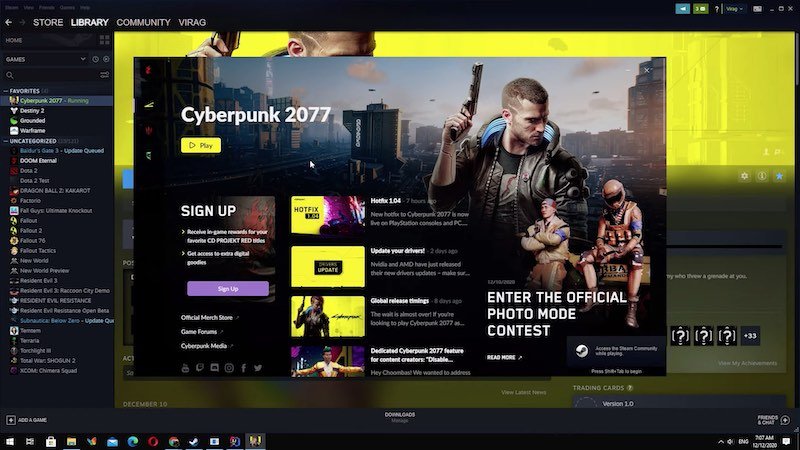
Night City is a sprawling, beautiful, and often brutal place. So, when your game of Cyberpunk 2077 keeps crashing, it’s not just annoying—it’s a full-on immersion breaker. You’re deep into a gig, dodging bullets, only for your screen to freeze, flicker, or simply quit to desktop without a word. For many players, these crashes persist even after numerous patches, making the dream of a smooth, uninterrupted run through the neon-drenched streets feel like a distant memory. But don’t despair, choom. Most of these issues can be tracked down and fixed with a systematic approach.
At a Glance: Solving Your Cyberpunk 2077 Crashes
- Diagnose the crash pattern: Is it on startup, during cutscenes, or random? This helps pinpoint the root cause.
- Prioritize quick fixes: Update drivers, verify game files, and close background apps first.
- Manage mods carefully: Outdated or conflicting mods are a leading cause of instability.
- Optimize graphics settings: Lowering demanding options can significantly improve stability.
- Monitor system health: Overheating or insufficient power can silently sabotage your gameplay.
- Don’t overlook the simple stuff: Admin rights and clean reinstallation can often work wonders.
Why Night City Kicks You Out: Understanding Cyberpunk’s Crashing Patterns
Before diving into fixes, it helps to understand why your Cyberpunk 2077 keeps crashing. The game, for all its improvements, can still be quite demanding and sensitive to system configurations. Crashes aren’t random acts of digital god; they’re symptoms.
Common Crash Scenarios and Their Whispers:
- Crash on Startup: This often points to fundamental compatibility issues or corrupt core game files. Maybe your system can’t load initial assets, or a critical dependency is missing.
- Crash During Cutscenes or Dialogue: These are typically resource-intensive moments where the game loads new environments, complex character models, and high-quality audio/video. A system struggling with the load, or a minor bug in the scene’s scripting, can cause a freeze.
- Random Crashes While Playing: The most frustrating type. These can be performance-related, system stability issues, or even specific bugs triggered by certain game mechanics or locations. Think of it as your system hitting a sudden, unexpected wall.
- Crash After Changing Settings: If you tweak graphics settings and the game immediately crashes, it’s a strong signal you’ve pushed your hardware beyond its comfortable limits. High-resolution textures, shadow quality, or ray tracing settings are common culprits.
- Crash When Loading Saves: This can be particularly alarming. It often indicates a corrupt save file that the game can no longer interpret, or a major discrepancy between the save’s version and your current game version, especially after updates or mod changes.
- Crash After Updates or Mods: A classic. New patches can sometimes introduce unforeseen bugs or, more commonly, break compatibility with your installed mods. An outdated mod trying to hook into a changed game system is a recipe for disaster.
The Usual Suspects Behind the Scenes: - Outdated Graphics Drivers: The number one offender. Graphics drivers are the bridge between your game and your GPU. Old or buggy drivers mean a broken connection.
- System Overload: Running the game on hardware below recommended specs, or having dozens of background apps chewing up RAM and CPU cycles, can lead to your system simply giving up.
- Corrupted Game Files: Bits and bytes getting scrambled, missing files, or partially downloaded updates can cause critical game assets to fail to load.
- Conflicting Software & Mods: Overlays (Steam, Discord, GeForce Experience), antivirus programs, or, most notoriously, poorly installed or incompatible mods can directly interfere with the game’s operation. Large mod collections are especially prone to this.
- Overheating Components: When your CPU or GPU gets too hot, they throttle performance or, worse, shut down to protect themselves, leading to a crash. Poor ventilation or dusty hardware are common causes.
- Post-Patch Instability: Occasionally, even official updates can introduce new bugs or conflicts, requiring further hotfixes or specific workarounds.
Your Troubleshooting Arsenal: Step-by-Step Fixes for Cyberpunk 2077
Now that we understand the “why,” let’s tackle the “how to fix.” Approach these steps systematically. Don’t skip steps, even if they seem minor; sometimes the simplest solution is the most effective.
1. Start with the Basics: Quick Wins
Before diving deep, cover these essential first checks.
- Run as Administrator: Sometimes, the game needs elevated permissions to access necessary system resources.
- Locate your Cyberpunk 2077 shortcut (or the
Cyberpunk2077.exefile in its installation directory). - Right-click on it.
- Select “Run as administrator.”
- Mini-Example: “I used to have crashes when loading certain zones, but simply running as admin cleared it up. Turns out, the game needed write access to some temporary files that Windows was blocking.”
- Close Unnecessary Background Applications: Free up system resources for Cyberpunk. Overlays, web browsers with many tabs, streaming apps, or other games running in the background can starve Cyberpunk of memory and CPU cycles.
- Open Task Manager (Ctrl + Shift + Esc).
- Go to the “Processes” tab.
- Identify any resource-intensive applications you don’t need running.
- Select them and click “End task.”
2. Driver Deep Dive: Your GPU’s Lifeline
Outdated or corrupt graphics drivers are the most frequent culprits for game instability. This step is non-negotiable.
- Update Your Graphics Drivers:
- Identify your GPU: Press Win + R, type
dxdiag, and hit Enter. Go to the “Display” tab to see your graphics card model. - Download the latest driver: Visit the official website for your GPU manufacturer (NVIDIA, AMD). Look for the “Drivers” or “Support” section.
- Perform a clean installation: When installing, select the “Custom” or “Clean Installation” option if available. This removes old driver components that might cause conflicts.
- Pitfall: Installing a generic driver or one from Windows Update might not be optimal. Always go to the manufacturer’s site.
3. Game File Integrity: The Digital Check-Up
Corrupted or missing game files can lead to anything from texture glitches to hard crashes. Verifying your game files ensures everything is where it should be.
- Verify Game Files (Steam / GOG Galaxy): This process scans your game’s installation against the official files and downloads any corrupted or missing data.
- Steam:
- Open your Steam Library.
- Right-click on Cyberpunk 2077.
- Select “Properties.”
- Go to the “Local Files” tab.
- Click “Verify integrity of game files…”
- GOG Galaxy:
- Open GOG Galaxy.
- Select Cyberpunk 2077 from your library.
- Click “More” (the three dots) next to “Play.”
- Hover over “Manage Installation.”
- Select “Verify / Repair.”
- Case Snippet: “After a Windows update, Cyberpunk started crashing every time I tried to fast travel. Running a ‘Verify / Repair’ through GOG found a few missing files, downloaded them, and the issue was gone.”
4. Overlay & Mod Management: Taming the Add-ons
Overlays can inject code into your game, and mods fundamentally alter it. Both are common sources of instability.
- Disable Overlays:
- Steam Overlay:
- Open Steam.
- Go to “Steam” > “Settings” (or “Preferences” on Mac).
- Select “In-Game.”
- Uncheck “Enable the Steam Overlay while in-game.”
- Discord Overlay:
- Open Discord.
- Go to “User Settings” (gear icon).
- Select “Game Overlay.”
- Toggle off “Enable in-game overlay.”
- NVIDIA GeForce Experience / AMD Adrenalin Overlay:
- Open GeForce Experience/AMD Adrenalin software.
- Look for settings related to “In-Game Overlay,” “Instant Replay,” or “Highlights” and disable them.
- Decision Point: If you rely on an overlay for screenshots or framerate monitoring, try disabling it temporarily to test stability. If the crashes stop, you know the overlay is the culprit.
- Manage Your Mods (Crucial for stability!): If you’re a mod user, this is where many crashes originate, especially after game updates.
- Disable ALL mods: The first and most critical step. Remove or disable all your mods. If you use a mod manager, use its functionality to disable them.
- Test the game: If Cyberpunk 2077 runs smoothly without mods, you’ve found your problem.
- Re-enable mods one by one: Reintroduce your mods incrementally, testing the game after each one, until you find the conflicting or outdated mod.
- Update your mods: Always ensure your mods are updated to be compatible with the current version of Cyberpunk 2077. Check mod pages on Nexus Mods for compatibility info.
- Be wary of large visual overhauls: While beautiful, these mods are often the most demanding and prone to conflicts.
- Expert Tip: For complex mod setups, consider a “clean save” (a save game made without any mods) to test stability before loading your heavily modded save.
5. Graphics Settings Mastery: Don’t Over-Demand
Cyberpunk 2077 is graphically intensive. Pushing settings too high can lead to instant crashes or general instability.
- Lower Graphics Settings:
- Start by lowering texture quality, shadow quality, volumetric fog, and crowd density. These are often the biggest performance hogs.
- Reduce your display resolution.
- Disable Ray Tracing entirely. While stunning, it’s incredibly demanding.
- Experiment with different anti-aliasing methods (DLSS or FSR can help performance significantly if your GPU supports them).
- Analogy: Think of your GPU like a muscle. If you try to lift a weight too heavy, it cramps up. Graphics settings are that weight.
- Enable Hardware-Accelerated GPU Scheduling (Windows): This Windows feature can sometimes improve performance and stability by allowing the GPU to manage its memory more efficiently.
- Go to Windows Settings > System > Display > Graphics settings.
- Toggle “Hardware-accelerated GPU scheduling” to “On.”
- Restart your PC. (Note: This feature isn’t universally beneficial; if issues persist, try turning it off.)
Prevention is Key: Keeping Your Game Smooth Long-Term
Beyond immediate fixes, adopting good PC hygiene can prevent many future crashes.
- Keep Your Operating System Updated: Windows updates often include performance improvements, security fixes, and updated drivers for system components that can affect game stability.
- Clean Your PC Regularly: Dust buildup restricts airflow, leading to higher temperatures and potential overheating crashes. Clean your case fans, CPU cooler, and GPU heatsink.
- Monitor System Temperatures: Use software like MSI Afterburner, HWMonitor, or GPU-Z to keep an eye on your CPU and GPU temperatures while playing. If they regularly exceed 85-90°C (185-194°F), you have an overheating problem.
- Ensure Adequate Power Supply (PSU): Check that your power supply unit meets the recommended wattage for your CPU and GPU. An underpowered PSU can lead to instability under load.
- Be Mindful of Mod Sources: Only download mods from reputable sites like Nexus Mods. Always read mod descriptions carefully for compatibility and installation instructions. Heavy visual overhauls are often the most demanding and prone to conflicts.
When your Cyberpunk 2077 keeps crashing, it’s often a sign that your system or software configuration needs attention. For a more exhaustive guide on broader crashing issues impacting various games, you might find additional strategies at Fix Cyberpunk crashing issues.
Quick Answers: Common Crashing Questions
Q: My game crashed after the latest patch. What should I do first?
A: Immediately verify your game files through Steam or GOG Galaxy. Patches can sometimes lead to incomplete downloads or corrupted files. If you use mods, disable them all and test.
Q: Can overclocking cause Cyberpunk 2077 to crash?
A: Yes, absolutely. An unstable CPU or GPU overclock is a very common reason for game crashes. If you’re overclocking, try reverting to stock speeds to test stability.
Q: Why does Cyberpunk 2077 crash even on a high-end PC?
A: Even powerful PCs can crash due to software conflicts (drivers, overlays, mods), corrupted game files, overheating if cooling is insufficient, or even a faulty component like RAM. Raw power doesn’t guarantee stability if underlying issues exist.
Q: Does Ray Tracing make Cyberpunk 2077 crash more often?
A: Ray Tracing significantly increases the computational load on your GPU. If your system is already at its limits, enabling Ray Tracing can push it over the edge, making crashes more likely due to overheating or insufficient VRAM. Try disabling it to see if stability improves.
Q: My save file seems corrupted; can I fix it?
A: Sometimes. First, verify game files. If that doesn’t work, try loading an earlier save. If all saves crash, it might be an underlying game issue rather than just the save. There are tools for save file repair for some games, but it’s not guaranteed for Cyberpunk 2077. Back up your saves!
When All Else Fails: Advanced Troubleshooting & Last Resorts
If you’ve systematically worked through the steps above and your Cyberpunk 2077 keeps crashing, it’s time to consider more drastic measures or hardware checks.
- Perform a Clean Reinstallation: This is the nuclear option but often the most effective when all else fails.
- Uninstall Cyberpunk 2077 through your game launcher (Steam/GOG).
- Manually delete any remaining game folders (e.g.,
C:\Program Files (x86)\Steam\steamapps\common\Cyberpunk 2077or your GOG equivalent). Crucially, also check and delete relevant folders inAppData(type%localappdata%and%appdata%into Windows Run/Search and look for CD Projekt Red or Cyberpunk folders). This ensures no old config files or mod remnants linger. - Reinstall the game. This gives you a truly fresh start.
- Check for Hardware Issues:
- RAM Test: Use a tool like MemTest86 to check your RAM for errors. Faulty RAM can cause inexplicable crashes across various applications.
- GPU Stability Test: Use FurMark or another stress test to put your GPU under maximum load. If it crashes, it might indicate an issue with the card itself, its drivers, or power delivery.
- CPU Stress Test: Tools like Prime95 can test CPU stability.
- Roll Back GPU Drivers: If crashes started immediately after a driver update, try installing a previous, known stable version of your graphics drivers. Manufacturer websites usually archive older drivers.
- Contact CD Projekt Red Support: If you’ve exhausted all options, provide them with detailed crash reports, system specs, and the troubleshooting steps you’ve already taken. They might have specific insights into unique issues.
Solving persistent crashes requires patience and methodical testing. By following these steps, you significantly increase your chances of getting Cyberpunk 2077 to run smoothly, allowing you to fully immerse yourself in the chaotic beauty of Night City.

- Lobby Not Found Error Code 2901 MW3 PC Simple Fixes - May 1, 2026
- Fixing Error Cause 10 Error Code 2901 in Black Ops 6 - April 30, 2026
- Error Cause 10 Bo6 Often Means Server Or Account Issue - April 29, 2026