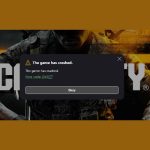
You double-click the icon, the splash screen appears, the anti-cheat loads, and then… a black screen and a sudden reboot. When your PC crashes when starting games, it’s a uniquely frustrating problem that shuts down the fun before it even begins. This isn’t a random mid-game stutter; it’s a specific failure at a specific moment, and that gives us a powerful set of clues to work with.
This isn’t just about a single faulty component. A crash at launch is a stress test that exposes hidden weaknesses in your PC’s software, drivers, or hardware. We’ll walk through the process of diagnosing the root cause, moving from the simplest software fixes to the more involved hardware checks.
At a Glance: Your Path to a Stable Launch
Here’s what you’ll learn to diagnose and fix the moment you finish reading:
- How to quickly determine if the crash is caused by the game itself, a software conflict, or your PC’s core components.
- The correct, clean method for updating graphics drivers that solves more problems than a standard update.
- Why the power supply unit (PSU) is a prime suspect for launch-day crashes and how to spot the warning signs.
- Simple diagnostic commands to check the health of your Windows installation and RAM.
- A step-by-step troubleshooting checklist to follow for a logical, no-guesswork approach.
First Responders: Isolate the Problem with Quick Software Checks
Before you start unscrewing your case or reinstalling Windows, let’s rule out the most common and easily-fixed culprits. A crash at startup is often caused by a simple conflict or a corrupted file that the game needs to initialize.
Is It Just This One Game?
This is the most important first question. If you can launch and play five other demanding games without a problem, but Cyberpunk 2077 crashes every time, the issue is likely specific to that game’s installation or its interaction with your system. If every game crashes on launch, the problem is almost certainly deeper—think drivers, hardware, or your operating system.
Action: Test at least two or three other games, preferably a mix of old and new titles. If the problem is isolated, proceed with the steps below. If it’s system-wide, you may want to jump ahead to the driver and hardware sections.
Verify Game File Integrity: Your First Line of Defense
A game is a complex collection of thousands of files. If a key file was corrupted during a download or a recent patch, the game engine may fail its initial check and crash. Verifying the integrity of your game files is a no-risk, high-reward troubleshooting step.
It forces the game launcher to scan every file in the installation directory, compare it against the master version on its servers, and re-download anything that’s missing or damaged.
How to Verify Game Files:
- On Steam: Right-click the game in your Library >
Properties>Local Files>Verify integrity of game files... - On Epic Games Store: Go to your Library, click the three dots (…) on the game tile >
Manage>Verify. - On EA App / Origin: Go to your Library, hover over the game, click the gear icon >
Repair.
Real-World Snippet: I once spent an entire afternoon troubleshooting a new AAA title that crashed on launch. After hours of driver updates and settings tweaks, I ran a file verification on a whim. It found a single 15 MB corrupted audio file. The game downloaded the replacement and launched perfectly. Always start here.
Tame Aggressive Antivirus and Background Apps
The moment a game launches, it hooks deep into your system. This behavior can sometimes look suspicious to overzealous antivirus programs or conflict with overlay software.
- Antivirus: Real-time protection can block a game’s executable or its anti-cheat service from initializing correctly, causing an instant crash.
- Overlay Software: Apps like Discord, OBS, MSI Afterburner, or even NVIDIA’s GeForce Experience can create conflicts, especially with a game’s renderer at startup.
Action Plan:
- Create an Exception: Instead of disabling your antivirus, add the game’s entire installation folder to its “exclusion list” or “allow list.” This tells the AV to ignore all activity within that folder.
- Disable Overlays: Temporarily turn off all in-game overlays. If the game launches successfully, re-enable them one by one until you find the culprit.
- Perform a Clean Boot: Use the
msconfigutility in Windows to temporarily disable all non-Microsoft startup services. This creates a pristine environment to test the game launch. If it works, you know a third-party service is to blame.
Are Your Drivers and Windows Playing Nice?
If software conflicts aren’t the issue, the next logical step is to look at the foundational software that bridges your hardware and the game: your graphics driver and the Windows operating system itself. A crash at launch is a classic symptom of a corrupted or incompatible driver.
While we’re focused on launch-time crashes, these system health checks are a cornerstone of PC stability. For a complete overview of troubleshooting, from in-game stutters to random reboots, our main guide to Fix gaming computer crashes provides a comprehensive framework.
The Right Way to Do a “Clean” Driver Install
Simply installing a new driver over an old one can sometimes leave behind conflicting files or corrupted registry entries. For persistent crash issues, a truly clean installation is the gold standard. This involves completely removing all traces of the old driver before installing the new one.
The community-trusted tool for this is Display Driver Uninstaller (DDU).
Step-by-Step Clean Driver Installation:
- Download: Get the latest version of DDU from its official source and the latest graphics driver for your GPU (NVIDIA, AMD, or Intel). Do not run them yet.
- Disconnect from the Internet: This prevents Windows from automatically trying to install a generic driver in the background.
- Boot into Safe Mode: Restart your PC and boot into Windows Safe Mode. This ensures no driver files are in use.
- Run DDU: Launch DDU, select “GPU” and your brand (e.g., NVIDIA), and click the “Clean and restart” button.
- Install New Driver: Once your PC reboots into normal mode, run the driver installer you downloaded in step 1. Select the “Custom” or “Advanced” installation option and check the box for “Perform a clean installation” if available.
- Reconnect and Reboot: Reconnect to the internet and restart your PC one last time.
Repairing the Foundation: Windows System Files
If your core Windows files are corrupted, nothing will run correctly. A game launch can easily trigger an instability caused by a damaged system file it relies on. Windows has powerful, built-in tools to find and fix these issues.
You’ll need to run these from an elevated Command Prompt. To do this, press the Windows key, type cmd, right-click on “Command Prompt,” and select “Run as administrator.”
- System File Checker (SFC): This tool scans all protected system files and replaces corrupted versions with correct Microsoft versions.
bash
sfc /scannow
Let this process complete. It may find and fix issues automatically. - Deployment Image Servicing and Management (DISM): If SFC finds errors it can’t fix, DISM can repair the core Windows component store that SFC uses for its repairs.
bash
DISM /Online /Cleanup-Image /RestoreHealth
After DISM completes, runsfc /scannowagain to be thorough.
The Hardware Gauntlet: When the Crash Is Physical
If all software and driver checks come up clean, it’s time to investigate your hardware. Launching a game places a sudden, intense demand on your components, especially the GPU, CPU, and PSU.
When Your PC Can’t Handle the Power-On Spike
A game launch is one of the most demanding moments for a Power Supply Unit (PSU). The GPU and CPU go from near-idle to full load in an instant. An aging, underpowered, or failing PSU might not be able to handle this sudden demand for wattage.
Signs of a PSU-Related Crash:
- Sudden Black Screen: The PC shuts off instantly, with no blue screen or error message.
- Immediate Reboot: The system reboots as if you hit the reset button.
- No Power: The PC fails to turn back on for a few minutes after the crash.
Your PSU’s wattage should comfortably exceed the combined peak power draw of your components, especially your GPU. Check the recommended PSU wattage for your specific graphics card model on the manufacturer’s website. Remember, a cheap 750W PSU is not the same as a high-quality, 80+ Gold rated 750W PSU. Quality matters.
Checking for Overheating and Unstable Overclocks
While overheating is typically associated with crashes during extended gameplay, a severe cooling issue or an overly ambitious overclock can cause a crash the second the components are put under load.
- Monitor Your Temps: Use a tool like HWMonitor or MSI Afterburner to check your CPU and GPU temperatures at idle before you even launch a game. If your CPU is idling above 50-60°C or your GPU is above 50°C, you may have a cooling problem (dusty fans, old thermal paste, poor case airflow). An ideal gaming temperature for a CPU is under 80°C and for a GPU, under 85°C. A crash on launch could mean temps are spiking past these limits instantly.
- Disable All Overclocks: If you have overclocked your CPU, GPU, or even your RAM (via XMP/EXPO profiles), disable it. Revert everything to stock settings in your BIOS. An overclock that seems stable in benchmarks can fail under the unique load of a game engine’s initialization. If the crashes stop, you’ve found your culprit. You can then try re-applying a more modest overclock.
Is Your RAM or Storage Failing?
Faulty RAM and failing storage drives are less common culprits for launch-specific crashes, but they can’t be ignored.
- RAM: When a game launches, it loads gigabytes of assets into your system’s RAM. If it tries to write to a bad sector on a RAM stick, it can cause an immediate system crash or a Blue Screen of Death (BSOD).
- Test: Use the built-in Windows Memory Diagnostic tool. Press the Windows key, type “Windows Memory Diagnostic,” and choose to restart and check for problems. Let it run the standard test (which can take a while).
- Storage Drive: If the game is installed on a part of your hard drive or SSD that has bad sectors, the crash can occur when it tries to read those essential startup files.
- Test: Run the Check Disk utility from an elevated Command Prompt. The
/rflag locates bad sectors and recovers readable information.
chkdsk C: /r(ReplaceC:with the appropriate drive letter.)
Your Crash-on-Launch Troubleshooting Checklist
Feeling overwhelmed? Follow this logical sequence. Do not skip steps.
- Isolate the Game: Does it happen with all games or just one?
- Verify Files: If it’s one game, verify its file integrity through its launcher.
- Simplify the Environment: Disable all overlays and background apps. Add the game’s folder to your antivirus exclusion list.
- Perform a Clean Driver Install: Use DDU in Safe Mode to completely remove old graphics drivers before installing the latest version.
- Scan and Repair Windows: Run
sfc /scannowandDISM /Online /Cleanup-Image /RestoreHealthfrom an admin Command Prompt. - Revert to Stock Speeds: Disable all CPU, GPU, and RAM overclocks in your BIOS.
- Check Hardware Vitals: Monitor idle CPU/GPU temperatures. Review your PSU’s wattage and age.
- Run Diagnostics: Use Windows Memory Diagnostic to test your RAM and
chkdsk /rto scan your storage drive.
Quick Questions, Straight Answers
Why does my PC only crash when starting a game, not during it?
This often points to issues with the game’s initialization phase. This is when the system experiences a unique stress test: drivers are loaded, large asset files are read from storage into RAM, and power demand spikes from idle to maximum. A failure here can indicate a driver conflict, a weak PSU that can’t handle the sudden load, or a corrupted core game file that’s only needed at startup.
Can bad RAM cause a crash only when a game starts?
Absolutely. Launching a game involves loading huge files into random-access memory (RAM). If the game attempts to load a critical asset into a physically faulty part of a RAM module, the system will become instantly unstable, leading to a crash or blue screen before you even reach the main menu.
My PC meets the minimum requirements, so why is it crashing?
System requirements are a baseline for performance, not stability. They assume a perfectly healthy PC with stable drivers, sufficient power, and no software conflicts. Your hardware might be capable of running the game, but a problem like an unstable driver, an underpowered PSU, or a conflict with your antivirus can prevent it from even launching successfully.
Is it safe to disable my antivirus to play a game?
A safer first step is to add the game’s folder and executable file to your antivirus program’s “exclusion list” or “allow list.” This keeps your protection active while telling it to trust the game. If you must disable it for testing, only do so temporarily for games from trusted sources (like Steam, GOG, Epic) and re-enable it immediately after your test.
Getting Back in the Game for Good
A PC that crashes when starting games isn’t a lost cause; it’s a machine giving you a very specific clue. The crash isn’t random—it’s a direct reaction to the intense, complex process of a game engine waking up. By treating this as a diagnostic signal, you can move from frustration to a targeted solution.
Start with the simple software fixes. Verifying game files and performing a clean driver installation resolve a huge percentage of these issues. From there, methodically work your way through the checklist, ruling out conflicts, system corruption, and finally, hardware weaknesses. You now have a clear, actionable plan to identify the bottleneck and get back to what your PC was built for: playing games.

- Fixing Error Cause 10 Error Code 2901 in Black Ops 6 - April 30, 2026
- Error Cause 10 Bo6 Often Means Server Or Account Issue - April 29, 2026
- Bo6 Lobby Not Found Error Cause 10 Prompts Easy Fixes - April 29, 2026