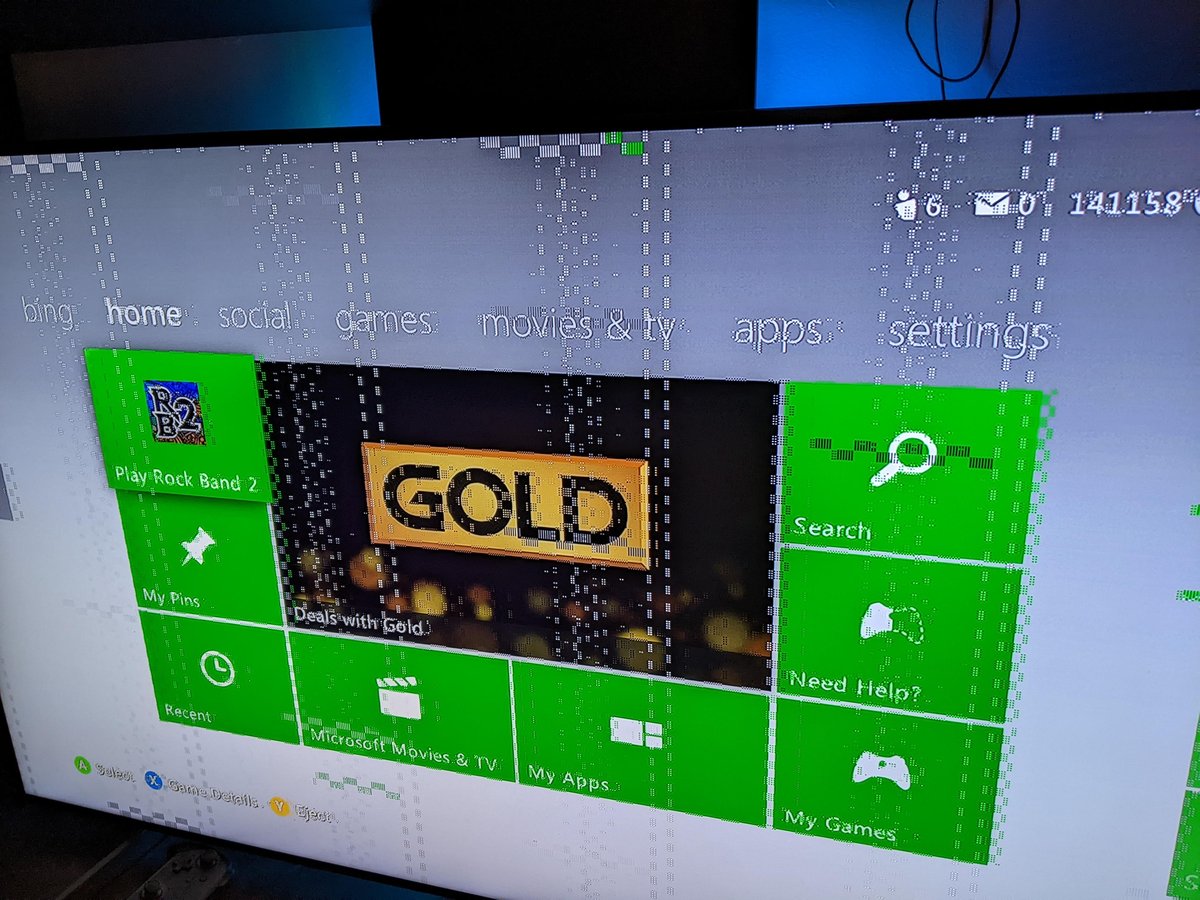
Is your Xbox One suddenly unresponsive, the screen frozen mid-game or stuck on a dashboard loading animation? Few things disrupt a gaming session like an unexpected Xbox One freezing up. It’s frustrating when your console decides to take an unannounced break, leaving you staring at a static image, wondering if your progress is lost forever. But don’t despair—most freezing issues aren’t game-enders, and often, they’re problems you can tackle yourself.
Here, we’ll dive deep into why your trusty Xbox One might be freezing and, more importantly, how to get it unstuck and back to delivering those gaming thrills. We’ll arm you with a suite of troubleshooting steps, from quick fixes to more involved diagnostics, ensuring you can identify and resolve the culprits behind those infuriating pauses.
At a Glance: Conquering Xbox One Freezes
- Immediate Action: Learn how to perform soft and hard resets to clear glitches quickly.
- System Health: Understand the critical role of updates, storage, and ventilation.
- Deep Dive: Tackle issues like corrupted game data, network hiccups, and external device conflicts.
- Last Resorts: Know when and how to consider a factory reset or contact support.
- Prevention: Implement best practices to minimize future freezing incidents.
Understanding the Freeze: Why Your Xbox One Stops Cold
Before we fix it, let’s briefly understand why your Xbox One might be freezing. Unlike a simple game crash that might kick you to the dashboard, a full console freeze means the entire system becomes unresponsive. This can stem from several common culprits, often a mix of software and environmental factors.
Think of your Xbox One like a miniature computer. It juggles operating system tasks, game processes, network communications, and hardware operations. When one of these components hits a snag or becomes overloaded, the entire system can seize up.
Common Culprits Behind an Xbox One Freeze:
- Software Glitches: Sometimes, a bug in the Xbox OS, a game, or even a specific app can cause a conflict that halts the system. These are often transient and can be fixed with a simple restart.
- Overheating: Your console generates heat, and if it can’t dissipate effectively, internal components can slow down or shut off to prevent damage, leading to a freeze. Poor ventilation, dust buildup, or an enclosed space are prime offenders.
- Storage Issues: The Xbox One relies on an internal hard drive (HDD) to store games, apps, and system files. If this drive is nearly full, fragmented, or contains corrupted data, it can struggle to keep up, resulting in freezes, slow loading, or even boot-up problems. External drives can also introduce similar issues.
- Network Instability: While less common for a full console freeze, a severely unstable or dropping network connection can cause online-focused games to hang, potentially leading to a system-wide lockup if the game can’t recover gracefully.
- Too Many Background Processes: Having multiple games or apps suspended in the background, especially if some are actively downloading updates, can strain the console’s resources, particularly on older Xbox One models.
- Hardware Malfunctions: Though rarer, a failing internal component (like the hard drive itself, memory, or even the power supply) can manifest as persistent freezing.
The Immediate Fixes: Unsticking Your Xbox One
When your Xbox One freezes, the first step is always to try to get it responsive again. These initial methods often resolve most temporary software snags without needing a deeper dive.
1. The Soft Restart: A Quick Refresh
This is your go-to for minor glitches. If your console is frozen but the controller is still somewhat responsive (or you can at least navigate some menus), try a soft restart.
- Action: Hold the Xbox button on your controller for about 5-10 seconds until the Power Center menu appears.
- Step-by-step: Select “Restart console” and then “Restart.”
- Benefit: This shuts down the OS cleanly and restarts it, often clearing temporary software conflicts. It’s like restarting your computer when it acts up.
2. The Power Cycle (Hard Reset): Clearing the Digital Cobwebs
When a soft restart isn’t possible, or the console is completely unresponsive, a full power cycle is the next crucial step. This isn’t just turning it off and on; it completely drains residual power and clears the console’s temporary cache, which can accumulate over time and cause performance issues.
- Action: Press and hold the Xbox button on the front of the console for about 10 seconds until the console completely shuts down. You’ll hear the power-down sound and the light will turn off.
- Step-by-step:
- Once off, unplug the power cord from the back of the Xbox One.
- Wait for at least 30 seconds to a full minute (some recommend up to 5 minutes to be safe). This ensures all residual power drains from the system.
- Plug the power cord back in.
- Press the Xbox button on the console or controller to turn it back on.
- Benefit: This powerful reset clears the system cache without deleting your games or save data, effectively giving your Xbox One a fresh start. Many freezing issues vanish after a proper power cycle.
Deeper Dive: Diagnosing and Resolving Persistent Freezes
If the immediate fixes didn’t stick, it’s time to dig a bit deeper. Persistent freezing often points to underlying issues that need more focused attention.
1. Keep Everything Updated: The Foundation of Stability
Outdated software is a common source of instability. Developers constantly release patches to fix bugs and improve performance.
- Console OS Updates:
- Action: Navigate to Settings > System > Updates.
- Step-by-step: If an update is available, follow the prompts to install it. Ensure your console is set to receive automatic updates (under Power mode & startup in Settings) to prevent this issue in the future.
- Game Updates:
- Action: Go to “My Games & Apps” and select “Games.”
- Step-by-step: Look for an “Updates” section or queue. Sometimes, specific games have known bugs that cause freezing, which are addressed in subsequent patches. Ensure all your frequently played games are up to date.
2. Storage Management: The Silent Performance Killer
Your Xbox One’s hard drive performance directly impacts its stability. A cluttered, nearly full, or fragmented drive can lead to slow loading and outright freezes.
- Free Up Space:
- Action: Go to “My Games & Apps” and highlight games or apps you no longer play.
- Step-by-step: Press the Menu button (three lines) on your controller, select “Uninstall,” then confirm. Aim to keep at least 15-20% of your internal storage free. This provides headroom for system operations, updates, and game caching.
- Consider External Storage:
- Insight: If your internal drive is consistently full, a compatible external hard drive (USB 3.0, at least 256GB) can offload games and apps, improving internal drive performance.
- Testing: If you use an external drive and experience freezes, try moving the problematic game to the internal drive (or vice versa) to rule out the external drive as the source of the issue. A failing external drive can definitely cause system freezes.
- Corrupted Game Files:
- Action: If a freeze consistently happens with one specific game, its installation might be corrupted.
- Step-by-step: Uninstall the game completely (including its saved data if you suspect corruption there, but be warned this will delete progress if not synced to the cloud! Xbox automatically syncs most saves to the cloud, so this is usually safe). Then, reinstall the game from scratch. This ensures you have a fresh, uncorrupted copy.
3. Network Stability: Especially for Online Titles
While less frequent for full console freezes, a consistently dropping or slow internet connection can cause online games to hang, potentially leading to a system lockup.
- Action: Go to Settings > Network > Network settings.
- Step-by-step: Run the “Test network connection” and “Test multiplayer connection” tools. If you see high packet loss, high latency, or frequent disconnections, troubleshoot your home network (restart your router/modem, try a wired connection instead of Wi-Fi).
Hardware and Environment Checks: Beyond the Software
Sometimes, the problem isn’t software at all but how your Xbox One is physically operating within its environment.
1. Monitor Overheating: Give Your Xbox Room to Breathe
Overheating is a prime suspect for console freezes, especially on older hardware like the Xbox One.
- Adequate Ventilation:
- Action: Ensure your Xbox One is in an open, well-ventilated space.
- Pitfall: Never block the console’s vents (top, sides, back). Don’t place it inside a tight cabinet, on carpet, or stacked with other electronics. It needs clear airflow around all sides.
- Dust Buildup:
- Action: Regularly clean dust from the vents and fan openings using compressed air. Short, controlled bursts are best to avoid forcing dust deeper into the system.
- Why it matters: Dust acts as an insulator, trapping heat and making the fan work harder, less efficiently, and louder.
2. Check External Factors: Unseen Saboteurs
Other peripherals or power issues can sometimes trigger freezes.
- External Hard Drive Check: If you have an external HDD, try disconnecting it and playing games installed solely on the internal drive. If the freezes stop, the external drive might be the culprit. You may need to format it or replace it.
- Power Supply and Outlet:
- Action: Ensure your Xbox One’s power brick and cable are undamaged and securely connected.
- Step-by-step: Try plugging the console into a different wall outlet directly, bypassing power strips or surge protectors temporarily. Sometimes a faulty outlet or an overwhelmed power strip can cause inconsistent power delivery. A flickering power brick light can also indicate an issue.
When All Else Fails: Factory Reset and Support
If you’ve exhausted the previous steps and your Xbox One continues to freeze, it’s time for more drastic measures.
1. Factory Reset: A Clean Slate (with Options)
A factory reset reinstalls the console’s operating system, effectively wiping away any deeply ingrained corrupted software or settings that might be causing freezes. There are two options:
- “Reset and keep my games & apps”:
- Action: Go to Settings > System > Console info > Reset console.
- Benefit: This option resets the Xbox OS, clears corrupted system data, and removes potentially problematic accounts/settings but keeps your installed games and apps. You’ll need to re-log into your profile and redo some initial setup. This is often the best first choice for a factory reset.
- “Reset and remove everything”:
- Action: Only use this if the “keep games” option didn’t work, or if you plan to sell/give away your console.
- Warning: This erases everything—all user accounts, saved games, settings, and apps. While most game saves are cloud-synced, double-check any critical saves if you have local-only data. This essentially returns the console to its “out-of-the-box” state.
2. Contact Microsoft Support: When Hardware is Suspect
If a factory reset fails to resolve the freezing, it strongly suggests a hardware problem. This is when you should contact Xbox Support.
- Action: Visit the official Xbox Support website.
- Insight: Be prepared to describe all the troubleshooting steps you’ve already taken. While many Xbox One consoles are past their original warranty period (typically one year from purchase), Microsoft can still offer out-of-warranty repair services or provide further diagnostic advice. Persistent, unfixable freezing points to a component like the internal hard drive or motherboard failing.
For those encountering game crashes or persistent system instability on newer consoles like the Xbox Series X, the underlying troubleshooting principles often mirror those for the Xbox One. You can find a comprehensive guide on addressing these issues in our article on how to Fix Xbox Series X game crashes. Many of the core concepts, such as software updates, storage management, and environmental factors, apply across both console generations.
Proactive Measures: Keep Your Xbox One Running Smoothly
Prevention is always better than cure. By adopting a few best practices, you can significantly reduce the likelihood of your Xbox One freezing in the future.
- Regular Updates: Consistently install system updates and game patches as soon as they’re available. These often contain critical bug fixes and performance enhancements.
- Strategic Storage Management: Don’t let your internal drive get critically full. Regularly uninstall games you’re not actively playing. Consider an external drive for extra capacity.
- Optimal Ventilation: Always ensure your Xbox One has plenty of clear space around its vents. Avoid enclosing it in tight cabinets, and dust it regularly. This is arguably one of the most crucial preventative steps.
- Avoid Overburdening: Try not to run an excessive number of apps in the background, especially if you’re experiencing slow performance. Close out games or apps completely when you’re done with them (highlight, press Menu, choose “Quit”).
- Stable Power: Connect your Xbox One directly to a reliable wall outlet rather than an old, overloaded power strip.
- Report Problems: If you encounter a persistent, reproducible freeze, use the “Report a problem” option on your console (if accessible after a restart). This sends diagnostic data to Microsoft, helping them identify and fix bugs in future updates.
Quick Answers: Your Xbox One Freezing FAQs
Q: My Xbox One freezes every time I start a specific game. What does that mean?
A: This strongly suggests a problem with that particular game’s installation or save data. Try uninstalling and reinstalling the game (including its save data if you suspect corruption and have cloud backup), or check online forums for known issues with that specific title.
Q: Can a failing internet connection cause my Xbox One to freeze?
A: While rare for a complete system freeze, a highly unstable internet connection can cause online games to hang indefinitely, which might lead to an unresponsive console if the game cannot recover or terminate cleanly. It’s more likely to cause game crashes or disconnections, but severe network issues can contribute to freezing.
Q: Is it safe to unplug my Xbox One if it’s completely frozen?
A: Yes, if your Xbox One is completely unresponsive and a soft restart isn’t possible, performing a hard reset by holding the power button for 10 seconds and then unplugging the console is the recommended next step. This clears the cache and effectively forces a system reset. While it’s generally best to shut down cleanly, a frozen console leaves no other option.
Q: My Xbox One sounds very loud before it freezes. What’s happening?
A: A loud fan usually indicates the console is working hard to cool itself, often due to excessive heat. This points directly to overheating as a potential cause for the freeze. Check ventilation and clean any dust buildup immediately.
Q: How often should I clear my Xbox One’s cache?
A: A proper power cycle (holding the console’s power button for 10 seconds and then unplugging) automatically clears the cache. You don’t need to do it daily, but if you notice general sluggishness or frequent minor glitches, doing a power cycle once a week or every couple of weeks can help maintain performance.
Getting Back in the Game: A Quick-Start Playbook
When your Xbox One freezes, follow this rapid decision tree to get back to playing:
- Is it completely frozen (no response from controller/buttons)?
- YES: Perform a Power Cycle (hold console power for 10s, unplug for 30s-1min, plug back in).
- NO (some response): Try a Soft Restart (hold controller Xbox button, select “Restart console”).
- Does it still freeze after a restart/power cycle?
- YES:
- Check Updates: Ensure console OS and all games are updated.
- Manage Storage: Free up space, check external drive health, reinstall problem games.
- Monitor Environment: Ensure good ventilation, clean dust.
- Test Network: Check for stability, especially for online games.
- NO: Great, you’re back in action! Remember to practice prevention.
- Still freezing after all above steps?
- YES: Consider a Factory Reset (“Reset and keep my games & apps” first).
- NO: Issue resolved.
- Factory reset didn’t work?
- YES: It’s likely a hardware issue. Contact Xbox Support.
Don’t let a frozen screen sideline your gaming experience. With these targeted troubleshooting steps, you’re well-equipped to diagnose, fix, and even prevent most Xbox One freezing issues, ensuring your console remains a reliable source of entertainment.

- Is League Down Right Now? Check Server Outage Status - June 5, 2026
- Check Rocket League Maintenance Status Before You Play - June 4, 2026
- Rocket League Servers Down? Players Report Connection Issues - June 3, 2026