There’s nothing more frustrating than sitting down to play, clicking on your favorite game, and having nothing happen. When your Xbox wont open games—whether it kicks you back to the dashboard or just hangs on a black screen—it can feel like a complex hardware failure. The good news is that it’s almost always a software or data-related hiccup you can fix yourself.
You’re not just dealing with a black screen; you’re dealing with a launch failure. This guide will walk you through the exact steps, from the simplest resets to more advanced data management, to get you back in the game.
At a Glance: Your Game Launch Troubleshooting Plan
- Pinpoint the scope: Is the problem affecting one specific game or every game on your console? The answer dramatically changes your troubleshooting path.
- Master the restarts: Learn the critical difference between a simple restart, holding the power button, and a full power cycle that clears your system’s cache.
- Manage your data safely: We’ll show you how to clear potentially corrupt local data without losing your precious cloud-synced game saves.
- Verify ownership and updates: Sometimes, the issue is as simple as a pending update or a license authentication error.
- Know when to reset: Understand which console reset option to choose as a last resort and what each one actually does.
The First 5 Minutes: Quick Triage for Launch Failures
Before diving into complex settings, let’s perform a quick triage. These initial steps solve the majority of game launch issues and help diagnose the root cause.
Is It Just One Game or Everything?
This is the most important question to ask first. Your answer points you in the right direction.
- One Game Fails: If only a single game refuses to launch (e.g., Call of Duty fails but Forza opens fine), the problem is almost certainly tied to that specific game’s data. It could be a corrupt save file, a botched update, or a bad installation. You can skip ahead to the sections on managing game data and reinstalling.
- All Games Fail: If no games or apps will open, the issue is likely system-wide. This points toward a problem with your Xbox profile, a network authentication issue, or a glitch in the console’s operating system. You should start with the steps below and work through them sequentially.
The “Turn It Off and On Again” Trifecta
This isn’t just a cliché; it’s a foundational troubleshooting technique. But there are three distinct levels of “restarting” your Xbox, each with a different purpose.
Step 1: Quit the Game Properly
Often, a game doesn’t close completely and remains in a bugged state in your console’s memory. A proper “quit” forces it to shut down entirely.
- Highlight the game tile on your Xbox dashboard.
- Press the Menu button on your controller (the one with three horizontal lines).
- Select Quit from the pop-up menu.
- Wait about 10 seconds, then try launching the game again.
Step 2: Perform a Full Console Restart
If quitting the app doesn’t work, the next step is a standard system restart. This is more thorough than just tapping the power button to put it in sleep mode.
- Via the Guide: Press the Xbox button on your controller to open the guide. Navigate to the Profile & system tab, select Power, and then choose Restart console.
- Via the Power Button (if frozen): If your console is unresponsive, press and hold the Xbox button on the front of the console for about 10 seconds until it powers down completely. Then, press it again to turn it back on.
Step 3: Execute a Power Cycle (The Cache-Clearing Secret Weapon)
This is the most effective type of restart and the one that solves the most stubborn problems. A power cycle, also known as a hard reset, fully drains the power and clears the system’s temporary cache, which is a frequent source of glitches.
- Press and hold the Xbox button on the front of the console for approximately 10 seconds until it shuts down completely.
- Unplug the power cord from the back of the Xbox. This is the most important step.
- Wait for at least 60 seconds. This allows the internal power supply to fully discharge.
- Plug the power cord back in and turn on your Xbox.
You’ll know you did it correctly if you see the full green Xbox boot-up animation, which doesn’t appear during a standard restart from sleep mode.
Checking External Factors: Is It Your Xbox or the Network?
If the restarts didn’t work, the problem might not be on your console at all. Authentication issues caused by network problems are a common reason why an Xbox wont open games.
Verify Xbox Live Service Status
Before you reset your router or change any settings, check if the problem is on Microsoft’s end. If key Xbox services are down (like account authentication or matchmaking), your games may not launch, especially those that require an online connection.
You can check this by visiting the official Xbox Status page. If you see red or yellow indicators next to “Account & profile” or “Store & subscriptions,” your best bet is to simply wait for Microsoft to resolve the issue.
Test Your Home Network Connection
A poor or unstable internet connection can prevent your Xbox from verifying your game licenses, causing them to fail at launch.
- Press the Xbox button to open the guide.
- Go to Profile & system > Settings > General > Network settings.
- Select Test network connection.
The console will run a diagnostic and tell you if it can connect to the internet successfully. If this test fails, the problem lies with your home network. Try restarting your modem and router (unplug them for two minutes before plugging them back in).
If your network test reveals ongoing issues, it could be part of a broader pattern. Our complete pillar guide can help you Fix Xbox game loading problems by diagnosing everything from NAT Type conflicts to persistent packet loss.
Diving into Corrupted Data: The Silent Game Killer
If your network is fine and restarts failed, the next likely culprit is corrupted data on your console’s hard drive. This sounds scary, but it’s usually easy to fix without losing anything important.
When Your Profile Gets Confused
Sometimes, the local copy of your Xbox profile can become corrupted, preventing the system from verifying that you own your games. Removing and re-downloading your profile forces a fresh, clean sync with the Xbox servers.
Important: This does not delete your account, your games, or your cloud saves. It simply removes the local copy from this specific console.
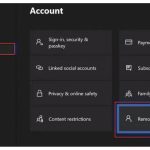
- Navigate to Settings > Account > Remove accounts.
- Select your profile and confirm the removal.
- Restart your console.
- Once it’s back on, press the Xbox button and select Add new from the Profile & system tab.
- Sign in with your Microsoft account email and password.
Clearing Local Saved Data (Without Losing Progress)
This is one of the most effective fixes for a single game that won’t launch. A corrupted local save file can block the game from starting. Thanks to Xbox Cloud Gaming, your master save file is safely stored online. You’re only deleting the copy stored on your console’s hard drive.
- Go to My games & apps.
- Highlight the problematic game, press the Menu button, and select Manage game & add-ons.
- Select Saved data.
- Choose your gamertag profile.
- Select Delete from console. Do NOT choose “Delete from everywhere.” This option will permanently erase your cloud save.
After you select “Delete from console,” try launching the game. The next time it starts, it will automatically sync with the cloud and download your latest save file.
A Niche but Powerful Fix: Clearing Persistent Storage
This setting is technically for the Blu-ray drive’s cache, but over time, it can accumulate data that inexplicably interferes with both digital and physical games. Clearing it is harmless and can sometimes solve mysterious launch issues.
- Go to Settings > Devices & connections > Blu-ray.
- Select Persistent storage.
- Click Clear persistent storage.
- Do this three or four times in a row to ensure it’s fully cleared, then restart your console.
Game-Specific Troubleshooting: Digital vs. Physical
The steps can differ slightly depending on whether you’re trying to launch a downloaded digital game or one from a disc.
For Digital Games: License and Update Checks
Digital games rely on your account to verify ownership.
- Check Your “Home Xbox” Setting: Your “Home Xbox” is the one console where anyone can play your digital games, even when you’re not signed in. If your console isn’t set as your home Xbox and your internet connection drops, your licenses can’t be verified. To set it, go to Settings > General > Personalization > My home Xbox and select Make this my home Xbox.
- Look for Pending Updates: A game often won’t launch if a mandatory update is waiting. Check the queue by going to My games & apps > Manage > Queue. Install anything that’s pending for the game in question.
For Physical Games: The Disc and Drive
If your Xbox wont open games from a disc, the issue could be physical.
- Inspect and Clean the Disc: Eject the disc and check for smudges, fingerprints, or deep scratches. Clean it with a soft, lint-free microfiber cloth, wiping gently from the center of the disc outwards—never in a circular motion.
- Test the Disc Drive: Try a different game disc. If other games work, the original disc is likely the problem. If no discs work, but your digital games launch fine, your console’s optical drive may need servicing.
The Last Resort: Reinstallations and Resets
If all else fails, it’s time for more comprehensive measures. Work through these in order, as they become progressively more disruptive.
The Full Reinstall
Uninstalling and reinstalling the game is the definitive way to fix corruption within the game’s core files.
- In My games & apps, highlight the game.
- Press the Menu button and select Uninstall.
- After it’s fully removed, find it in your Full library > All owned games and reinstall it.
Resetting Your Xbox Console: A Guided Approach
A console reset restores the operating system to its factory state, clearing out deep-seated corruption. Xbox provides two powerful options.
- Navigate to Settings > System > Console info.
- Select Reset console.
You will see two choices:
- Option 1: “Reset and keep my games & apps” (Try This First): This is a “soft reset.” It wipes the operating system and clears all potentially corrupt settings and temporary files but leaves your installed games and apps untouched. This saves you from having to redownload potentially hundreds of gigabytes of data. It is the ideal first choice for system-level issues.
- Option 2: “Reset and remove everything” (The Nuclear Option): This is a full factory reset. It erases everything—the OS, all games, all apps, all profiles, and all saved data. Only use this if the soft reset fails. Before you do, ensure your game saves are synced to the cloud and back up any captured screenshots or videos you want to keep.
Quick Answers to Common Launch Problems
Q: Why does my Xbox game go to a black screen and then back to the home screen?
This is the classic symptom of a launch failure. It typically means the console tried to start the game, hit a critical error (like a corrupt file or an authentication failure), and crashed back to the dashboard. The solutions in this guide—especially the power cycle and clearing local saved data—are the most effective fixes for this specific problem.
Q: Can a full hard drive stop games from opening?
Yes, absolutely. While your Xbox will warn you when storage is critically low, some games require a certain amount of free space to create temporary cache files upon launching. If your drive is 99% full, a game might fail to start. Try uninstalling a game you no longer play to free up at least 15-20 GB of space.
Q: Does deleting my profile delete my saved games?
No. When you “remove” a profile from the console, you are only deleting the local copy of the account’s sign-in credentials and settings. Your actual Xbox account, achievements, friends list, and cloud saves are all safely stored on Microsoft’s servers. When you add the profile back, it all syncs again.
Q: My game is stuck on the “Getting ready…” screen. What does that mean?
This often indicates a synchronization problem between your console and the Xbox network. The console is trying to sync your latest save data from the cloud but is failing to connect. This can be caused by an Xbox Live service outage or a problem with your home network. Check the Xbox Status page first, then try a power cycle.
Your Action Plan for Fixing Launch Failures
When your Xbox wont open games, avoid random troubleshooting. Follow a logical path from least to most invasive to save time and protect your data.
- The Basics (Always Start Here): Quit the game > Restart the console > Perform a full power cycle.
- Check External Factors: Look up the Xbox Live status and run a network connection test.
- Address Data Corruption: Clear the game’s local saved data (from console only) and try re-adding your profile.
- Verify the Game Itself: For digital games, check for updates and “Home Xbox” settings. For physical discs, inspect and clean them.
- Escalate When Necessary: If nothing else works, proceed to a full game reinstall, followed by a console reset (keeping games and apps first).
By following these structured steps, you can diagnose and resolve nearly any game launch issue and get back to what matters most: playing your games.

- Why Does My Xbox Series X Keep Crashing? Common Issues Explained - March 21, 2026
- Xbox Freezing Fixes to Get Your Console Working Again - March 20, 2026
- Why Does My Xbox Keep Freezing? Whats Behind the Crashes - March 19, 2026