It’s a familiar and frustrating moment: you’ve got a rare hour to game, you select your favorite title, and the splash screen appears only to vanish, kicking you right back to the dashboard. When your Xbox Series S not launching games becomes a recurring issue, it can feel like the console itself is the problem. The good news is that this is almost always a software-related hiccup you can fix yourself, often in just a few minutes.
This guide is laser-focused on the Xbox Series S, addressing its unique quirks—like its all-digital nature, Quick Resume feature, and compact internal storage—to get you back in the game fast.
At a Glance: Your Quick Fix Checklist
If you’re in a hurry, here are the most effective solutions that solve the problem over 90% of the time.
- Fully Quit the Game: Don’t just go to the dashboard. Highlight the game, press the Menu button (the one with three lines), and select “Quit.”
- Perform a Power Cycle: A simple restart isn’t always enough. A full power cycle clears the system’s temporary memory, resolving many stubborn launch failures.
- Check Xbox Live Status: Sometimes, the problem isn’t your console at all. A quick check of the official Xbox server status page can save you a lot of troubleshooting time.
- Clear Persistent Storage: This hidden “Blu-ray” cache can cause conflicts even on the all-digital Series S. Clearing it is a safe and effective step.
- Manage Your Storage: The Series S has a fast but small SSD. Performance can degrade and games can fail to launch if you have less than 15% of your storage free.
Why Your Series S Puts Up a Fight: The Core Issues
Before diving into the fixes, it helps to know why this happens. Unlike a simple crash, a failure to launch is often a sign of a communication breakdown between the game, the console’s operating system, and your account profile.
Think of it like trying to start a car. The key is the game icon, the engine is the console’s OS, and the fuel is your user data and network connection. If any one of those is off—a faulty key, a flooded engine, or bad fuel—the car won’t start.
On the Series S, the most common culprits are:
- A Corrupted Quick Resume State: The fantastic Quick Resume feature can sometimes save a game in a buggy state, preventing it from reloading correctly.
- Cache Overload: Your console stores temporary files to speed things up. Over time, this data can become corrupted, leading to conflicts.
- Network Handshake Failure: The console needs to verify game ownership and your account status online. A brief network blip at the wrong moment can block a game from launching.
- Storage Bottlenecks: A nearly full SSD can cause issues with how the OS manages virtual memory, which is essential for launching applications.
These are common operational hiccups, not signs of a failing console. Most launch failures on Xbox are part of a broader pattern of loading issues. Understanding the full landscape of Why your Xbox games won’t load can provide a framework for solving not just this problem, but others that might pop up down the line.
Level 1 Fixes: The Simple Stuff First
Always start here. These steps are non-destructive, fast, and resolve the majority of launch issues.
1. Fully Quit the Game
Quick Resume is a game-changer, but it’s also a primary suspect. A game that won’t launch is often stuck in a bad suspended state.
- Press the Xbox button on your controller to return to the dashboard.
- With the problematic game highlighted in the main screen or sidebar, press the Menu button (the one with three horizontal lines).
- Select Quit from the pop-up menu.
- Wait about 10 seconds, then try launching the game again.
This forces the game to start fresh, bypassing any corrupted data from the previous session.
2. Restart Your Console Properly
A standard restart can clear up minor OS-level glitches.
- Press and hold the Xbox button on your controller.
- From the power menu, select Restart console.
- Confirm by selecting Restart.
3. Power Cycle Your Xbox Series S (The “Hard Reset”)
This is the single most effective troubleshooting step. A power cycle is different from a regular restart because it completely drains the power from the console’s internal components, clearing out stubborn corrupted data in the temporary cache that might survive a simple restart.
- Press and hold the physical Xbox button on the front of the console for about 10 seconds until it shuts down completely.
- Unplug the power cord from the back of the Xbox. Do not skip this step.
- Wait at least 2-3 minutes. This allows the internal power supply to fully discharge.
- Plug the power cord back in and wait for the light on the power brick (if you use one) to go from white to orange.
- Turn your console back on using the button on the console itself. You should see the green Xbox boot-up animation, which confirms a full, cold boot.
Case Snippet: I recently had Halo Infinite refuse to launch, repeatedly kicking me to the dashboard. Quitting the game didn’t work. A standard restart didn’t work. A full power cycle (unplugging for 3 minutes) completely solved it. The issue was a lingering bad data packet in the system’s RAM that only a full power drain could clear.
Level 2 Fixes: Checking External and Network Factors
If the simple fixes fail, the problem may lie outside your console’s immediate software.
Check Xbox Live Service Status
Before you spend an hour troubleshooting, take 30 seconds to check if the problem is on Microsoft’s end.
- Go to the official Xbox Status page.
- Look for any reported issues under “Games & gaming.” If there’s a major outage, you’ll see a red or yellow warning. If so, your only fix is to wait for Microsoft to resolve it.
Reboot Your Network Hardware
A poor network connection can prevent the console from verifying your game license, causing the launch to fail.
- Unplug the power from your modem and your router.
- Wait at least 2 minutes.
- Plug the modem back in first. Wait for all its lights to become solid (usually Power, Receive, Send, and Online).
- Plug your router back in and wait for it to fully boot up.
- Try launching the game again on your Xbox.
Clear Your Alternate MAC Address
This sounds technical, but it’s just a way to force your console’s network card to reset its connection settings. It’s a surprisingly effective fix for network-related launch failures.
- Go to Settings > General > Network Settings.
- Select Advanced Settings.
- Select Alternate MAC address.
- Select Clear.
- Your console will prompt you to restart. Select Restart.
Level 3 Fixes: Deeper System Housekeeping
These steps involve clearing out specific caches and data that can become corrupted over time. They are safe and will not delete your games or save files.
1. Clear the Persistent Storage
Even though the Series S has no disc drive, the operating system still includes the Blu-ray player software, and its cache can cause system-wide issues.
- Go to Settings > Devices & Connections > Blu-ray.
- Select Persistent storage.
- Select Clear persistent storage.
You won’t get a confirmation message, but the action is instant. It’s a zero-risk step that can resolve odd conflicts.
2. Manage Your Game Queue and Storage Space
An overloaded update queue or a nearly full hard drive can absolutely prevent games from launching. Xbox recommends keeping at least 15% of your internal storage free for optimal performance.
- Check Your Queue: Go to My games & apps > Manage > Queue. Cancel any pending updates for the game you’re trying to play, and pause any other large downloads.
- Free Up Space: Go to Settings > System > Storage devices. Select the internal drive and choose View contents. Uninstall games you’re not actively playing to get back above that 15% threshold.
| Internal Drive Size | Recommended Free Space |
| :— | :— |
| 512 GB (Series S) | ~75 GB |
| 1 TB (Series S) | ~150 GB |
3. Clear Local Saved Games
Important Note: This sounds scary, but it is safe as long as your console is connected to the internet. Your game saves are stored in the Xbox cloud. This process only removes the local copy on your console. When you next launch the game, it will automatically re-sync the latest save from the cloud.
This is a powerful fix for when a save file itself becomes corrupted and prevents the game from loading.
- Go to Settings > System > Storage devices.
- Select Clear local saved games.
- Your console will restart. After it boots up, try launching the game. It will take a moment to sync your data from the cloud.
Level 4 Fixes: The Last Resorts
If nothing else has worked, it’s time for more drastic measures. Work through these in order.
Re-Add Your Profile
Sometimes, the issue is tied to your account profile data on the console becoming corrupted. Re-downloading it from Xbox Live can fix this.
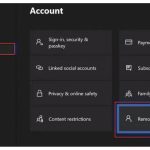
- Go to Settings > Account > Remove accounts.
- Select your profile and choose Remove.
- After it’s removed, press the Xbox button and navigate to the Profile & system tab (your gamerpic) all the way on the right.
- Select Add or switch > Add new.
- Sign back in with your Microsoft account email and password.
Reinstall the Problem Game
If the issue is isolated to a single game, its installation files may be corrupted.
- Go to My games & apps.
- Highlight the game, press the Menu button, and select Uninstall.
- After it’s fully uninstalled, go to your Full library and re-download it.
Reset Your Console
This is your final software-level troubleshooting step. Xbox provides two options.
Always try the “Keep my games & apps” option first.
- Go to Settings > System > Console info.
- Select Reset console.
- You will see two options:
- Reset and keep my games & apps: This is the one you want to try first. It resets the operating system to its factory state but leaves your installed games and apps untouched. You will have to sign back into your profiles. This fixes most deep-level OS corruption without the pain of re-downloading everything.
- Reset and remove everything: This is the true factory reset. It will wipe the console completely, deleting all games, saves (local copies only), and accounts. Only use this if the first option fails or if you are selling your console.
If a full factory reset doesn’t solve the problem, you may be facing a rare hardware issue, and your next step should be contacting Xbox Support.
Quick Answers to Common Questions
Q: Why does my Xbox Series S do this when my old Xbox One didn’t?
A: It often comes down to the speed and complexity of the new Velocity Architecture and the Quick Resume feature. While incredibly powerful, these systems are more sensitive to data corruption in a suspended state. The fixes are usually simple, but the problem can seem more frequent.
Q: Will clearing my local saves delete my progress in games like Elden Ring or Starfield?
A: No, as long as you’ve played online. Xbox automatically syncs your save data to the cloud. When you clear the local cache and launch the game again, it will pull down the most recent save from the cloud. You won’t lose progress.
Q: Could it just be a bug with the game itself?
A: Absolutely. Check the game’s official social media channels or Reddit to see if other players are reporting the same issue after a recent patch. Sometimes, the only solution is to wait for the developer to release a hotfix.
Q: Is my Xbox Series S faulty or broken?
A: It’s highly unlikely. Game launch failures are overwhelmingly software-based. A hardware failure typically presents with different symptoms, such as graphical artifacts, random shutdowns, or a failure to power on at all. If you’ve tried everything here, including a full factory reset, then it’s time to consider hardware and contact support.
Your Path Back to Gaming
When your Xbox Series S won’t launch games, don’t panic. Follow a structured approach, moving from the simplest solutions to the more complex. The vast majority of the time, a full power cycle or clearing a specific cache will resolve the issue in minutes.
Keep your console’s storage from getting too full, regularly check for system updates, and don’t be afraid to use the “Quit” function to ensure your games get a fresh start. With these tools in your back pocket, you can conquer almost any software glitch and get back to what the Series S does best: playing games.

- How to Fix Your Xbox Keeps Freezing during Games - March 22, 2026
- Why Does My Xbox Series X Keep Crashing? Common Issues Explained - March 21, 2026
- Xbox Freezing Fixes to Get Your Console Working Again - March 20, 2026