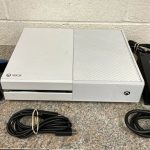
When your Xbox Series S suddenly freezes, blacks out, or kicks you back to the dashboard mid-game, it’s not just annoying—it’s a disruptive blow to your gaming session. While the Xbox Series S is a compact powerhouse, even the best consoles aren’t immune to the dreaded xbox series s crashing problem. Whether you’re deep in a multiplayer battle or exploring a vast open world, unexpected crashes can signal underlying issues that are often solvable with the right approach.
This isn’t about blaming the console; it’s about understanding why these interruptions happen on your specific machine and, more importantly, how to systematically tackle them to get back to seamless gaming.
At a Glance: Your Crash-Fixing Roadmap
- Prioritize Cache & Updates: The fastest and most frequent fixes often come from simple restarts, power cycles, and ensuring all software is current.
- Storage is King (Especially on Series S): The Series S’s 512GB SSD fills fast. Learn how full storage directly impacts performance and causes crashes.
- Ventilation Matters: Compact size can mean tighter spaces; ensure your console breathes to prevent overheating.
- Isolate the Problem: Determine if crashes are game-specific, related to external accessories, or a broader system issue.
- Factory Reset as a Last Resort: Understand when and how to perform a factory reset without losing all your game data.
- Know When to Call for Help: When all else fails, recognize the signs of a potential hardware issue that requires professional support.
Why Your Xbox Series S Might Be Crashing: Decoding the Causes
Before diving into fixes, it helps to understand the common culprits behind xbox series s crashing. While many reasons mirror those for its more powerful sibling, the Series X, the Series S has unique aspects that can make certain issues more prevalent.
- Software Glitches and Outdated Code:
- Operating System (OS) Bugs: The Xbox OS is constantly evolving, and sometimes a new update can introduce temporary bugs, or an old OS version might have stability issues.
- Game-Specific Bugs: Not every game ships perfectly. Developers release patches to fix bugs, and playing an unpatched game can lead to crashes.
- Quick Resume Conflicts: While a fantastic feature, Quick Resume can occasionally cause games to become unstable or crash when resuming, especially after a console update or if the game itself had an update.
- Overheating: The Silent Performance Killer:
- The Series S’s compact design is great for space-saving, but it also means less internal volume for heat dissipation. If placed in a cramped cabinet, near heat sources, or if its vents are blocked by dust, it can quickly overheat. The console’s safety mechanism will often shut down or crash games to prevent damage.
- Storage Stress: The 512GB Conundrum:
- This is arguably the most critical factor for Series S owners. The internal 512GB NVMe SSD provides lightning-fast load times but fills up incredibly quickly, especially with modern games that often exceed 100GB.
- Near-Full Storage: When the SSD is nearly full, the system struggles to manage temporary files and allocate space for game operations, leading to performance drops and crashes.
- Corrupted Game Files: Data transfer errors during download, power outages, or even a sudden console shutdown can corrupt game files or save data, making the game unplayable or prone to crashing.
- Network Instability:
- For online-focused games or titles that require constant server communication, an unstable or slow internet connection can manifest as game freezes or disconnections, which appear as crashes.
- External Factors and Peripheral Problems:
- Faulty External Drives: If you’re using an external HDD or SSD, corruption on the drive, a loose connection, or even a failing drive can cause games stored on it to crash.
- HDMI/Power Issues: Less common for game crashes, but a faulty HDMI cable can lead to display issues that seem like a crash, and an inconsistent power supply can cause total system shutdowns.
- Rare Hardware Malfunctions:
- While much less common, internal hardware component failures can occur. If crashes are persistent, widespread across many games, and unaffected by software troubleshooting, hardware might be the culprit.
Your Step-by-Step Playbook to Fix Xbox Series S Crashing
Let’s get practical. This troubleshooting guide is designed to move from the simplest, most common fixes to more intensive solutions.
1. The Essential First Step: Restart and Power Cycle Your Series S
It sounds too simple, but a fresh start often resolves transient software glitches.
- Simple Restart:
- Hold down the Xbox button on your controller until the Power Center menu appears.
- Select “Restart console,” then confirm “Restart.”
This clears active processes and reloads the operating system.
- Full Power Cycle (Clears Cache!):
- Press and hold the Xbox power button on the console itself for about 10 seconds until it completely shuts down.
- Unplug the power cord from the back of the Xbox Series S and from the wall outlet.
- Wait for at least 30 seconds to 5 minutes (longer is better for a full cache clear). This ensures all residual power is drained and the temporary system cache is completely reset.
- Plug the power cord back in and turn on your Xbox Series S.
This is a powerful step, often resolving many performance and stability issues by clearing corrupted temporary data and refreshing the system.
2. Keep Everything Current: Update Your Software and Games
Outdated software is a common breeding ground for bugs and instability.
- Xbox Operating System (OS) Updates:
- Go to Settings > System > Updates.
- Check for and install any pending system updates. Your console will restart after applying them.
Microsoft constantly releases stability improvements; don’t skip these.
- Game Updates:
- From the Xbox Home screen, navigate to My Games & Apps.
- Select Manage > Updates.
- Install any available game updates. Many crashes are fixed by game developers through patches.
If a specific game is crashing, always check for its latest patch first.
3. Freeing Up Space: Your Series S’s Lifeline
The 512GB internal SSD (approximately 364GB usable) is the Series S’s greatest strength for speed, but also its biggest vulnerability for storage-related crashes. Managing it effectively is paramount.
- Scenario: You’re playing Call of Duty and it keeps crashing. You check your storage, and it’s at 95% full.
- Action:
- Go to My Games & Apps > Manage > Storage Devices.
- Select your internal storage. You’ll see a breakdown of what’s taking up space.
- Delete Unused Games/Apps: Be ruthless. Modern AAA titles can take up over 100GB each. Uninstall games you’ve finished or aren’t actively playing.
- Move Games to External Storage: For games not “Optimized for Xbox Series X|S,” you can move them to a USB 3.0 external hard drive. This frees up crucial internal SSD space for Series S optimized titles that require it.
- Example: You can move older Xbox One titles like “Grand Theft Auto V” or “Red Dead Redemption 2” to an external HDD to save precious internal SSD space for “Forza Horizon 5” or “Cyberpunk 2077” (which need the internal SSD).
- Recheck Install Location: If a game is crashing and it’s on an external drive, try moving it to the internal SSD to see if that resolves the issue. The internal SSD is generally more reliable and faster.
- Consider a Storage Expansion Card: While an investment, the official Xbox Series X|S Storage Expansion Card (from Seagate or Western Digital) provides seamless, high-speed storage equivalent to the internal SSD, allowing you to run optimized games directly from it. This completely alleviates the 512GB limitation.
4. Reinstall Problematic Games
If only one or two specific games consistently crash, their installation files might be corrupted.
- Process:
- Go to My Games & Apps.
- Highlight the problematic game, press the Menu button (three horizontal lines) on your controller.
- Select Manage Game & Add-ons > Uninstall All.
- Once uninstalled, reinstall the game. Ensure your internet connection is stable during the download.
This often fixes crashes related to specific game files that were corrupted during a download or update.
5. Verify Your Internet Connection
For online games, or even some single-player titles that require online authentication, a flaky internet connection can lead to problems that look like crashes.
- Check Connection:
- Go to Settings > General > Network settings.
- Select “Test network connection” or “Test network speed & statistics.”
Look for high packet loss, high latency, or unusually slow speeds. Try restarting your router/modem or switching to a wired (Ethernet) connection if possible.
6. Address Potential Overheating
Your Series S needs to breathe. Its small size means it’s easier to accidentally obstruct airflow.
- Optimized Placement:
- Ensure your console is in an open, well-ventilated area. Avoid enclosed cabinets, tight shelves, or placing it directly on carpet.
- Leave several inches of clear space around all sides of the console, especially the top vent and rear exhaust.
- Dust Management:
- Regularly inspect the vents for dust buildup. Use compressed air (in short bursts, holding the can upright) to gently clear dust from the vents. Do not insert anything into the vents.
- Feel the Heat: If the console feels excessively hot to the touch, especially on the top and back, it’s likely overheating. Consider moving it to a cooler location or improving its airflow.
7. Disconnect External Devices and Check Cables
Sometimes, a connected accessory or cable can introduce instability.
- External Drives: If you have an external HDD/SSD connected, disconnect it and try playing games installed only on the internal SSD. If crashes stop, the external drive or its connection might be faulty.
- HDMI Cable: Ensure the HDMI cable is securely connected at both ends. Try a different HDMI cable or even a different port on your TV/monitor. A damaged cable can cause display dropouts that mimic a crash.
- Power Cable: Check that the power cable is firmly seated in the console and the wall outlet. Try a different outlet if you suspect power fluctuations.
8. The Last Resort: Factory Reset Your Console
If you’ve tried everything above and your xbox series s crashing woes persist, a factory reset might be necessary. This option reinstalls the operating system, often resolving deep-seated software corruption.
- Before You Begin: Make sure your save data is synced to the cloud (which happens automatically if you’re connected to Xbox Live).
- Steps:
- Go to Settings > System > Console info > Reset console.
- You’ll see two crucial options:
- “Reset and remove everything”: This option completely wipes all accounts, saved games, settings, and installed games/apps. Use this if you plan to sell the console or if you suspect deep-level system corruption.
- “Reset and keep my games & apps”: This is often the better choice for troubleshooting crashes. It reinstalls the OS and clears corrupted system data but keeps your installed games and apps. You will need to re-login to your accounts and reconfigure some settings.
Choose “Reset and keep my games & apps” first. If crashes continue, then consider “Reset and remove everything.”
Xbox Series S Specific Considerations
While much of the general troubleshooting applies to all Xbox consoles, the Series S has certain characteristics that warrant extra attention.
- Quick Resume and Game State: Quick Resume holds the state of multiple games. While revolutionary, sometimes a game’s state can become corrupted, leading to a crash upon resuming. If a specific game crashes after using Quick Resume, try fully quitting the game (highlight it on the dashboard, press the Menu button, then “Quit”) before restarting it.
- Digital-Only Ecosystem: With no disc drive, every game is a digital download. This means more reliance on your internet connection for downloads and a heightened need for diligent storage management. Corrupted downloads are a real concern.
- “Optimized for Series X|S” Games: Many next-gen titles must run from the internal SSD (or a compatible expansion card) to achieve their enhanced performance. If you mistakenly try to run an optimized game from a standard external USB hard drive, it will often crash or simply refuse to launch. Be mindful of where your games are installed.
For a broader perspective on troubleshooting crashes that might apply to both Series X and S consoles, you might find additional insights in our comprehensive guide on How to fix Xbox Series X crashes. That resource delves into general strategies that are universally effective for the Xbox ecosystem.
Quick Answers to Common Xbox Series S Crashing Questions
Why does my Xbox Series S keep crashing in a specific game, but others are fine?
This strongly suggests the issue is with that particular game. First, ensure the game is fully updated. Then, try reinstalling it. Check online forums or the game developer’s support channels for known issues or specific patches related to that title. It might also be related to corrupted save data for that game; try launching a new game save to test this.
Is the Xbox Series S more prone to crashing than the Series X?
Not inherently. Both consoles run on similar architecture and OS. However, the Series S’s smaller internal storage (512GB vs. 1TB) means users are more likely to run into storage-related performance issues and crashes if they don’t actively manage their game library. Overheating can also be a factor if its compact design leads to poor placement.
How do I clear the cache on my Series S effectively?
The most effective way to clear the system cache on your Xbox Series S is by performing a full power cycle. Hold the Xbox button on the console for 10 seconds until it powers off, unplug the power cord for 30 seconds to 5 minutes, then plug it back in and restart. This process completely drains residual power and flushes the temporary cache.
Can an external hard drive cause Series S crashes?
Absolutely. A faulty or poorly formatted external hard drive, or even a loose connection, can cause games installed on it to crash. If you suspect your external drive, try disconnecting it and playing games directly from the internal SSD. If the crashes stop, the external drive is likely the culprit. Also, ensure you’re not trying to play “Optimized for Series X|S” games from a standard USB HDD, as they require the internal SSD or an official expansion card.
When should I consider a factory reset for my Series S?
A factory reset should be considered a last resort after you’ve exhausted all other troubleshooting steps (restarts, updates, storage management, reinstallation, checking for overheating, etc.). It’s particularly useful if you experience widespread system instability, crashes across multiple games, or issues that seem to be OS-related. Always try the “Reset and keep my games & apps” option first to save time on redownloading.
Your Actionable Plan for a Crash-Free Series S
Don’t let xbox series s crashing deter your gaming. Most issues are fixable with a systematic approach. Here’s your quick-start guide:
- Start with a Power Cycle: It’s quick, easy, and often surprisingly effective. Unplug for 5 minutes.
- Update Everything: Console OS and all your games. Don’t skip this.
- Manage Your Storage Ruthlessly: The 512GB SSD gets full fast. Delete unused games, move non-optimized titles to external storage, or invest in an expansion card. This is critical for Series S stability.
- Observe Your Console’s Environment: Is it breathing? Are vents clear? Address any overheating signs immediately.
- Isolate the Issue:
- One game? Reinstall that game, check for specific patches.
- Many games? Consider system-wide issues like storage, OS corruption, or overheating.
- External drive connected? Disconnect and test.
- Consider a Factory Reset: If persistent, widespread issues remain, use the “Reset and keep my games & apps” option.
By following these steps, you’ll not only resolve most crash issues but also maintain a healthier, more responsive Xbox Series S for countless hours of uninterrupted gaming. Keep these tips in your arsenal, and you’ll be well-equipped to tackle any unexpected stutters or freezes that come your way.

- Xbox Series S Crashing? Heres How to Fix It - March 30, 2026
- Xbox Crashing? Heres How to Fix Your Console - March 29, 2026
- Why Do My Xbox Games Keep Crashing? Unpacking the Reasons - March 28, 2026