There’s little more frustrating in gaming than being deep into an intense session, only for your Xbox One X to suddenly grind to a halt, displaying a frozen image or a black screen mid-game. When your Xbox One X freezing during gameplay, it doesn’t just interrupt the fun; it can lead to lost progress, corrupted saves, and a general sense of dread about your console’s health. You’re not alone in experiencing this, and thankfully, most freezes aren’t a death knell for your system. Often, the solution lies in a systematic approach to troubleshooting, tailored to the unique characteristics of the Xbox One X.
At a Glance: Key Takeaways for Fixing Xbox One X Freezes
- Start Simple: A full power cycle is often the first and most effective step.
- Heat is the Enemy: Overheating is a primary culprit for the Xbox One X; ensure proper ventilation and clean vents.
- Storage Matters: Corrupted game files or a fragmented, nearly full hard drive can cause instability.
- Keep it Updated: Outdated console software or game patches can introduce bugs leading to freezes.
- Hardware Check: Rarely, but persistently, hardware degradation or a faulty power supply can be the root cause.
Deciphering the Freeze: Why Your Xbox One X Stalls
Before diving into fixes, understanding why your Xbox One X might be freezing can guide your troubleshooting. While modern consoles are robust, the Xbox One X, like any complex piece of hardware, has several common points of failure or stress that can manifest as gameplay freezes.
Software Glitches and Outdated Code
Just like any computer, your Xbox One X relies on its operating system (OS) and game software to run smoothly. Bugs in a game’s code, conflicts within the Xbox OS, or simply running outdated versions of either can lead to unexpected hangs or freezes. Think of it like a computer program encountering an error it doesn’t know how to handle, causing it to lock up. This is often the easiest category to address.
The Silent Killer: Overheating
The Xbox One X, especially when pushed by graphically intensive games, generates considerable heat. If this heat isn’t dissipated effectively, internal components can reach critical temperatures, causing the system to throttle performance, stutter, or—most commonly—freeze or shut down to prevent damage. Factors like dust buildup in vents, obstructed airflow from poor console placement, or even a failing internal fan can exacerbate this. Signs include the console feeling unusually hot to the touch or the fan running excessively loud.
Storage Drive Strain and Corruption
The Xbox One X uses a traditional hard disk drive (HDD) for internal storage, which is more susceptible to fragmentation and degradation over time compared to the solid-state drives (SSDs) found in newer consoles. A nearly full hard drive can slow down data access, and corrupted game files (from incomplete downloads, power outages during saves, or even drive errors) can cause a game to freeze when it tries to load or access that specific bad data.
Network Instability and Online Woes
While less common for a full console freeze (more often leading to disconnections or game stalls), a highly unstable internet connection can sometimes cause online games to freeze as they struggle to sync data or communicate with servers. If your freezing is exclusive to online multiplayer titles, your network might be a factor.
The Rare but Real: Hardware Degradation
In some cases, the issue might be more fundamental. Age and extensive use can take their toll on internal components—the power supply, RAM modules, or even the GPU. While less frequent than software or heat issues, persistent freezing despite all other troubleshooting efforts could point to an underlying hardware problem that requires professional attention.
Immediate Action: What to Do When Your Game Freezes
When your Xbox One X locks up, your first instinct might be to panic. Don’t. A quick, decisive action can often resolve the immediate crisis without further data loss.
The Hard Reset: Your First Line of Defense
If your Xbox One X freezes completely, with no response from the controller, your most immediate recourse is a hard reset. This forces the console to power down and restart, clearing temporary glitches from memory.
- Hold the Power Button: Press and hold the Xbox power button on the front of the console for about 10 seconds. You’ll hear the power-down chime, and the console will shut off completely.
- Unplug (Crucial Step): Once the console is off, unplug the power cord from the back of the Xbox One X and from the wall outlet.
- Wait it Out: Leave it unplugged for at least 30 seconds, but ideally 1 to 5 minutes. This allows the internal power supply to fully discharge and completely clears the system’s cache.
- Reconnect and Restart: Plug everything back in and power on your Xbox One X.
This power cycle, often referred to as “clearing the cache,” is surprisingly effective for a wide range of issues, from minor stutters to full system freezes, as it forces a fresh start for all console processes.
Deep Dive: Systematic Troubleshooting to Banish Freezes
Once you’ve performed an immediate hard reset, if the freezing recurs, it’s time to dig deeper. Here’s a systematic approach to diagnose and fix the problem.
Ensuring Your Console and Games Are Up-to-Date
Outdated software is a common source of instability. Developers frequently release updates for both the Xbox OS and individual games to fix bugs, improve performance, and address compatibility issues.
- Check for System Updates:
- Go to Settings > System > Updates.
- If an update is available, download and install it. Your console will restart.
- Update Your Games:
- Go to My Games & Apps > Games.
- Select Manage queue or look for an “Updates” section to ensure all your installed games have the latest patches. Sometimes, simply launching a game will prompt an update.
A common scenario: A new game patch might introduce a bug, or an older game might develop issues with a newer OS update. Keeping everything current minimizes these conflicts.
Optimizing Your Storage: Free Up Space and Check for Corruption
The Xbox One X’s internal HDD can get bogged down. Managing your storage effectively is key.
- Free Up Space:
- Navigate to Settings > System > Storage devices.
- Select your internal drive (or external, if applicable).
- Choose Uninstall games and apps and remove anything you no longer play or use. Aim to keep at least 15-20% of your drive free for optimal performance.
- Check Game Install Location and Integrity: If a specific game keeps freezing, try moving it.
- Go to My Games & Apps, highlight the problematic game.
- Press the Menu button (three lines) on your controller.
- Select Manage game & add-ons > Move or copy.
- If it’s on an external drive, move it to the internal HDD. This can sometimes bypass issues with the external drive or its connection.
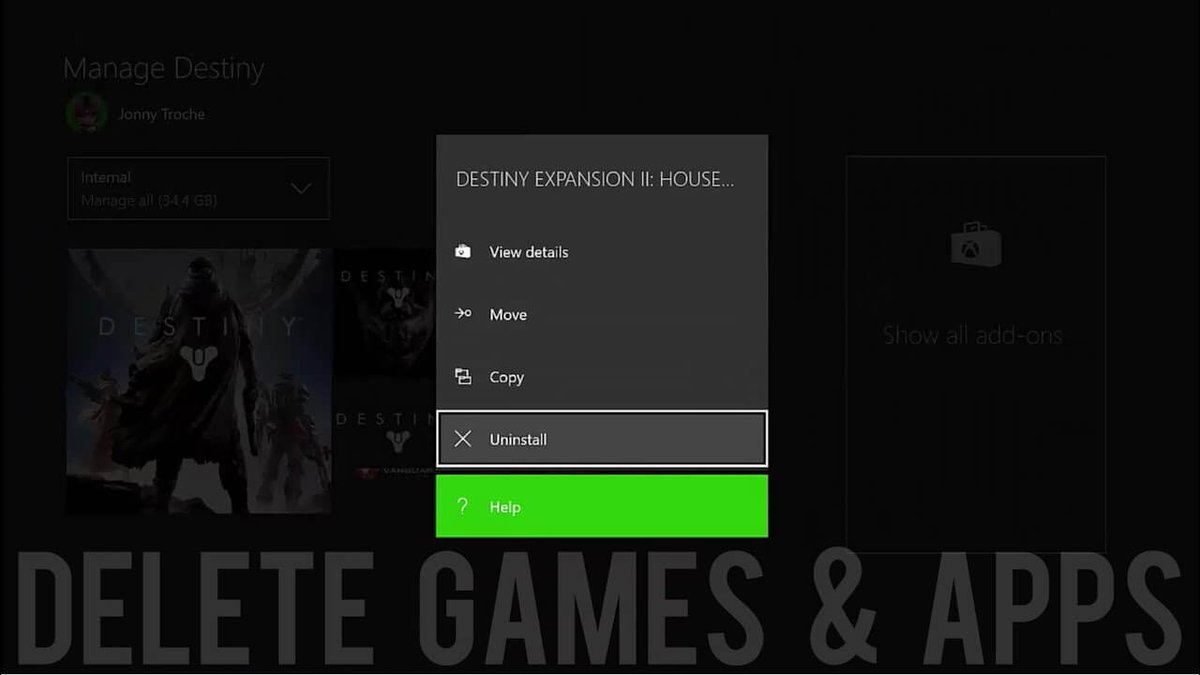
- Reinstall Problematic Games: This is a crucial step for corrupted game files.
- Uninstall: Go to My Games & Apps, highlight the game, press the Menu button, and select Uninstall.
- Power Cycle: Perform a full power cycle (hold power button for 10s, unplug for 1-5 mins). This clears any lingering bad data from the cache.
- Reinstall: Re-download and install the game. This ensures you get a fresh, uncorrupted copy. Consider installing it to the internal drive first.
Case Snippet: “I had Call of Duty freezing every 20 minutes on my One X. I’d tried everything. Finally, I uninstalled it, did a full power cycle, and reinstalled it to the internal drive. The freezing stopped completely. Turns out, the original download had some corrupted packets.” This highlights the importance of a fresh install, especially after a power cycle.
Ensuring Proper Ventilation and Cooling
This is particularly vital for the Xbox One X due to its powerful components and potential for dust accumulation over time.
- Console Placement: Ensure your Xbox One X is in an open, well-ventilated area. Avoid enclosed cabinets or placing it directly against a wall. It needs space for air to flow in and out.
- Clear the Vents: Regularly inspect the console’s vents for dust buildup. Use a can of compressed air to gently blow dust out of the vents. Hold the can upright and use short bursts. Do not stick anything into the vents.
- Elevate the Console (Optional): Some users find that placing small risers or feet under the console (if it’s lying horizontally) can slightly improve airflow, especially if it’s on a carpeted surface.
If your console fan is constantly loud or the top/sides feel very hot, overheating is almost certainly your primary suspect.
Checking Your Network Connection
While usually leading to disconnections rather than full freezes, an unstable network can sometimes cause issues, particularly in games with persistent online components.
- Test Your Connection: Go to Settings > General > Network settings > Test network connection. This will check for basic connectivity.
- Advanced Network Troubleshooting: If basic tests show issues, try restarting your router/modem. For a deeper dive into network stability, consider connecting your Xbox One X via an Ethernet cable instead of Wi-Fi to rule out wireless interference.
Addressing Power Supply Anomalies
A failing or inconsistent power supply can lead to unexpected shutdowns or freezes. The Xbox One X has an internal power supply, unlike the external brick of the original Xbox One.
- Test a Different Power Cable: While less common, a damaged power cable can cause issues. If you have a compatible replacement power cable (often the same type used for TVs or PCs), try swapping it out.
- Direct Wall Outlet: Plug your Xbox One X directly into a wall outlet, bypassing surge protectors or power strips, to rule out interference or insufficient power delivery from those devices.
When All Else Fails: The Factory Reset
A factory reset is a drastic step, but it can resolve deep-seated software issues that regular troubleshooting can’t touch. There are two options:
- “Reset and keep my games & apps”: This resets the console’s operating system to factory defaults but keeps your installed games and apps. Your profile and system settings will be removed. This is often the preferred first choice.
- “Reset and remove everything”: This erases all data, including games, apps, saves, and profiles. It’s like taking the console out of the box for the first time. Only use this as a last resort and ensure you’ve backed up any crucial game saves (most are cloud-synced, but confirm for older titles).
To perform a factory reset: - Go to Settings > System > Console info.
- Select Reset console.
- Choose your desired reset option.
Important Note: While this guide zeroes in on the Xbox One X, many underlying principles of game stability and crash prevention, particularly around software and hardware health, resonate across console generations. For a broader perspective on general game crash troubleshooting, including issues specific to Microsoft’s latest console, you might find our comprehensive guide on how to Fix Xbox Series X crashes helpful.
Researching Game-Specific Issues
Sometimes, the freeze isn’t your console’s fault at all—it’s the game itself. Certain titles, especially immediately after launch or major updates, can have known bugs that cause crashes or freezes on specific hardware configurations like the Xbox One X.
- Online Forums & Developer Sites: If a game consistently freezes, search online forums (Reddit’s r/xboxone, game-specific subreddits, official developer forums) for “[Game Name] Xbox One X freezing” or “[Game Name] crash.” You might find others reporting the same issue, often with workarounds or news about upcoming patches.
- Check Patch Notes: Game developers usually list known issues and fixes in their patch notes. Keep an eye on these.
Practical Playbook: Your Game Plan Against Freezing
Here’s a structured way to approach recurring freezes, moving from the simplest fixes to more involved solutions.
- Always Start with a Full Power Cycle: This is your quick reset button for most transient issues. Hold the power button for 10 seconds, unplug for 1-5 minutes.
- Check for Updates (System & Games): Ensure everything is current before assuming deeper problems.
- Monitor for Overheating: Listen to your fan, feel the console. Clean vents if necessary, and ensure proper placement.
- Isolate the Issue (Game-Specific vs. System-Wide):
- If only one game freezes: Focus on reinstalling that specific game, checking for game-specific bugs, or moving its installation location.
- If multiple games (or the dashboard) freeze: This points to a broader system issue (OS, storage, hardware, or overheating).
- Storage Management: Clear out unused games. Reinstall problematic games after a power cycle.
- Network Test (for online games): Verify stable connectivity if freezing occurs primarily during online play.
- Power Cable/Outlet Swap: A quick test to rule out power supply issues.
- Factory Reset (Last Resort): Start with “Reset and keep my games & apps.” If that fails, “Reset and remove everything” after backing up saves.
Quick Answers: Common Questions About Xbox One X Freezing
My Xbox One X freezes and then instantly shuts down. What does that mean?
This behavior strongly suggests overheating. The console is designed to shut down abruptly to prevent permanent damage when internal temperatures get too high. Focus on cleaning your vents, improving airflow, and potentially considering a professional internal cleaning if dust is severe.
Can external hard drives cause freezing?
Yes, absolutely. A faulty, incompatible, or improperly connected external hard drive can lead to game freezes, especially for games installed on that drive. Try moving games from the external drive to the internal one, or disconnect the external drive entirely to see if the problem persists. Ensure your external drive is USB 3.0 compatible.
Does Quick Resume cause freezing on Xbox One X?
Quick Resume is a feature primarily for Xbox Series X/S. The Xbox One X has a form of “instant on” that allows you to quickly jump back into a game, but it’s not the same sophisticated Quick Resume. While rare, corrupted suspend states could potentially cause issues. If you suspect this, fully quit games from the dashboard before shutting down or starting another game.
My Xbox One X freezes in the same spot in a game every time. Is it my console?
If it’s always the same spot in a specific game, it’s highly likely to be a corrupted game file or a game-specific bug. Uninstalling and reinstalling the game (especially after a full power cycle) is your best bet. If that doesn’t work, research online for known bugs with that particular game and section.
How often should I clean my Xbox One X?
It depends on your environment. If you have pets, carpet, or a generally dusty home, a light external dusting of the vents every 1-2 months and a more thorough compressed air cleaning every 6-12 months is advisable. If your console is in a very clean, open space, less frequent cleaning might be needed, but regular inspection is always wise.
Taking Action: Getting Back in the Game
Facing a freezing Xbox One X can be frustrating, but armed with these troubleshooting steps, you’re well-equipped to diagnose and often resolve the issue yourself. Most problems stem from software, storage, or overheating—all manageable without needing a technician. Start with the simplest, least invasive steps and systematically work your way through. If, after diligent effort, your Xbox One X continues to freeze persistently, especially with multiple games and after a factory reset, then it’s time to consider contacting Microsoft Support. But for the vast majority of cases, a little expert troubleshooting will have you back enjoying your games without interruption.

- How to Fix Xbox One X Freezing During Gameplay - April 9, 2026
- Why Does My Xbox Series S Keep Crashing So Often? - April 8, 2026
- How to Stop Xbox Series X Crashing to Home Screen - April 7, 2026