For the bigger picture and full context, make sure you read our main guide on Why Is My Xbox Games Not Loading? Quick Fixes.
You’ve carved out some time, your headset is charged, and you’re ready to dive into your favorite game. You select it from the dashboard, the splash screen appears, and then… nothing. It either crashes back to the home screen or hangs indefinitely. That frustrating moment is the core of the “why is my xbox not letting me play games” problem, and it can turn a relaxing evening into a technical headache. The good news is that the cause is usually one of a few common culprits, and you can solve it yourself without calling for backup.
The issue is rarely a sign of a dying console. More often, it’s a simple conflict in the software, a network hiccup, or a data-sync error. We’re going to walk through the diagnostics and fixes, from the simplest solutions to the more advanced steps, to get you back in the game.
At a Glance: Your Path to a Solution
- Isolate the Problem: Learn to quickly determine if the issue is with a single game, your account, the Xbox network, or your console’s hardware/software.
- Master the Power Cycle: Understand why a full power cycle (not just a restart) is the most effective first step for clearing up stubborn software glitches.
- Manage Your Data: Discover how to safely clear corrupted local data without losing your precious game saves, thanks to cloud backups.
- Troubleshoot Your Profile: A corrupted user profile can prevent all games from launching. We’ll show you how to refresh it without losing anything.
- Know When to Reset: Learn the difference between a soft reset (keeping your games) and a full factory reset, and when to use each as a last resort.
Is It Your Game, Your Account, or the Xbox Network?
Before you start unplugging cables or resetting your console, take a moment to play detective. Pinpointing where the problem lies saves you a massive amount of time. The issue almost always falls into one of four categories.
1. The Xbox Network Status
This should always be your first check. Sometimes, the problem isn’t on your end at all. Xbox Live services for purchasing, matchmaking, or even validating game licenses can go down.
- How to Check: Don’t rely on guesswork. Go directly to the official Xbox Status page.
- What to Look For: Check for any services with a yellow or red icon, especially under “Games & gaming” or “Account & profile.” If there’s a major outage, the only fix is to wait for Microsoft’s engineers to resolve it.
2. A Single Glitched Game
Is it just one game that won’t launch, or is it everything? This is a critical distinction.
- How to Test: Try launching at least two or three other games, preferably a mix of digital and (if you have them) disc-based titles.
- If Only One Game Fails: The problem is isolated to that specific game’s installation or its local save data. This is good news—it’s a much easier fix.
- If All Games Fail: This points to a more systemic issue with your console’s software, your user profile, or your network connection.
3. Your Account and Licensing
Your Xbox needs to verify you own the rights to play a game. This digital “handshake” can sometimes fail.
- Digital Games: For digital titles, your console periodically checks with Xbox servers to confirm your license. If your internet is down or the Xbox service is having issues, this check can fail, preventing the game from starting.
- Game Pass: If the game is from Game Pass, ensure your subscription is still active.
- Account Sharing: If you’re playing a game owned by another user on the console (via the “Home Xbox” feature), make sure their account is still set up correctly.
4. The Console Itself
If the Xbox network is fine and multiple games are failing to launch, the issue likely resides within the console’s operating system or temporary files. This is where the core troubleshooting begins.
The First Responders: Quick Fixes That Work Over 80% of the Time
For most cases where your Xbox isn’t letting you play games, you don’t need complex solutions. These three steps resolve the vast majority of software-based launch failures. They are part of a universal troubleshooting approach you can use for many console issues. For a complete overview of that framework, you can always reference this guide to Fix Xbox games not loading.
1. Quit and Relaunch the Game
It sounds too simple, but it works. Sometimes a game doesn’t initialize properly, and its process gets stuck in a bugged state.
- Press the Xbox button on your controller to open the guide.
- With the problematic game highlighted, press the Menu button (the one with three lines).
- Select “Quit” from the pop-up menu.
- Wait about 10 seconds, then try launching the game again.
2. Restart Your Console
If quitting the game doesn’t work, the next step is a full system restart. This clears out temporary system files and resolves minor OS glitches without affecting your data.
- Press and hold the Xbox button on your controller.
- Select “Restart console” from the power menu.
- Confirm by selecting “Restart.”
3. Perform a Full Power Cycle (The Cache Clear)
This is the single most effective troubleshooting step for an Xbox. A standard restart can sometimes leave problematic data in the temporary cache. A power cycle forces the console to dump everything from its memory and start completely fresh.
Think of it like this: A restart is like telling your computer to reboot. A power cycle is like unplugging it from the wall, letting it sit for a minute, and then plugging it back in. It’s a much deeper reset.
- Press and hold the physical Xbox button on the front of the console for about 10 seconds, until it shuts down completely.
- Unplug the power cord from the back of the Xbox. This step is non-negotiable.
- Wait for at least 30-60 seconds. This allows the internal power supply to fully discharge.
- Plug the power cord back in and turn the console on using the button on the console itself. You should see the full green Xbox boot-up animation, which confirms you did it correctly.
Case Snippet: A user reported that Call of Duty would crash to the dashboard every time it tried to connect to online services. They had restarted the console multiple times. A single power cycle—unplugging the console for one minute—cleared a network data cache conflict and resolved the issue instantly.
Digging Deeper: When a Simple Reboot Isn’t Enough
If you’ve power-cycled your console and the problem persists, it’s time to investigate issues related to corrupted data. Don’t worry—these steps are safe and designed to protect your game progress.
Is Your User Profile Corrupted?
Your Xbox profile contains your licenses, settings, and the link to your cloud saves. If it becomes corrupted during a sync, it can prevent any game from launching. The fix is to remove it from the console and re-download it from Xbox Live.
- Press the Xbox button to open the guide.
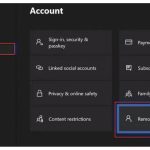
- Navigate to Profile & system > Settings > Account > Remove accounts.
- Select your profile and confirm the removal. (This only removes it from the console, not from Xbox Live).
- Restart your Xbox.
- Once it’s back on, press the Xbox button again and select Profile & system > Add or switch > Add new.
- Sign in with your Microsoft account email and password to re-download your profile.
Clearing Corrupted Game Data
There are two types of game data stored on your console: the game installation itself (the huge 50-100 GB file) and your local save data (usually a few megabytes).
Option 1: Clear the Local Saved Games
Your Xbox keeps a copy of your game saves on the console for fast access and a master copy in the cloud. If the local copy becomes corrupted, the game may fail to launch. You can safely delete the local copy, and your Xbox will automatically re-download the fresh version from the cloud the next time you start the game.
- Navigate to My games & apps.
- Highlight the problematic game and press the Menu button.
- Select “Manage game and add-ons.”
- Go to “Saved data.”
- Select your gamertag and choose “Delete from console.”
- Crucially, do NOT select “Delete from everywhere.” This would also erase your cloud backup.
After deleting the local save, restart your console and launch the game. It will take a moment to sync your data from the cloud, and you should be good to go.
Option 2: Reinstall the Game
If clearing the local save doesn’t work, a core file in the game’s installation may be corrupted. This is common if an update was interrupted or if there was a network error during the initial download.
- Go to My games & apps.
- Highlight the game, press the Menu button, and select “Uninstall.”
- Confirm the uninstallation.
- Go to your Full library > All owned games, find the game, and select “Install All” to download a fresh copy.
The Final Options: Resetting the Console OS
If you’ve tried everything above and multiple games are still refusing to launch, the problem may lie within the Xbox operating system itself. A reset can fix deep-seated software corruption. You have two options, and you should always start with the first one.
| Reset Type | What It Does | When to Use It |
|---|---|---|
| Reset and keep my games & apps | Reinstalls the Xbox operating system but leaves all your installed games and apps untouched. | This is the primary “last resort” option. It fixes OS-level corruption without forcing you to re-download your entire library. |
| Reset and remove everything | Wipes the console completely, returning it to its factory-default state. All games, apps, and profiles will be deleted. | Use this only if the “keep my games” option fails, or if you are selling or giving away your console. |
| To perform a reset: |
- Go to Settings > System > Console info.
- Select “Reset console.”
- Choose “Reset and keep my games & apps.”
The console will go through the reset process, which can take several minutes. Afterward, you will need to sign back into your profile, but all your games will be waiting for you.
Quick Answers: Your Top Questions Addressed
Q: Why does my Xbox say I need to be online to play a single-player, disc-based game?
A: Even with a disc, modern games often have large day-one patches or updates required to run. More importantly, the console may perform a quick online license check to ensure the game is legitimate. Set your console to “Offline” mode in the Network settings if you plan to play without an internet connection, but be aware some games may still not launch without their latest updates.
Q: I share games with a friend. Could the “Home Xbox” setting be the problem?
A: Yes. If you are playing a game owned by someone else, your console needs to be set as their “Home Xbox.” If they change their Home Xbox to a different console, you will lose access to their games unless you are signed into your Xbox and they are also signed in on their profile on your console at the same time.
Q: Will I lose my progress if I clear my local saved data?
A: No, as long as you are connected to the internet. Xbox automatically backs up all your game saves to the cloud. When you select “Delete from console,” you are only removing the local copy. The next time you launch the game, it will sync and download the master save file from the cloud.
Q: Could my external hard drive be causing the issue?
A: Absolutely. If a game installed on an external drive won’t launch, try moving it to the internal storage. If that works, the external drive may be failing or its cable could be faulty. A power cycle with the external drive unplugged can also sometimes resolve recognition issues.
Your Action Plan for Getting Back in the Game
When your Xbox won’t play a game, don’t get overwhelmed. Follow this logical progression from easiest to most complex, and you’ll find the solution.
- Check the Vitals: First, look up the Xbox Live Status and try launching a different game. This 30-second check tells you if the problem is global or local.
- The Power Cycle: Perform a full power cycle by holding the power button and unplugging the console for 60 seconds. This is your most powerful tool and should become second nature.
- Profile & Data: If the issue persists, re-add your profile and then try clearing the game’s local save data (making sure to only delete from the console).
- Reinstall or Reset: As a final step, uninstall and reinstall the specific game. If all games are failing, perform a console reset while keeping your games and apps.
By following these steps, you’re not just randomly trying things; you’re systematically diagnosing and solving the problem like a pro. Now, go get that game launched.

- Why Does My Xbox Series X Keep Crashing? Common Issues Explained - March 21, 2026
- Xbox Freezing Fixes to Get Your Console Working Again - March 20, 2026
- Why Does My Xbox Keep Freezing? Whats Behind the Crashes - March 19, 2026