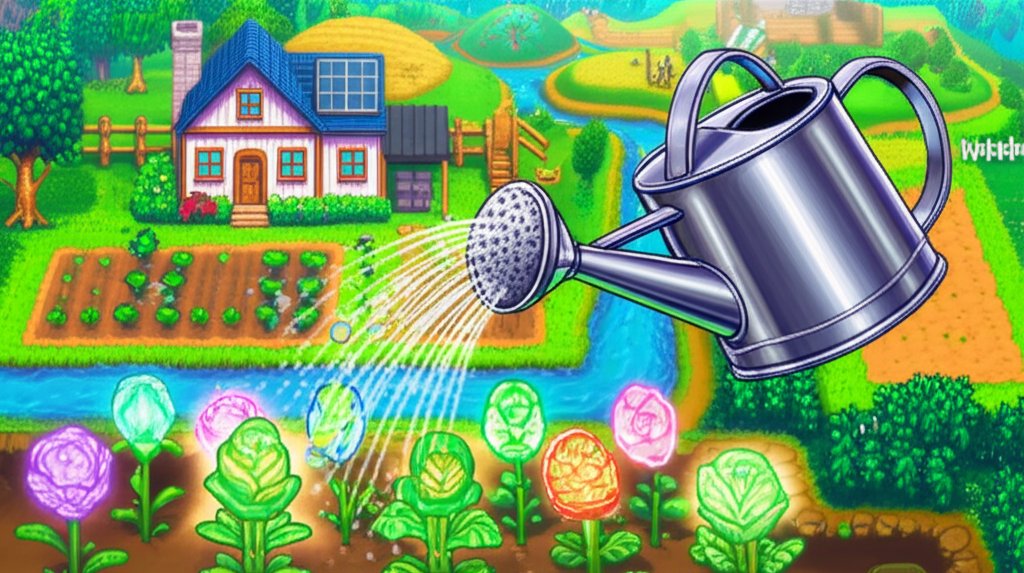
So you’ve mastered the Community Center, married your favorite villager, and reached the bottom of the mines. What’s next? For countless players, the answer lies within the Stardew Valley Nexus, the sprawling digital library that serves as the heart of the game’s modding community. This is where a simple farm life can transform into a sprawling epic with new characters, expanded maps, and quality-of-life tweaks that make every day in the valley feel fresh again.
But navigating this massive repository can feel like your first day in a new town. Which files do you download? What do all the different tabs mean? This guide will turn you into a confident Nexus user, empowering you to find, install, and manage the perfect mods for your game.
At a Glance: Your Nexus Mods Cheat Sheet
- Why Nexus is King: Understand why Stardew Valley Nexus is the definitive, community-trusted source for mods.
- Anatomy of a Mod Page: Learn to read a mod page like an expert, focusing on the critical “Requirements” and “Files” tabs.
- The Manual Install Method: Get step-by-step instructions for the community-preferred way to install mods, avoiding common pitfalls.
- Decoding Dependencies: Grasp why mods like Content Patcher are non-negotiable prerequisites for thousands of other mods.
- Troubleshooting 101: Learn what to do when SMAPI shows red text and how to use the log parser to fix issues fast.
- Best Practices: Discover simple habits for updating mods and keeping your game stable.
Why Stardew Valley Nexus is Your Modding Command Center
Think of Stardew Valley Nexus as the town library and SMAPI (Stardew Modding API) as the librarian. The library holds all the books (mods), but you need the librarian (SMAPI) to check them out, organize them, and make sure they work with the game’s systems. Nexus Mods is the largest, most active, and best-moderated platform for Stardew Valley content, making it the default choice for both players and creators.
Its key advantages are:
- Vast Selection: It hosts tens of thousands of mods, from tiny visual tweaks to massive expansions.
- Community Feedback: Features like endorsements (likes), user comments, and bug reports let you see what’s popular, stable, and well-supported.
- Version Control: Mod authors upload different files for different versions of the game, helping ensure compatibility.
Before you download your first mod from the Nexus, your entire modding journey needs a solid foundation. That foundation is SMAPI, the essential loader that allows mods to safely interact with your game. If you haven’t installed it yet, our comprehensive Stardew Valley mod setup guide provides a clear walkthrough. Once SMAPI is running, you’re ready to explore what the Nexus has to offer.
Navigating the Nexus: A First-Timer’s Field Guide
A Nexus mod page contains a wealth of information. Knowing where to look is the difference between a successful installation and a frustrating error. Let’s break down the most important sections using a hypothetical “Tractor Mod” as an example.
The Anatomy of a Mod Page
When you click on a mod, you’ll see several tabs. Focus on these four first:
- Description: This is the homepage. The mod author explains what the mod does, how it works, and often includes installation instructions. Always read this page first.
- Files: This is where you download the mod itself. You’ll often see a “Main File” and sometimes “Optional Files” or “Old Files.” For your first time, always stick to the main file for the latest version of the game.
- Requirements: This is the most critical tab. It lists other mods that must be installed for this mod to function. Ignoring this is the #1 cause of new user errors. A Tractor Mod, for example, will almost certainly list SMAPI and another mod called “Content Patcher” here. These are called dependencies.
- Posts & Bugs: These are the community forums. Before downloading, take a quick peek. If the latest comments are all from people saying “This is broken with the 1.6 update,” you can save yourself a headache.
| Section on Nexus | What It Is | Why It Matters for You |
| :————— | :——— | :——————– |
| Description | The mod’s summary and instructions. | Tells you if the mod is what you’re looking for and how to install it. |
| Files | The downloadables. | You’ll grab the main.zipfile from here. |
| Requirements | A list of other required mods (dependencies). | You must install these first, or the mod you want will not work. |
| Posts / Bugs | User comments and error reports. | A quick way to check if the mod is currently stable and working for others. |
Your Practical Playbook: From Download to In-Game Reality
Let’s walk through installing a real-world, essential mod: Content Patcher. This is a dependency for thousands of visual and content-based mods, so it’s a perfect first install.
Step 1: The Pre-Flight Check (Dependencies)
Go to the Content Patcher page on Stardew Valley Nexus. Click the “Requirements” tab. You’ll see it only requires one thing: SMAPI. Since you’ve already installed that, you’re cleared for takeoff. This simple check saves you from 90% of common modding problems.
Step 2: The Manual Installation Dance
The Stardew Valley community overwhelmingly recommends manual installation over mod managers like Vortex. It’s cleaner, simpler, and gives you full control.
- Download the File: On the Content Patcher Nexus page, go to the “Files” tab and click “Manual Download” on the main file. You will need a free Nexus account to do this.
- Locate Your
ModsFolder: Open Steam, right-click on Stardew Valley in your library, and go toProperties>Installed Files>Browse. This opens your game folder. Inside, you’ll see aModsfolder that SMAPI created during its installation. - Extract the .zip File: Open the
ContentPatcher-[version-number].zipfile you downloaded. Inside, you will see a single folder named[CP] Content Patcher. - Drag and Drop Correctly: Drag that one folder,
[CP] Content Patcher, directly into yourModsfolder.
This last step is where most beginners make a mistake called “double-nesting.” Pay close attention to your folder structure.
- Correct:
Stardew Valley/Mods/[CP] Content Patcher/manifest.json - Incorrect:
Stardew Valley/Mods/ContentPatcher-1.30.1-1915/[CP] Content Patcher/manifest.json
The folder that contains themanifest.jsonfile must be the one sitting directly inside yourModsfolder. If it’s buried inside another folder, SMAPI won’t be able to find it.
Step 3: The SMAPI Litmus Test
Now for the moment of truth. Launch Stardew Valley through Steam. A black console window will appear before the game loads—this is SMAPI at work. As it boots, it will list the mods it’s loading. You should see a line in purple or white text that says something like:
[SMAPI] Loaded 1 mod:
[SMAPI] - Content Patcher [version] by Pathoschild
If you see this, congratulations! You��ve successfully installed your first mod from the Stardew Valley Nexus.
Decoding SMAPI’s Red Text: A Troubleshooter’s Guide
One day, you’ll launch the game and see angry red text flash across the SMAPI console, followed by the game crashing or a mod not working. Don’t panic. This isn’t a disaster; it’s a diagnostic report.
Your best friend in this situation is the SMAPI Log Parser.
- After a crash or error, go to your main Stardew Valley game folder.
- Find the file named
smapi-latest.txt. - Open it, select all the text (
Ctrl+A), and copy it (Ctrl+C). - Go to the website
smapi.io/log. - Paste your entire log into the box on the page and click “Save & parse log.”
The website will analyze your log and give you a clean, color-coded summary of what went wrong, often with specific instructions on how to fix it.
Here are the most common errors it will diagnose:
- Missing Dependency: The log will tell you exactly which required mod you forgot to install. The fix is to go back to the Nexus page for the broken mod and install everything listed in its “Requirements” tab.
- Incorrect Folder Structure: The log might say it “skipped mod… because it’s in a subfolder.” This is the double-nesting problem we discussed. Fix your folder structure and try again.
- Outdated Mod: The log will flag mods that haven’t been updated for the current version of the game. Sometimes they still work (and SMAPI will tell you), but if they cause a crash, the fix is to check the Nexus page for an update or, if there isn’t one, remove the mod.
Quick Answers: Your Stardew Valley Nexus FAQ
Q: Can I use a mod manager like Vortex for Stardew Valley?
A: While technically possible, it is not recommended by the wider Stardew Valley modding community. Manual installation is far more reliable and less prone to errors with SMAPI. The process is so simple (drag one folder) that a manager often adds unnecessary complexity.
Q: How do I update a mod I downloaded from Nexus?
A: Never just copy and paste the new version over the old one. This can leave behind outdated files that cause conflicts. The correct way is to completely delete the old mod’s folder from your Mods directory and then install the new, updated folder as if you were installing it for the first time.
Q: What are “Endorsements”? Should I use them?
A: An endorsement is a “thank you” to the mod author. After you’ve played with a mod and confirmed it works well, it’s considered good etiquette to go back to its Nexus page and click “Endorse.” It costs you nothing and gives the creator positive feedback.
Q: Is it safe to download mods from Stardew Valley Nexus?
A: Yes, it is very safe. Nexus Mods has moderation and scanning processes in place. As long as you stick to popular mods with plenty of downloads and endorsements, your risk is virtually zero. SMAPI also acts as a safety buffer between mods and your core game files.
Build Your Mod List with Confidence
You now have the knowledge to safely and effectively use the Stardew Valley Nexus. The core process is a simple loop: find a mod, check its requirements, download the dependencies first, and then install the mod itself with the correct folder structure.
When starting out, adopt this one simple habit: install and test mods one at a time. Add a new mod, launch the game, and make sure everything works before adding the next one. This makes troubleshooting infinitely easier because if something breaks, you know exactly which mod was the cause.
The Stardew Valley Nexus is your gateway to a nearly endless farming experience. Go explore, find some amazing creations, and build the perfect farm life you’ve always imagined.

- How to Fix Your Xbox Keeps Freezing during Games - March 22, 2026
- Why Does My Xbox Series X Keep Crashing? Common Issues Explained - March 21, 2026
- Xbox Freezing Fixes to Get Your Console Working Again - March 20, 2026