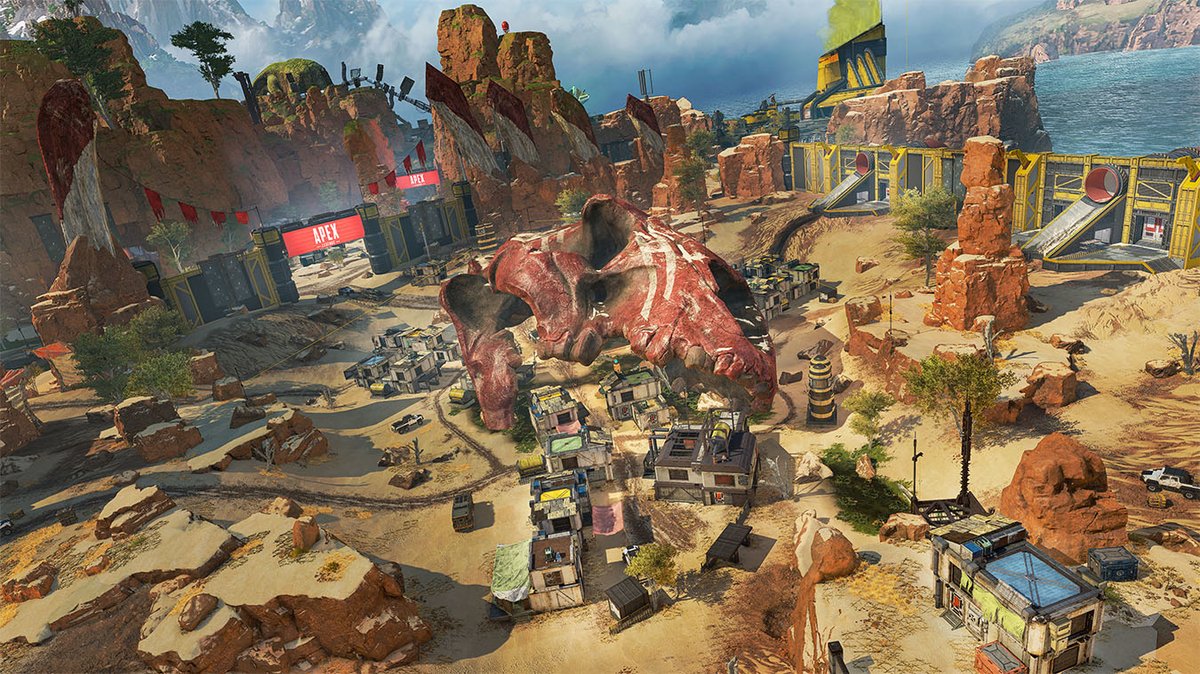
Experiencing that frustrating moment where your Apex Legends game just freezes, stutters, and then outright crashes to the desktop? If your Apex keeps crashing on PC, you’re far from alone. This beloved battle royale can be notoriously unstable for many players, disrupting intense firefights and leaving you wondering if your rig is to blame or if the game itself is acting up. The good news is, for most PC players, these crashes aren’t random acts of digital cruelty; they stem from identifiable issues with equally clear solutions.
This guide dives deep into the practical steps you can take right now to diagnose and fix those persistent Apex Legends crashes, helping you get back into the Outlands without the unexpected desktop interruption.
At a Glance: Your Crash Resolution Checklist
- Drivers First: Always start by ensuring your graphics drivers and Windows OS are up-to-date.
- Validate Game Files: Corrupt game data is a surprisingly common culprit; verify your installation.
- Optimize Settings: Tweak in-game graphics and system processes to reduce strain on your PC.
- System Check: Disable overlays, background apps, and any overclocking for stability.
- Network Considerations: Understand how connectivity issues can manifest as crashes, and explore potential boosts.
The Foundation of Stability: Drivers and System Updates
Think of your PC’s drivers and operating system as the basic language your hardware uses to communicate with Apex Legends. If this language is outdated or corrupted, misunderstandings (and crashes) are bound to happen. Outdated GPU drivers are often the most common and easily fixable cause when Apex keeps crashing.
Freshen Up Your Graphics Drivers
Your graphics card is the powerhouse rendering every frame of Apex Legends. Outdated or buggy drivers can lead to instability, freezes, and crashes, especially with new game patches.
How to Update:
- Identify Your GPU: Know if you have an NVIDIA or AMD card.
- Download Latest: Visit the official NVIDIA (GeForce Experience or website) or AMD (Adrenalin Software or website) driver download page.
- Perform a Clean Installation: Many driver installers offer a “clean installation” option. This removes previous driver files, preventing potential conflicts.
- Restart Your PC: Always restart after a driver update to ensure changes take effect properly.
Case Snippet: A player reported frequent crashes shortly after a major Apex Legends season launch. A clean installation of the latest NVIDIA drivers, specifically released a week after the season update, completely resolved their issue. It turned out the older drivers weren’t fully optimized for the new game build.
Keep Windows in Top Shape
Your operating system also plays a crucial role. Windows updates often include performance improvements, security fixes, and compatibility enhancements that can indirectly stabilize games like Apex Legends.
How to Update Windows:
- Go to
Settings > Update & Security > Windows Update. - Click “Check for updates” and install any available.
- Restart your PC as prompted.
Safeguarding Game Integrity: Verifying Apex Legends’ Files
Apex Legends involves massive game files, and sometimes, bits and pieces can go missing or become corrupted. This could be due to an incomplete download, an interrupted patch, or even a hard system shutdown. When your Apex keeps crashing, especially during specific actions like matchmaking or character selection, corrupt game files are a prime suspect.
Let the Launcher Do the Work: Verifying Game Files
Both Steam and the EA App (formerly Origin) offer built-in tools to check the integrity of your game installation. This process scans your game files against the official version and replaces any that are damaged or missing.
Steps for Steam:
- Open Steam and go to your Library.
- Right-click on Apex Legends and select Properties.
- Go to the Installed Files tab (or “Local Files” on older Steam versions).
- Click “Verify integrity of game files…”
- Wait for the process to complete. It might redownload a few files if issues are found.
Steps for EA App (and Origin): - Open the EA App (or Origin) and navigate to your Game Library.
- Click on Apex Legends.
- Click the “Manage” button (often a gear icon or three dots).
- Select “Repair” from the options.
- Allow the app to scan and repair the game files.
Expert Tip: Always verify your game files after a crash, especially if it happens repeatedly. This quick check can save you hours of troubleshooting other, more complex issues.
Easing the Load: System Resources and Overlays
Modern PCs are powerful, but Apex Legends can be demanding. If your system is already under strain from other applications or overly aggressive in-game settings, it can lead to overheating, high CPU/GPU utilization, and ultimately, a crash. When Apex keeps crashing consistently in the middle of a match, resource contention is often a factor.
Taming Background Processes
Too many programs running simultaneously can hog your CPU, RAM, and even GPU resources, leaving less for Apex Legends.
How to Optimize:
- Open Task Manager: Press
Ctrl + Shift + Esc. - Go to the Processes tab.
- Identify and Close Non-Essential Apps: Look for applications consuming significant CPU, Memory, or GPU resources (e.g., web browsers with many tabs, streaming apps, video editors). Right-click and “End task.”
- Disable Startup Programs: In Task Manager, go to the Startup tab. Disable any unnecessary programs that launch with Windows, which can be done by right-clicking and selecting “Disable.”
Silencing Overlays and Monitoring Tools
Many applications, such as Discord, Steam, GeForce Experience, and MSI Afterburner, offer in-game overlays. While convenient, these overlays inject code into the game, which can sometimes interfere with Apex Legends, causing instability.
How to Disable:
- Discord:
User Settings > Activity Settings > Game Overlay. Toggle off “Enable in-game overlay.” - Steam:
Steam > Settings > In-Game. Uncheck “Enable the Steam Overlay while in-game.” - GeForce Experience: Open GeForce Experience. Click the gear icon (Settings) >
General. Toggle off “In-Game Overlay.” - MSI Afterburner/RivaTuner Statistics Server: Close or disable the overlay features in these applications before launching Apex.
Pitfall: Many players forget about antivirus software. While crucial for security, some aggressive antivirus programs can interfere with games. Temporarily disabling your antivirus or adding Apex Legends to its whitelist can sometimes resolve crashing issues. Remember to re-enable it after testing.
Refining Performance: In-Game and System Settings
Apex Legends offers a wide array of graphical settings, and finding the right balance between visual fidelity and performance is key to preventing crashes. Beyond the game, certain Windows settings can also impact stability.
Adjusting In-Game Graphics for Stability
High resolutions, demanding texture settings, and intensive anti-aliasing can push even powerful PCs to their limit. Lowering these can significantly reduce stress on your hardware.
Recommended Adjustments (Apex Legends Video Settings):
- Display Mode: Set to Fullscreen. This gives Apex Legends dedicated control over your display, often improving performance and stability over Borderless Windowed.
- Resolution: Match your monitor’s native resolution. If crashes persist, try lowering it slightly.
- Texture Streaming Budget: Set to Medium or Low. This controls the amount of VRAM used for textures.
- V-Sync: Disable V-Sync. While it prevents screen tearing, it can introduce input lag and sometimes conflicts. Cap your FPS using other methods if needed.
- Anti-aliasing: Set to TSAA (Medium) or Off. This smooths jagged edges but is very resource-intensive.
- All Other Settings: Experiment by setting everything to Medium or Low. Gradually increase settings one by one to find the stable threshold.
Case Snippet: A player with an older GPU constantly crashed during intense firefights. Diagnostics showed their GPU hitting 100% utilization and high temperatures. Lowering Texture Streaming Budget and disabling Anti-aliasing immediately stabilized their game, even if it meant a slight visual downgrade.
Windows Fullscreen Optimization: Friend or Foe?
Windows 10/11 includes “Fullscreen Optimizations” which are supposed to improve performance for full-screen applications. However, for some games, including Apex Legends, this feature can ironically cause instability or input lag.
How to Disable:
- Locate your Apex Legends installation folder.
- Steam:
Steam\steamapps\common\Apex Legends - EA App:
C:\Program Files\EA Games\Apex Legends(or similar, check EA App settings for install path)
- Find the game’s executable file (e.g.,
r5apex.exe). - Right-click
r5apex.exeand select Properties. - Go to the Compatibility tab.
- Check the box for “Disable fullscreen optimizations.”
- Click Apply, then OK.
Advanced Tweaks and Last Resorts
Sometimes, basic fixes aren’t enough. These next steps delve into more specific system configurations and, if all else fails, a complete reset.
Tweak Launch Options (Steam Specific)
For Steam users, specific launch options can force Apex Legends to run with certain parameters that might improve stability.
How to Add Launch Options:
- Open Steam and go to your Library.
- Right-click on Apex Legends and select Properties.
- In the General tab, under “Launch Options,” enter the following:
+fps_max 120 -novid -nojoy -high
What these commands do:
+fps_max 120: Caps your maximum framerate at 120. Overly high or uncapped FPS can sometimes lead to instability or excessive GPU strain. Adjust120to your monitor’s refresh rate if different.-novid: Skips the intro videos when starting the game.-nojoy: Disables joystick support, which can prevent conflicts if you’re not using one.-high: Sets the game’s process priority to “High” automatically. (Though sometimes manually setting to “Above normal” via Task Manager is safer).
Managing CPU Overclocking
Manually increasing your CPU’s clock speed (overclocking) can offer performance gains but at the risk of system instability. If you’ve overclocked your CPU and Apex keeps crashing, this is a prime suspect.
Action: Revert your CPU’s clock speed to its default or factory settings. This is typically done through your motherboard’s BIOS/UEFI settings. Consult your motherboard manual for specific instructions.
Raising Game Priority (A Gentle Nudge)
Giving Apex Legends a slightly higher priority in your PC’s task management can ensure it gets preferential access to CPU resources, potentially reducing stutters or crashes due to resource contention.
How to Set Priority (While Game is Running):
11. Launch Apex Legends.
12. Minimize the game (Alt + Tab) or open Task Manager (Ctrl + Shift + Esc).
13. Go to the Details tab.
14. Find r5apex.exe (or ApexLegends.exe), right-click it, hover over Set priority, and choose Above normal. Avoid “High” or “Realtime” unless you know what you’re doing, as these can sometimes destabilize your entire system.
The Ultimate Reset: Reinstalling Apex Legends
If you’ve tried everything and Apex keeps crashing, a complete reinstall of the game (and sometimes even the game launcher) is your nuclear option. This ensures all files are fresh, and no corrupted caches or leftover settings are causing issues.
Steps:
- Uninstall Apex Legends:
- Steam:
Library > Right-click Apex Legends > Manage > Uninstall. - EA App:
Game Library > Apex Legends > Manage (gear icon) > Uninstall.
- Clear Leftover Files (Optional but Recommended): After uninstalling, manually check the installation directory (
Steam\steamapps\common\Apex LegendsorC:\Program Files\EA Games\Apex Legends) and delete any remaining folders. Also, consider clearing temporary files: pressWin + R, type%temp%, and delete everything you can. - Restart PC.
- Reinstall: Download and install Apex Legends fresh from your preferred launcher.
When Network is the Culprit: Accelerators
Sometimes, crashing isn’t about your PC’s hardware or game files but rather a shaky connection to the game servers. Regional server outages (like the Cloudflare issues mentioned in some diagnostics) or general network congestion can manifest as lobby disconnects, login failures, or even mid-game freezes that mimic a crash.
While not a direct “fix” for local PC issues, a game booster or network accelerator like LagoFast can help:
- Optimized Routing: These tools reroute your connection through more stable, faster paths, bypassing congested internet segments.
- Reduced Packet Loss: By creating a more reliable connection, they can reduce packet loss which often leads to disconnects or “crashes” that are actually network timeouts.
Consider this if your crashes are often accompanied by “connection to server timed out” messages, or if friends in your region are experiencing similar issues.
For broader insights into the overarching reasons why games like Apex Legends experience stability issues, you might find it helpful to explore the Why Apex crashes explained pillar article for a more comprehensive understanding of the common underlying problems across all platforms.
Quick Answers to Common Crash Questions
Q: My Apex keeps crashing only when I launch it. What’s wrong?
A: This often points to driver issues, corrupt game files, or conflicts with background software/overlays. Start by updating your GPU drivers and verifying game files. Also, check your antivirus for false positives.
Q: Does more RAM stop Apex from crashing?
A: Not directly, but insufficient RAM can lead to crashes by forcing your system to rely on slower virtual memory. If you have less than 16GB, upgrading can improve overall system stability and performance, reducing potential memory-related crashes.
Q: Can overheating cause Apex to crash?
A: Absolutely. If your CPU or GPU gets too hot, it will throttle performance or, as a safety measure, force a system shutdown or game crash. Ensure your PC has adequate cooling, clean dust from fans, and monitor temperatures with tools like HWMonitor.
Q: Why does Apex crash only in ranked games?
A: This is often anecdotal, but higher-stress scenarios (more players, intense effects, longer matches) can push your system harder. It could indicate a borderline stable system that only crashes under maximum load. Revisit graphics settings and ensure no background apps are consuming resources.
Q: Is it better to play Apex on Steam or EA App to avoid crashes?
A: In terms of stability, there’s no inherent difference between the two launchers. Both rely on the same core game files. However, if you suspect launcher-specific issues (e.g., EA App cache problems), trying the other platform might occasionally help.
Your Actionable Playbook: Stop Apex from Crashing Now
Don’t let constant crashes ruin your Apex Legends experience. Tackle the problem systematically with this prioritized approach:
- The Essentials (Start Here):
- Update GPU Drivers: Perform a clean install of the very latest drivers.
- Verify Game Files: Use Steam’s or EA App’s built-in repair tool.
- Update Windows: Ensure your operating system is fully patched.
- Optimize Your Environment:
- Disable Overlays: Turn off all in-game overlays (Discord, Steam, GeForce Experience).
- Close Background Programs: Use Task Manager to shut down non-essential applications.
- Adjust In-Game Graphics: Lower Texture Streaming Budget, disable V-Sync and Anti-aliasing, and set other options to Medium/Low. Use Fullscreen mode.
- Advanced Tweaks (If Issues Persist):
- Disable Fullscreen Optimizations: For the
r5apex.exefile. - Modify Steam Launch Options: Add
+fps_max 120 -novid -nojoy -high. - Check Overclocking: Revert any CPU overclocks to default.
- Set Game Priority: Manually set
r5apex.exeto “Above normal” in Task Manager.
- Last Resort & Network Considerations:
- Reinstall Apex Legends: A complete fresh installation.
- Consider a Network Accelerator: If crashes seem connection-related (e.g., frequent disconnects, login issues), especially if you’re in a region prone to server outages.
By working through these solutions, you’re not just troubleshooting; you’re building a more robust and stable environment for Apex Legends to run, significantly reducing the chances of your next match being cut short by an unexpected crash. Good luck, Legend.

- Is Your Apex Crashing? Find Solutions For PC And Console - April 13, 2026
- Apex Keeps Crashing on PC? Here Are the Solutions - April 13, 2026
- Why Does Apex Keep Crashing? Common Issues Explained - April 12, 2026