There’s nothing more frustrating than the initial excitement for a new game being crushed by a progress bar that goes nowhere. You hit “Install,” watch it start, and then—the dreaded notification: installation stopped xbox series s. This all-too-common error can halt a download for a massive game like Starfield or Call of Duty in its tracks, leaving you wondering if the issue is your console, your network, or the game itself. It’s not just you, and the fix is often simpler than you think.
This problem is particularly prevalent on the digital-only Series S, where every install is also a download. The good news is that you can almost always resolve it without needing a factory reset or a call to customer support.
At a Glance: Your Quick Fix Game Plan
- Understand the Core Conflict: Learn why your Series S often stops installs—it’s usually a clash between downloading the base game and its day-one update simultaneously.
- Master the Offline Install: Get the step-by-step instructions for the most reliable fix: installing the game offline first, then downloading the patch separately.
- Execute Quick Resets: Discover how to perform a proper power cycle and clear the local save cache, two simple steps that resolve a surprising number of glitches.
- Tackle Network Gremlins: Find out how changing your DNS settings can stabilize your connection to the Xbox servers and prevent download timeouts.
- Rule Out Storage Issues: Learn to diagnose whether the problem is a lack of space or a communication error with your internal or external drive.
Why Your Xbox Series S Halts Game Installations
Before diving into the fixes, it helps to understand what’s happening behind the scenes. Unlike a simple file transfer, installing a modern console game is a complex process. The “installation stopped” error on your Xbox Series S is rarely a sign of a hardware failure. Instead, it’s typically a software or network hiccup.
The Primary Culprit: A Digital Traffic Jam
The number one reason for this error is a conflict that occurs when your console tries to do two things at once:
- Install the Base Game: It begins installing the core game files from your digital library.
- Download the Update: Simultaneously, it reaches out to the Xbox servers and starts pulling down the latest patch or day-one update.
On a fast, stable network, this process can sometimes work. But if your connection has even minor fluctuations, or if the day-one patch is massive (which is common), the two processes can interfere with each other. The console essentially gets confused, one process times out, and the entire installation grinds to a halt. Think of it like trying to merge two busy highway lanes into one without any coordination—the result is a traffic jam. This issue is a frequent trigger for a range of download problems, and understanding the broader context of how your console handles data can be a huge help. For a more comprehensive overview, our guide to Fix Xbox Series X download errors provides an excellent framework.
Other Common Roadblocks
While the install/update conflict is the main offender, a few other issues can also trigger the “installation stopped” message:
- Corrupted Local Data: Sometimes, a leftover file from a deleted game, a beta, or a previous failed installation attempt can block a new install. Your console sees this corrupted data fragment and doesn’t know how to overwrite it.
- Network Instability: Your connection to the Xbox servers might be dropping intermittently. This can be caused by your local router, your Internet Service Provider (ISP), or the DNS servers you’re using to navigate the web.
- Storage Communication Glitches: It’s not always about having enough free space. The error can occur if the console momentarily loses its ability to write data to the internal SSD or an external drive, even if plenty of gigabytes are free.
Your Step-by-Step Troubleshooting Playbook
Start with the simplest, least invasive fixes first. Work your way down this list, as the majority of users find a solution in the first three steps.
Method 1: The Full Power Cycle (More Than a Simple Restart)
A power cycle, also known as a cold boot, does more than just turn your console off and on. It completely clears the system’s temporary cache, which is often filled with junk data that can interfere with downloads.
- Cancel the Installation: Go to “My games & apps” > “Queue” and cancel the stuck download.
- Press and Hold: With the console on, press and hold the Xbox button on the front of your Series S for about 10 seconds. The console will shut down completely.
- Unplug the Power: Disconnect the power cord from the back of the Xbox. Let it sit unplugged for at least 60 seconds. This step is crucial, as it ensures the power supply is fully discharged and the cache is cleared.
- Power Up: Plug the cord back in and press the Xbox button to turn the console on.
- Look for the Green Screen: You’ll know you did it correctly if you see the full, green Xbox startup animation. This indicates a cold boot.
- Retry the Installation: Once you’re back at the dashboard, try installing the game again.
Method 2: Clear Your Local Saved Games Cache
This method sounds drastic, but it is completely safe. Your actual game save progress is stored in the Xbox cloud. This process only deletes the locally cached copies on your console, which will automatically re-sync the next time you launch a game. It’s an effective way to remove any corrupted temporary files related to game installations.
- Navigate to Settings on your Xbox dashboard.
- Go to System > Storage devices.
- Select Clear local saved games.
- Confirm your choice. Your console will restart automatically.
After it reboots, try installing the game again. Many users find this immediately resolves the “installation stopped” error, especially if a previous install of the same game had failed.
Real-World Scenario: A user was trying to install Halo Infinite. The installation kept stopping at 42%. After trying a simple restart with no luck, they used the “Clear local saved games” function. The console restarted, and upon trying the installation again, it completed without any further issues. The likely cause was a corrupted temporary file from the initial download attempt.
The Offline Install: Your Most Reliable Solution
If the first two methods don’t work, this is your go-to strategy. The offline install method directly targets the primary cause of the error—the conflict between the base game installation and the update download. By taking the console offline, you force it to complete one task at a time.
How to Perform the Offline Installation
Follow these steps precisely for the best results:
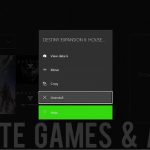
- Cancel and Delete: First, make sure you’ve canceled the stuck download from your queue. If the partially installed game tile is on your dashboard or in your library, highlight it, press the Menu button (the one with three lines), and select “Uninstall.”
- Disconnect from the Internet: Go to Settings > General > Network settings.
- Select Go offline. Your console is now disconnected from the internet.
- Restart Your Console: Perform a quick restart from the power menu (hold the Xbox button on your controller) to ensure the setting takes effect.
- Begin the Installation: Go to “My games & apps” and find the game in your “Full library.” Select it and choose “Install All.” The console will now install the base version of the game that was downloaded to your library when you purchased it.
- Wait for 100%: Let the installation complete fully. Do not go back online until the progress bar hits 100% and the game shows as “Ready to start.”
- Reconnect and Update: Once the base game is installed, go back to Settings > General > Network settings and select Go online.
- Navigate to “My games & apps” > “Manage” > “Updates.” The game’s update should appear here automatically and begin downloading.
This process separates the two conflicting actions, ensuring the stable base game is installed first, followed by a clean, uninterrupted update download.
Advanced Network and Storage Troubleshooting
If the offline method still doesn’t work, the issue may lie deeper within your network configuration or storage setup.
Tweak Your DNS Settings for a Better Connection
Your Domain Name System (DNS) server acts like the internet’s phone book, translating website names (like xbox.com) into IP addresses. Sometimes, the default DNS provided by your ISP can be slow or unreliable, causing connection timeouts that interrupt large downloads. Switching to a trusted public DNS, like Google’s, can often create a more stable connection.
How to Change Your DNS:
- Go to Settings > General > Network settings.
- Select Advanced settings > DNS settings.
- Choose Manual.
- Enter the following:
- Primary IPv4 DNS:
8.8.8.8 - Secondary IPv4 DNS:
8.8.4.4
- Press B to back out and save the settings. Your console will briefly re-check its connection.
After changing the DNS, try the download again. A simple router restart (unplugging it for 60 seconds) is also a great idea at this stage to refresh your entire local network.
Check Your Storage Health and Location
While you may have enough free space, the drive itself could be part of the problem.
| Storage Scenario | Potential Issue | Recommended Action |
|---|---|---|
| Installing to External HDD/SSD | The external drive might have a slower write speed or a faulty connection, causing the installation to time out. | Cancel the install, unplug the external drive, and try installing the game directly to the internal SSD. You can move it to the external drive later. |
| Internal SSD is Almost Full | Even with enough space for the game, low overall free space (under 15%) can slow down system operations, including installations. | Free up more space by uninstalling a game you no longer play. Aim for at least 50-100 GB of free space before starting a large new installation. |
| Quick Resume is Active | Having multiple large games suspended in Quick Resume can sometimes reserve system resources, subtly interfering with background downloads. | Manually quit all games from the Quick Resume group before starting a major new installation. |
Quick Questions, Straight Answers
Why does my Xbox Series S say “installation stopped” but I have enough space?
This is the most common question and highlights the core misunderstanding of the error. The problem is rarely about total storage capacity. It’s a process error. The most likely causes are a conflict between the main game install and its simultaneous update download, or a piece of corrupted temporary data blocking the install. Use the Offline Install method to fix this.
Will I lose my progress if I clear local saved games?
No, you will not lose your progress. As long as your Xbox has been connected to the internet, all your game saves are automatically backed up to the Xbox cloud. When you clear the local saved games, you are only deleting the copies on your console’s hard drive. The next time you launch a game, your console will sync with the cloud and download your latest save file.
Is it better to install games to the internal or external drive on the Series S?
For troubleshooting purposes, always default to the internal SSD. It is the fastest and most stable storage on your console. If an installation repeatedly fails on an external Seagate Expansion Card or USB SSD/HDD, your first step should be to try installing it on the internal drive. This helps you determine if the issue is with the game/network or with the external storage device itself.
Can a slow internet connection cause the “installation stopped” error?
Yes, but indirectly. A very slow or unstable connection (one with high packet loss or latency) dramatically increases the chance of the install/update conflict occurring. The longer the download takes, the more opportunities there are for a timeout or data packet corruption to happen, which in turn triggers the “installation stopped” notification. Improving network stability by using a wired connection or changing your DNS can help.
Getting Back to the Game
Facing the installation stopped Xbox series s error is a massive momentum killer, but it’s an obstacle you can overcome. The problem is almost always rooted in a software-level conflict, not a broken console.
Your action plan is clear: start with a full power cycle to clear the cache. If that fails, clear the local saved games to remove any corrupted data. For the most stubborn cases, the offline installation method is your ultimate tool, forcing the console to handle one process at a time. By systematically working through these solutions, you can solve the problem and get back to what matters: playing your new game.

- Why Does Apex Keep Crashing? Common Issues Explained - April 12, 2026
- GTA Online Keeps Freezing Xbox Series X? Heres How To Fix It - April 11, 2026
- Xbox Series S Freezing Frustrates Gamers Seeking Immediate Solutions - April 10, 2026