Nothing kills the excitement of a new game faster than a stubborn, unmoving progress bar. You’re ready to dive in, but your console has other plans, flashing that dreaded “Installation Stopped” error. If you’re wrestling with this issue, you’re not alone, and knowing how to fix installation stopped xbox one errors is about understanding a few common culprits—from network conflicts to hidden data corruption. It’s a frustrating roadblock, but one you can definitely clear with the right approach.
At a Glance: Your Quickest Paths to a Solution
- Why It Happens: The error is often caused by the Xbox trying to download a day-one patch while simultaneously installing from a disc or digital file, creating a conflict. Other causes include corrupted data, insufficient storage, or Xbox Live service outages.
- The #1 Trick to Try: Taking your console offline is the most reliable first step. It forces the Xbox to focus on one task—installing the base game—before you go back online for updates.
- Safe Data Clearing: You can clear potentially corrupt temporary files by deleting “Local saved games” without losing your actual game progress, which is safely stored in the cloud.
- Disc vs. Digital: The fix can depend on your game format. Disc owners have a unique workaround using the Microsoft Store, while digital owners should focus on network and data integrity.
- When to Escalate: If simple fixes don’t work, the problem may lie with the console’s operating system, requiring a system update or, as a last resort, a factory reset.
Understanding Why Your Xbox One Stops an Installation
Before jumping into fixes, it helps to know what you’re up against. The “Installation Stopped” message isn’t a single error but a symptom of several possible issues. Think of it as a traffic jam inside your console; something is blocking the flow of data.
The most frequent cause is a download conflict. When you install a new game, your Xbox One immediately checks for updates. It then tries to install the base game from the disc or initial download at the same time it’s pulling down a massive day-one patch. This multitasking can cause the process to stall.
Other common culprits include:
- Corrupted Installation Files: A brief network hiccup or power flicker can corrupt a small piece of the data, bringing the entire installation to a halt.
- Insufficient Storage Space: Modern games are huge. Even if you have enough space, you need extra temporary space for the installation process itself.
- Xbox Live Service Issues: If the servers you’re connecting to are down for maintenance or experiencing problems, authentication and downloads can fail.
- Disc Read Errors: For physical copies, a smudged, dirty, or scratched disc can prevent the console from reading the necessary data.
- Outdated Console Software: An old version of the Xbox operating system might have compatibility bugs with a new game.
While we’re focused on the Xbox One here, many of these network-related gremlins are part of a larger pattern. If you’re also troubleshooting on a newer console, our guide to Fix stalled Xbox Series X downloads offers a broader framework for network diagnostics.
The First-Line Fixes: Simple Steps with High Success Rates
Always start with the least invasive solutions. These methods resolve the “Installation Stopped” error in most cases and don’t require any drastic measures like deleting games or resetting your console.
1. The Offline Installation Trick (Your Go-To Move)
This is the single most effective fix, especially for disc-based games. By taking your console offline, you eliminate the update conflict, forcing the Xbox to complete the base installation without distractions.
Here’s how to do it:
- Press the Xbox button on your controller to open the guide.
- Navigate to Profile & system > Settings > General > Network settings.
- Select Go offline. Your console is now disconnected from the internet.
- Go to My games & apps > See all > Queue and cancel the stuck installation.
- If you have a disc, eject it and re-insert it. For a digital game, find it in your library and select Install.
- Let the installation complete fully while offline. Once it hits 100%, you can go back to Network settings and select Go online.
- Your console will now find and download the necessary updates separately.
Case Snippet: A user was trying to install Red Dead Redemption 2 from a disc. The installation kept stopping at 45%. By going offline, they forced the console to install the entire base game from the disc first. After it finished, they went back online, and the console then smoothly downloaded the 10GB update.
2. Clear Your Local Saved Games Cache
Don’t let the name scare you. This action does not delete your game progress. Your saves are synced to Xbox Live (the cloud). This step only removes local temporary files and cache, which can become corrupted and interfere with installations.
- If you’re installing from a disc, eject it first.
- Go to Settings > System > Storage devices.
- Select the option Clear local saved games.
- Confirm by selecting Yes. Your Xbox One will restart.
- Once it boots back up, try installing your game again. The console will re-sync your cloud saves the next time you launch a game.
3. Check the Obvious: Storage Space and Xbox Live Status
Sometimes the simplest explanation is the right one.
- Check Your Storage: Go to Settings > System > Storage devices. You’ll see a visual breakdown of your internal and any external drives. Games often need 10-20% more free space than the final install size to unpack files. If you’re below 15-20% free space, uninstall an old game you’re not playing to make room.
- Check Xbox Live Status: If the core Xbox services are down, nothing will download or install correctly. Visit the official Xbox Status page. If you see red or yellow indicators next to “Games & gaming” or “Store & subscriptions,” you’ll just have to wait for Microsoft to resolve the issue.
Advanced Solutions for Persistent Errors
If the first-line fixes didn’t work, it’s time to dig a little deeper. These methods address more specific issues with game licenses, console software, and physical media.
4. For Disc Owners: The Microsoft Store Workaround
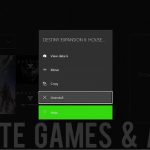
This is a brilliant trick for bypassing a faulty disc drive or a slightly damaged disc. Your physical disc essentially acts as a license key. By inserting it, you prove to the Microsoft Store that you own the game, allowing you to download the digital version instead.
- Insert the game disc into your Xbox One.
- When the installation automatically begins (and likely fails), go to your queue and cancel it.
- Leave the disc in the console.
- Navigate to the Microsoft Store.
- Use the search function to find the exact version of the game you own.
- On the game’s store page, the “Buy” button should be replaced with an “Install” button. Your console recognizes the disc in the drive as proof of ownership.
- Click “Install” to download the game directly from Microsoft’s servers, bypassing the disc reader entirely.
5. Update Your Console’s Operating System
An outdated OS can cause all sorts of strange behavior. Ensuring your console is running the latest software can resolve underlying bugs that interfere with installations.
- Go to Settings > System > Updates.
- You’ll see a “Console update available” message if one is pending.
- Select it to begin the update process. If it says “No console update available,” you’re already on the latest version.
- After the update finishes and the console restarts, try your game installation again.
6. Verify You’re Using the Correct Xbox Account
This applies mainly to digital games. A game license is tied to the specific Microsoft account that purchased it. If you’re logged into a different profile, the system won’t let you install it.
- Check the top-left corner of the Xbox dashboard to see which profile is active.
- To switch, press the Xbox button, navigate to Profile & system, and select Add or switch to choose the correct account.
The Final Option: Resetting Your Xbox One
If nothing else has worked, the issue may be a deep-seated corruption in the console’s operating system. A factory reset can clear this out. The Xbox One gives you two powerful options.
Important: Before proceeding, ensure your console has been connected to the internet recently so all your saved game data is synced to the cloud.
First, Try the “Soft Reset”
This is the ideal choice because it resets the OS without deleting your installed games and apps, saving you hours of redownloading.
- Navigate to Settings > System > Console info.
- Select Reset console.
- On the next screen, choose Reset and keep my games & apps.
- The console will begin the process, which can take several minutes. It will reinstall the core OS and clear out any potential conflicts. Once it’s done, you’ll need to sign back into your account.
As a Last Resort: The “Full Reset”
This is the nuclear option. It will wipe your console clean and return it to its original factory state. You will have to redownload and reinstall everything. Only use this if the soft reset fails and you’ve exhausted all other options.
- Go to Settings > System > Console info > Reset console.
- This time, choose Reset and remove everything.
- Confirm your choice. The console will erase all data and reinstall the OS from scratch.
Your Troubleshooting Playbook
Use this quick decision tree to find your solution faster.
| Your Situation… | Your First Step… | If That Fails… |
|---|---|---|
| Installing from a disc | Use the Offline Installation Trick. | Try the Microsoft Store Workaround to download it digitally. |
| Installing a digital game | Clear Your Local Saved Games cache. | Check your Network Settings for NAT type issues (aim for Open or Moderate). |
| The error happens with every game | Check for a System Update. | Perform a Soft Reset (Keep games & apps). |
| Installation stops at the exact same % | This points to a specific corrupt file. Try the Offline Trick or Microsoft Store Workaround. | If it’s a disc, inspect it for scratches. A Full Reset might be needed. |
Quick Answers to Common Questions
Q: Why does my installation always stop at the same percentage?
This is a classic sign of a specific point of failure. If it’s a disc installation, it often indicates a scratch or smudge on the disc at the physical location of that data block. For a digital download, it points to a corrupted data packet that your console keeps re-downloading incorrectly. The offline install or Microsoft Store workaround are the best fixes here.
Q: Will clearing local saved games really not delete my progress in Elden Ring or Call of Duty?
That’s correct. As long as you’ve played online, your primary save file is synced to your Xbox Live account in the cloud. When you clear the local cache and restart the game, your Xbox automatically pulls the latest save down from Microsoft’s servers. The “local saved games” are more like a temporary cache for faster loading, and it’s this cache that can get corrupted.
Q: Can a bad internet connection cause “Installation Stopped” or just slow downloads?
Both. A slow connection will just take longer, but an unstable one (that drops packets or disconnects frequently) can cause data to become corrupted during the download. This leads to the “Installation Stopped” error because the console can’t verify the integrity of the files it’s receiving.
Q: My NAT type is “Strict.” Could that be the problem?
Yes, absolutely. While a Strict NAT type more commonly affects multiplayer connectivity, it can also interfere with communication to game download servers. It indicates a firewall or router setting is blocking necessary ports. Fixing a Strict NAT is a more involved network issue, but it’s worth investigating if you face persistent download and installation problems.
Getting Your Game Back on Track
Facing the “Installation Stopped” error is a major annoyance, but it’s almost always fixable. By working through these solutions logically—from the simple offline trick to the more thorough console reset—you have a complete toolkit to overcome the issue. Start with the easiest, least disruptive fixes first. Nine times out of ten, a quick offline install or a cache clear is all it takes to break the logjam and get you back to what matters: playing your game.

- Why Does Apex Keep Crashing? Common Issues Explained - April 12, 2026
- GTA Online Keeps Freezing Xbox Series X? Heres How To Fix It - April 11, 2026
- Xbox Series S Freezing Frustrates Gamers Seeking Immediate Solutions - April 10, 2026