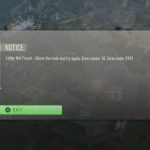
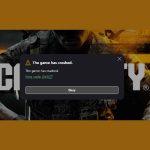
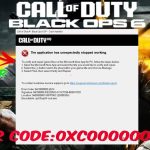
That sinking feeling when a massive new game is finally downloading, only for the progress bar to halt dead in its tracks. The xbox game installation stopped notification is one of the most common and frustrating errors a gamer can face, often getting stuck at 0% or tantalizingly close at 99%. This isn’t just a random glitch; it’s usually a sign of a specific conflict happening inside your console, and thankfully, it’s one you can fix.
Instead of just waiting and hoping, you can take control. This guide dives deep into the proven methods that resolve this specific error, moving from quick checks to the most reliable solutions that will get your download moving again.
At a Glance: Your Game Plan
- Understand the Core Conflict: Learn why installations often stop because the console is trying to download the base game and a day-one patch at the same time.
- Master the “Go Offline” Method: Discover the single most effective technique to force the base game to install first, avoiding update conflicts entirely.
- Clear Hidden Corrupt Data: We’ll walk through several ways to purge bad cache data that can actively block new installations without deleting your saved games.
- Diagnose Network and Storage Issues: Pinpoint if a sluggish network or a full hard drive is the real culprit behind the stalled download.
- Get Actionable Steps: Move beyond theory with a clear playbook of step-by-step instructions you can implement immediately.
Why Your Xbox Game Installation Really Stopped
While it feels like your Xbox is just being difficult, there’s usually a logical reason for a stalled installation. It’s rarely a single issue but a conflict between processes. Understanding the “why” makes the “how” of fixing it much clearer.
The number one culprit is a download traffic jam. Your Xbox tries to be efficient by downloading the base game (from the disc or digital store) while simultaneously pulling down the latest update or day-one patch. If there’s a hiccup in either connection or if the files get out of sync, the entire process grinds to a halt. This is why you so often see it stop near the beginning (0-10%) or the very end (90-99%).
Other common causes include:
- Corrupted Cache: Temporary files from other games or apps can become corrupted, interfering with new write processes.
- Network Instability: A weak Wi-Fi signal, problematic router settings, or slow DNS servers can interrupt the connection to Xbox servers long enough to kill the download.
- Storage Errors: Not having enough free space-or trying to install a Series X|S game on an unsupported external drive-will stop an installation cold.
- Queue Confusion: Sometimes the download queue itself gets bugged, and the stuck game needs to be completely removed and re-added to clear the error.
The First-Response Checklist: Quick Fixes to Try Now
Before diving into more complex solutions, run through these essential first steps. They resolve a surprising number of minor glitches and take only a few minutes.
- Fully Quit Running Games: Your Xbox allocates resources to any active game, even if you’re just on the dashboard. Press the Xbox button, highlight the game you were playing, press the Menu button (the one with three lines), and select “Quit.” This frees up system resources for the installation.
- Pause and Resume the Installation: This simple trick can sometimes re-establish a broken connection to the server. Go to “My games & apps” > “Queue,” highlight the stuck game, and press the Menu button. Select “Pause installation.” Wait about 10-15 seconds, then select “Resume installation.”
- Perform a Clean Restart: Don’t just put the console to sleep. Press and hold the Xbox button on your controller and select “Restart console.” This clears out temporary memory and can resolve minor software conflicts.
- Cancel and Re-Queue the Download: If pausing doesn’t work, the download entry itself might be bugged. In the queue, highlight the game, press the Menu button, and select “Cancel.” Then, go back to your Full Library (or the Microsoft Store/Game Pass) and start the installation from scratch.
These quick steps often resolve temporary network blips or minor software hangs. If the problem keeps coming back, it points to a deeper issue covered in our broader guide to Fix Xbox Series X download errors. Let’s dig into those more robust fixes now.
The “Go Offline” Method: Your Most Reliable Fix
This is the single most effective solution for the “installation stopped” error, especially for games that get stuck because of a day-one patch conflict. By taking the console offline, you force it to focus on one task only: installing the base game from your disc or pre-downloaded digital file.
Here’s the step-by-step playbook:
- Cancel the Stuck Installation: First, go to your queue and completely cancel the download that’s giving you trouble.
- Disconnect Your Xbox: Go to Settings > General > Network settings and select the “Go offline” button. Your console is now isolated from the internet.
- Begin the Installation:
- For a Disc: Eject the disc, then re-insert it. The installation should begin automatically.
- For a Digital Game: Find the game in “My games & apps” > “Full library” and select “Install.” It will install the base version that you’ve already licensed.
- Wait for 100% Completion: Let the installation run. Because it can’t see the internet, it won’t try to download any updates. You should see the progress bar move steadily until it hits 100%.
- Reconnect and Update: Once the base game is fully installed, go back to Settings > General > Network settings and select “Go online.”
- Launch the Game: The moment you try to start the game, your Xbox will check for updates and prompt you to download the necessary patch. This time, it’s a separate, single process and should complete without issue.
Why This Works: This method succeeds by breaking the installation into two distinct, manageable steps: (1) Install the base game. (2) Download the update. This completely eliminates the digital traffic jam that causes most “installation stopped” errors.
Clearing Corrupted Data That Blocks Installations
Old, lingering data is a common source of system errors. If your Xbox has a corrupted temporary file, it can act like a roadblock for any new game trying to install. Here are three ways to clear it out, from simplest to most thorough.
The Power Cycle: A Deeper Cache Cleanse
A power cycle is more than a simple restart. It forces a full shutdown and clears the console’s volatile memory (the system cache), where corrupted data often hides.
- With the console on, press and hold the physical Xbox button on the front of the console for about 10 seconds.
- Wait for the console to shut down completely.
- Unplug the power cord from the back of the Xbox. This is a critical step.
- Wait for at least 60 seconds. This allows the power supply to fully discharge.
- Plug the power cord back in and turn on your Xbox.
Purging Local Saved Games (Without Losing Progress)
This sounds drastic, but it’s perfectly safe. Your actual game saves are backed up to the Xbox Cloud. This procedure only deletes the local copies, which can sometimes become corrupt and interfere with installations. When you next launch a game, your console will re-sync the fresh save data from the cloud.
- Go to Settings > System > Storage devices.
- Select “Clear local saved games.”
- Confirm the action. Your Xbox will restart automatically.
For Disc Installations: Clear the Blu-ray Cache
If you’re primarily installing from physical discs, a separate cache for the Blu-ray drive can cause issues. Clearing its persistent storage can resolve read errors that masquerade as installation problems.
- Navigate to Settings > Devices & connections > Blu-ray.
- Select “Persistent storage.”
- Choose “Clear persistent storage.” You should do this three or four times to be sure. It won’t give you much feedback, but the action registers each time.
Network and Storage Tweaks to Unclog the System
If the offline method worked, it’s a strong sign your network might be contributing to the problem. Likewise, storage issues are a frequent and overlooked cause.
| Tactic | How It Helps | Steps to Take |
|---|---|---|
| Use a Wired Connection | An Ethernet cable provides a stable, faster connection than Wi-Fi, reducing the chance of timeouts. | Plug an Ethernet cable from your router directly into the back of your Xbox. The console will automatically prioritize it. |
| Change Your DNS | Your ISP’s default DNS can be slow. Switching to a public DNS like Google’s can speed up connections. | Go to Settings > Network > Advanced settings > DNS settings > Manual. Primary: 8.8.8.8 Secondary: 8.8.4.4 |
| Clear Alternate MAC Address | This resets your console’s network configuration, forcing it to get a fresh connection from your router. | Go to Settings > Network > Advanced settings > Alternate MAC address > Clear. Your console will restart. |
| Check Storage Space | Games need more space than their file size to install (for unpacking/updates). A full drive will fail. | Ensure you have at least 50-100 GB of free space. For Series X|S games, confirm you are installing to the Internal Storage or an official Storage Expansion Card. |
| A quick test for external drives: If a game fails to install on your external USB hard drive, try installing it to the internal drive. If it succeeds on the internal storage, the problem likely lies with your external drive or its cable. |
Quick Answers to Common Installation Headaches
Q: Why does my installation always stop at 99%?
This is a classic sign of an update or finalization failure. The base game has successfully installed, but the console is failing to apply the day-one patch or verify the installation. The “Go Offline” method is the perfect fix for this scenario, as it separates the installation from the update process.
Q: Could a scratched disc cause the installation to stop?
Absolutely. The Xbox installs the entire game from the disc to the hard drive, and a single deep scratch or smudge can make a section of data unreadable. Inspect the disc under a bright light. Clean it with a soft, lint-free microfiber cloth, wiping from the center of the disc outwards—never in a circular motion.
Q: I’m installing from Game Pass and it stopped. Is that different?
No, the underlying process is the same as any other digital download. The causes—network conflicts, corrupt cache, storage issues—are identical. All the troubleshooting steps in this guide apply equally to Game Pass, Games with Gold, and games you’ve purchased directly from the Microsoft Store.
Q: What if none of these fixes work?
If you have exhausted every step here, you are facing a deeper system-level issue. The final step is a console reset. Go to Settings > System > Console info > Reset console. You will have two options:
- “Reset and keep my games & apps”: Try this first. It reinstalls the operating system but leaves your games and apps intact, saving you from redownloading everything.
- “Reset and remove everything”: This is a full factory reset. It will wipe your console clean. Use this only as a last resort after backing up any important local data.
Your Path Forward
When you encounter the “Xbox game installation stopped” error, resist the urge to just restart the download over and over. Instead, be systematic. Start with the quick first-response checks, but don’t hesitate to deploy the “Go Offline” method—it is your most powerful tool for bypassing the common update conflict.
By methodically clearing bad data, verifying your network and storage, and understanding the root cause, you can turn this frustrating roadblock into a minor bump on the road to your next gaming session.