There’s nothing more frustrating than seeing that progress bar freeze. You’re ready to jump into a new game, but your console has other plans, flashing the dreaded Xbox Series X installation stopped error. This sudden halt can feel like a critical system failure, but more often than not, it’s a fixable software or network hiccup. Before you even think about a factory reset, know that a few targeted steps can almost always get your download moving again.
This guide dives deep into the specific “Installation Stopped” error, giving you a clear, step-by-step process to diagnose and resolve it for good.
At a Glance: Your Quick-Fix Checklist
- Pinpoint the Real Problem: Learn to quickly determine if the issue is with your network, the Xbox servers, or your console’s software.
- Master the Offline Install: Discover the most reliable trick to bypass update conflicts that cause most installation freezes.
- Clear Caches Safely: Understand how to clear corrupted temporary data on your console without risking your saved game progress.
- Optimize Your Connection: See when and how to change DNS settings to improve download stability.
- Follow a Smart Diagnostic Path: Stop guessing and use a logical troubleshooting sequence to solve the problem efficiently.
Why Your Installation Suddenly Stops
When a game installation on your Xbox Series X or S comes to a grinding halt, it’s rarely a random event. The root cause typically falls into one of a few categories. Understanding these helps you choose the right fix instead of trying everything at once.
The single most common culprit is a download conflict. Your console tries to be efficient by installing the base game (from a disc or a pre-download) while simultaneously downloading a large day-one patch. If there’s a network blip or a server-side timing issue, these two processes can collide and create a digital traffic jam, resulting in the “Installation Stopped” message.
Other frequent causes include:
- Network Instability: Your internet might be fast enough, but if it has frequent, tiny dropouts (common with Wi-Fi), the console can lose its connection to the server and fail the download. Xbox recommends a minimum of 3 Mbps download and 0.5 Mbps upload speeds, but stability is just as important as speed.
- Corrupted Cache: Temporary files on your console, from old game data to system-level cache, can become corrupted and interfere with new installations.
- Xbox Live Service Outages: Sometimes, the problem isn’t on your end at all. If the Xbox content servers are experiencing issues, downloads and installations for everyone can be affected.
- Insufficient Storage (With a Twist): You might check your storage and see enough free space for the game’s base size listed in the store. However, this often doesn’t account for mandatory updates and content packs, which can add 50-100 GB or more. The installation may stop when it runs out of this unforeseen space.
Your First-Response Troubleshooting Playbook
Before diving into more complex solutions, run through these essential checks. These three steps resolve a surprising number of “installation stopped” errors and take only a few minutes.
Step 1: Check the Vitals (Don’t Skip This)
First, confirm the problem is actually on your end.
- Check Xbox Server Status: Go to the official Xbox Status page. If there’s a major outage listed under “Games & gaming” or “Store & subscriptions,” your only move is to wait for Microsoft to fix it.
- Verify Your Storage: Go to Settings > System > Storage devices. Look at your internal storage and any external drives. Does the available space comfortably exceed the game’s size plus a healthy buffer for patches? If you’re cutting it close, try uninstalling a game you no longer play.
- Run a Network Test: In Settings > General > Network settings, select Test network speed & statistics. This will show you if your console is getting the stable connection it needs. If you see high latency (ping) or significant packet loss (anything over 1-2%), that points to an unstable connection.
Step 2: Perform a Full Power Cycle
A power cycle is not the same as just turning the console off and on. It fully clears the system’s temporary cache, which often resolves inexplicable software glitches.
- Press and hold the Xbox button on the front of your console for about 10 seconds, until it shuts down completely.
- Unplug the power cord from the back of the Xbox.
- Wait for at least 60 seconds. This allows the internal power supply to fully discharge.
- Plug the power cord back in and turn the console on. Try resuming the installation.
Step 3: Reboot Your Network Gear
Just like your console, your modem and router can get bogged down.
- Unplug the power cords from both your modem and your router.
- Wait for 60 seconds.
- Plug the modem in first and wait for all its lights to become solid (usually 1-2 minutes).
- Plug the router in and wait for its lights to stabilize.
- Once your network is back up, check the installation queue on your Xbox.
If these initial steps don’t work, don’t worry. It’s time to use the most effective tool for this specific problem.
The Offline Install: Your Most Powerful Fix
This method directly targets the common update/install conflict. By taking the console offline, you force it to complete one task at a time: install the base game first, then handle the update later. It’s incredibly effective for both disc and digital games.
This offline method is one of the most reliable solutions for a stalled installation, but it’s part of a broader set of tools for tackling download issues. For a complete overview of all potential errors, see our main guide to Fix Xbox download stalls.
How to Perform an Offline Installation
Follow these steps precisely to ensure the process works correctly.
- Cancel the Stuck Download: Navigate to My games & apps > Manage > Queue. Highlight the stuck game, press the Menu button (the one with three lines), and select Cancel installation. This is crucial; you must start fresh.
- Take Your Console Offline: Go to Settings > General > Network settings and select the Go offline button. Your Xbox is now disconnected from the internet.
- Install the Base Game:
- For Disc Games: Insert the game disc. The installation should begin immediately and proceed without interruption, as it’s only reading data from the disc.
- For Digital Games: Go to My games & apps > Full library. Find the game and select Install. If the base game files have already been downloaded, it will install from the local cache.
- Wait for 100% Completion: Do not go back online until the installation progress bar in the queue is completely full and the game appears as fully installed in your library.
- Go Back Online and Update: Return to Settings > General > Network settings and select Go online. Your console will reconnect to the internet. Navigate to your game library, and the console should now automatically detect and download the required update as a separate item in your queue.
By separating these two processes, you bypass the conflict that causes the “installation stopped” error 90% of the time.
Advanced Console-Side Solutions
If the offline install method doesn’t resolve the issue, the problem might be deeper within your console’s software or network configuration. These next steps address those less common but still solvable problems.
Clear Your Local Saved Games Cache
This sounds scary, but it’s perfectly safe. Your actual game progress is saved to the Xbox cloud. This action only deletes the local copy on your console, along with other potentially corrupted temporary profile data. When you next launch a game, it will automatically re-sync your save from the cloud.
- Go to Settings > System > Storage devices.
- Select the box that says Clear local saved games.
- Your console will restart automatically. After it boots up, try the installation again.
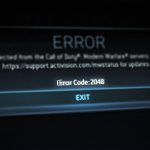
Practical Scenario: A player found that Call of Duty: Modern Warfare would stop installing at exactly 82% every time. Power cycles and network reboots did nothing. Clearing the local saved games cache resolved the issue, suggesting a piece of corrupted profile data was interfering with the license check during installation.
Switch to a More Reliable DNS
Think of a DNS (Domain Name System) as the internet’s address book. Your Internet Service Provider (ISP) gives you one by default, but it isn’t always the fastest or most reliable. Switching to a trusted public DNS server, like Google’s, can sometimes fix connection-related installation failures.
- Go to Settings > General > Network settings > Advanced settings.
- Select DNS settings and choose Manual.
- Enter the following:
- Primary IPv4 DNS:
8.8.8.8 - Secondary IPv4 DNS:
8.8.4.4
- Save the settings and restart your console.
Try a Different Storage Device
In rare cases, a specific sector of your internal SSD might have a logical error preventing a successful installation. If you have an external USB 3.0 (or faster) hard drive or SSD, you can use it to diagnose this.
- Connect your external drive to the Xbox.
- Go to Settings > System > Storage devices.
- Select your external drive and choose Install here by default.
- Try installing the game again. If it succeeds on the external drive but consistently fails on the internal one, you may have found the issue. You can either keep the game on the external drive or consider a factory reset as a final step to clean up the internal drive.
Quick Answers to Common Questions
Q: Will I lose my game progress if I “Clear local saved games”?
A: No. As long as your console has been online, all your game saves are securely backed up to the Xbox cloud. This action only removes the copies on your console’s hard drive. The next time you launch a game, your console will automatically download the latest save from the cloud.
Q: My Xbox says “Installation Stopped” but I have tons of free space. Why?
A: This is the classic symptom of a software conflict, not a storage issue. The console is struggling to manage installing the base game and downloading a patch at the same time. The Offline Install Method described above is the definitive fix for this specific problem.
Q: Is my Xbox Series X broken if installations keep failing?
A: It is extremely unlikely to be a hardware fault. The “installation stopped” error is an infamous and long-standing software and network issue on the Xbox platform. Before even considering a hardware problem, you should exhaust all the software solutions in this guide, from a power cycle and offline install all the way to a factory reset (if necessary).
Q: I’m installing from a disc. Why does my internet connection matter?
A: Even when installing from a disc, most modern games immediately try to download a day-one patch, which can be massive. If that patch download fails or conflicts with the disc installation, the whole process will stop. This is why the offline install method is so effective even for physical copies.
Your Path Forward
Facing an Xbox Series X installation stopped error can be a major headache, but you now have a clear, methodical playbook to solve it. The problem is almost always a solvable glitch related to software conflicts or network stability, not a sign of a broken console.
Start with the basics: check the servers, your storage, and perform full power cycles on your console and network gear. If the issue persists, move directly to the offline installation method—it is your most reliable tool. By separating the installation from the update, you bypass the core conflict. For stubborn, recurring problems, clearing your local cache or switching your DNS can provide the stability you need. With these steps, you can take control of the situation and get back to what matters: playing your games.

- Error Code 2029 BO6 Ranked Not Working? Try These Fixes - May 18, 2026
- Error Cause 10 Error Code 2901 Black Ops 6 Lobby Not Found - May 17, 2026
- Understanding and Solving COD Error Code 2029 Problems - May 16, 2026