There are few things more frustrating than settling in for a new game, only to be blocked by an error message. If you’re asking, “why does my Xbox keep saying installation stopped?” you’ve hit a common but maddening snag that can turn excitement into a drawn-out troubleshooting session. This error often feels random, but it’s almost always triggered by a specific, fixable issue—be it a network hiccup, a storage conflict, or a simple miscommunication between your console and the Xbox servers.
The good news is you don’t need to be a network engineer to solve it. We’re going to break down the exact reasons this happens and give you the step-by-step plays to get your downloads back on track and finished.
At a Glance: Key Fixes for “Installation Stopped”
This guide will walk you through the most effective solutions, but if you’re in a hurry, here’s what you need to know. The “Installation Stopped” error is typically caused by one of these five issues:
- Update vs. Game Conflict: Your Xbox is trying to download a game’s update patch at the same time as the base game, creating a conflict.
- Unstable Network Connection: Even a momentary drop in your internet connection can halt the entire process.
- Insufficient Storage Space: The console needs more free space than the game’s file size to manage the installation.
- Corrupted Data or Cache: A cluttered system cache or a bad piece of local data can block the installation from proceeding.
- Xbox Server Issues: Sometimes, the problem isn’t on your end at all; the Xbox Live service might be experiencing an outage.
The Most Common Culprit: The Game vs. Update Conflict
Let’s start with the sneakiest and most frequent cause: a digital traffic jam. When you install a new game, your Xbox often tries to be efficient by downloading two things at once: the large base game file and the latest day-one patch or update.
This can create a “race condition” where the console gets confused. It tries to apply parts of the update to a base game that isn’t fully installed yet. The system detects an inconsistency and, to prevent a corrupted installation, throws up its hands and says, “Installation Stopped.”
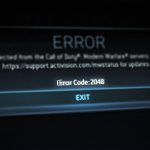
Case Snippet: A gamer trying to install the latest Call of Duty found it repeatedly stopped at 34%. They had a fast internet connection and plenty of storage. The issue was that the console was pulling down a massive 50 GB update while still installing the 100 GB base game. The conflict caused the process to fail every time.
The most reliable way to fix this is to force the Xbox to do one thing at a time using the offline installation method.
Your Playbook: The Offline Installation Method
- Disconnect Your Xbox from the Internet: Go to Settings > General > Network settings > Go offline. This prevents the console from seeing and downloading the update file.
- Cancel the Stuck Installation: Go to “My games & apps,” find the stuck game in your queue, press the Menu button (the one with three lines), and select “Cancel.”
- Start the Installation Again (Offline): If you have the game on a disc, insert it now. If it’s a digital copy, find it in your “Full library” and start the installation. Since you’re offline, it will only install the base game from the source.
- Wait for the Base Game to Fully Install: Let it run to 100%. Don’t go back online until it’s completely finished.
- Reconnect and Update: Once the base game is installed, go back to Network settings and select Go online. The console will now detect the missing update and download it separately, without any conflict.
Is Your Network Quietly Sabotaging Your Download?
An Xbox game installation is a marathon, not a sprint. Some games are over 100 GB, requiring a stable connection for hours. Even a brief drop in connectivity that you might not notice while browsing can be enough for the Xbox to stop the installation.
While these steps resolve most ‘Installation Stopped’ errors, the issue can sometimes be part of a wider download problem. For a comprehensive framework, you can Troubleshoot Xbox Series X download stalls with our main guide.
First, Diagnose Your Connection
Before you start unplugging things, let your Xbox tell you what it sees.
Go to Settings > General > Network settings > Test network speed & statistics.
You’ll see a few key metrics:
- Download Speed: Microsoft recommends a minimum of 3 Mbps. For large games, anything under 25 Mbps will feel slow, but stability is more important than raw speed.
- Upload Speed: A minimum of 0.5 Mbps is required.
- Packet Loss: This should be 0%. Anything higher means data is getting lost on its way to your console, which is a major cause of installation failures.
- Latency (Ping): This measures response time. High latency (over 150ms) can sometimes indicate an unstable connection.
If you see high packet loss or your speeds are far below what you pay for, it’s time to look at your home network.
Simple Network Fixes with a Big Impact
- Reboot Your Modem and Router: Unplug both devices from power for a full 60 seconds. Plug the modem in first, wait for its lights to stabilize (usually 1–2 minutes), and then plug in the router. This clears their internal memory and can resolve many strange connectivity issues.
- Switch to a Wired Connection: Wi-Fi is convenient, but it’s susceptible to interference from walls, other devices, and even your neighbor’s network. An Ethernet cable provides a direct, stable link to your router, eliminating Wi-Fi as a potential problem. If you’re downloading a huge game, it’s the single best thing you can do for reliability.
Advanced Tweak: Change Your DNS
Think of DNS (Domain Name System) as the internet’s phonebook. Sometimes the default one provided by your internet service provider (ISP) can be slow or unreliable. Switching to a trusted public DNS server can sometimes improve connection stability.
- Navigate to Settings > General > Network settings > Advanced settings > DNS settings > Manual.
- Enter one of the following public DNS addresses:
- Google DNS: Primary:
8.8.8.8, Secondary:8.8.4.4 - Cloudflare DNS: Primary:
1.1.1.1, Secondary:1.0.0.1
- Save the settings and restart your console. This simple change can sometimes smooth out the connection enough to complete the download.
Checking the Console: Storage and Data Corruption
If your network is solid, the problem may lie within the console itself. Installations require a surprising amount of temporary space and can be derailed by corrupted data.
The Full Storage Trap
A 100 GB game doesn’t just need 100 GB of free space. The Xbox needs an additional buffer—typically 15-20% of the game’s size—to unpack files and manage the installation process. If your storage is nearly full, the installation will start, run until it’s out of working room, and then stop.
- Check Your Space: Go to Settings > System > Storage devices. Make sure you have plenty of free space. A good rule of thumb is to have at least 25% more free space than the game’s total file size.
- Make Room: Delete old games or apps you no longer use. Remember, your purchases are tied to your account, so you can always redownload them later.
Clearing Out Glitches: The Cache and Local Saves
Over time, your Xbox can accumulate temporary files and data that become corrupted. Clearing these out is like a digital spring cleaning and can resolve stubborn installation issues.
1. The Power Cycle (Hard Reset)
This is more than just turning the console off and on with the controller. A full power cycle clears the system’s temporary cache without deleting any of your games or data.
- With the console on, press and hold the power button on the front of the Xbox for 10 seconds.
- Wait for the console to shut down completely.
- Unplug the power cord from the back of the Xbox and wait for at least 60 seconds.
- Plug it back in and turn the console on.
2. Clear Local Saved Games
Sometimes, a corrupted local save file from a previous game (or a failed installation attempt of the current one) can cause a conflict. This step removes the local copies, forcing the console to re-sync fresh copies from the cloud the next time you launch a game.
Important: This will not delete your game saves, as they are backed up to the Xbox cloud. - Go to Settings > System > Storage devices.
- Select Clear local saved games.
- Your console will restart. After it boots up, try the installation again.
When It’s Not You, It’s Them: Checking Xbox Live Status
Before you spend an hour tearing apart your home network, take 30 seconds to check if the problem is on Microsoft’s end. If the Xbox Live services for purchasing and content are down, no amount of troubleshooting on your side will help.
- Check the Official Status Page: Visit the Xbox Status page on your phone or computer.
- Look for any services with warnings, particularly under “Store & subscriptions” or “Games & gaming.” If there’s a reported issue, your only option is to wait for Microsoft to fix it.
Quick Answers to Common Questions
Q: Does pausing and resuming the download help?
A: Sometimes, but it’s usually a temporary fix. If the underlying issue is a network blip, pausing and resuming can get it started again. However, if the cause is a data conflict or storage issue, it will likely just stop again at the same spot.
Q: Why does my installation always stop at the exact same percentage?
A: This is a classic symptom of either a storage problem or a data conflict. The installation proceeds until it hits a specific file that it can’t write correctly because it has run out of working space or is conflicting with a piece of corrupted data. The “Clear local saved games” and offline installation methods are the best fixes for this.
Q: Can I install one game while playing another?
A: Yes, the Xbox is designed to do this. However, playing a network-intensive online game can divert bandwidth from your download, slowing it down and potentially increasing the risk of a timeout error. For massive installations, it’s best to let the console focus on the download.
Q: My Xbox says the installation is complete, but the game won’t launch. What now?
A: This often means the base game installed but the necessary update patch failed or is corrupted. Go to “My games & apps,” highlight the game, press the Menu button, and select “Manage game and add-ons.” Check for any updates in the “Updates” section and try installing them from there.
Your First-Step Action Plan
Feeling overwhelmed? Don’t be. Follow this simple checklist in order to solve the problem efficiently.
- Check Xbox Live Status: Rule out a server-side problem first. It takes less than a minute.
- Perform a Full Power Cycle: A hard reset is quick, easy, and solves a surprising number of issues by clearing the cache.
- Verify Your Storage Space: Ensure you have more than enough free space for the game and its installation buffer.
- Try the Offline Installation Method: This is the most effective fix for the common game vs. update conflict.
- Run a Network Test: If all else fails, check for high packet loss or very low speeds to confirm if your network is the culprit. Switch to an Ethernet cable if you can.
That dreaded “Installation Stopped” message is a roadblock, but it’s one you can navigate. By systematically checking for conflicts, clearing out bad data, and ensuring your console has a stable environment for the download, you’re not just guessing—you’re taking control of the process. Follow these steps, and you’ll be back to gaming in no time.

- Error Code 2029 BO6 Ranked Not Working? Try These Fixes - May 18, 2026
- Error Cause 10 Error Code 2901 Black Ops 6 Lobby Not Found - May 17, 2026
- Understanding and Solving COD Error Code 2029 Problems - May 16, 2026