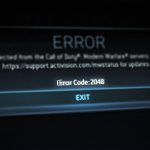
You click “Play” on Call of Duty, the button dutifully changes to “Stop” for a few seconds, your status flashes to “playing,” and then… nothing. The button reverts to “Play,” and the game never appears. If you’re wondering why is CoD not opening on Steam, you’ve hit one of the most common and frustrating roadblocks for PC gamers. The good news is that the fix is almost always something you can handle yourself, usually without a full reinstall.
This isn’t about vague advice; it’s about a targeted, step-by-step process to diagnose and fix the specific points of failure between Steam and the Call of Duty engine.
At a Glance: Your Quickest Path to a Fix
If you’re in a hurry to get back to the game, here are the most effective solutions we’ll cover in detail. One of these will solve the problem for over 90% of players.
- Run as Administrator: The most frequent cause is Steam lacking the permissions to launch CoD’s anti-cheat and core files.
- Verify Game Files: Corrupted data from a bad update or crash can stop the launch process cold.
- Update Graphics Drivers: CoD is extremely sensitive to outdated GPU drivers, which can cause an immediate launch failure.
- Clear Steam’s Download Cache: Old or stuck download data can interfere with the “Preparing to launch” sequence.
- Disable Conflicting Overlays: Software like Discord, NVIDIA ShadowPlay, or even the Steam Overlay itself can prevent the game from initializing.
Start with the Simplest Fix: Administrator Privileges
Before you dive into complex troubleshooting, let’s address the number one culprit. Modern Call of Duty titles use sophisticated anti-cheat systems (like Ricochet) that need deep access to your system to function. If Steam doesn’t have the necessary permissions, it can’t grant them to the game, and the launch fails silently.
Think of it like a security guard (Windows) stopping a visitor (CoD) because their escort (Steam) doesn’t have an all-access pass.
How to Grant Administrator Rights:
- Completely exit Steam. Don’t just close the window; right-click the Steam icon in your system tray (bottom-right of your screen) and select “Exit.”
- Find your Steam shortcut on the desktop or in the Start Menu.
- Right-click the Steam icon and select “Run as administrator.”
- A User Account Control (UAC) prompt will appear. Click “Yes.”
- Once Steam loads, try launching Call of Duty again.
If this works, you can make it permanent. Right-click the Steam shortcut > Properties > Compatibility tab > check the box for “Run this program as an administrator.”
Is Your Game Data Intact? Verifying File Integrity
The next most common issue is file corruption. A small error during a game update, a sudden PC shutdown, or a disk error can leave a critical file unreadable. When Steam tries to launch the game, it hits this broken file and gives up. This is especially true if you see the “Preparing to launch…” window for a moment before it disappears.
Verifying the integrity of your game files is Steam’s built-in tool for finding and fixing these problems. It scans every file in your CoD installation, compares it to the master version on Steam’s servers, and re-downloads anything that’s missing or damaged. While these are the most frequent culprits for CoD, they’re part of a broader set of game start issues. Our complete guide can help you Troubleshoot COD launch issues across the board.
How to Verify Your CoD Files:
- Open your Steam Library.
- Right-click on your Call of Duty title (e.g., Call of Duty HQ / Modern Warfare III).
- Select Properties….
- Navigate to the Installed Files tab (previously “Local Files”).
- Click the button that says “Verify integrity of game files.”
The process can take several minutes, depending on the size of the game and the speed of your drive. Do not be alarmed if it says “X files failed to validate and will be reacquired.” That’s the tool doing its job. Once it’s finished, try launching the game.
A Quick Detour: Clear Your Download Cache
Sometimes, the problem isn’t the game files themselves but the data Steam uses to manage them. Clearing the download cache can resolve stubborn launch issues tied to pending or failed updates.
- In Steam, go to Settings > Downloads.
- Click the “Clear Cache” button.
- You will be prompted to log back into Steam. Do so and try launching CoD again.
Your Graphics Drivers: The Unsung Hero of Game Launches
Call of Duty is a graphically intensive franchise that pushes the latest features from NVIDIA, AMD, and Intel. Using outdated drivers is a recipe for instability, crashes, and, most importantly, failure to launch. The game engine may check for a minimum required driver version upon startup; if it’s not met, the game simply won’t open.
Don’t rely on Windows Update for your graphics drivers. It often provides older, more stable versions that lack the game-specific optimizations needed for titles like CoD.
How to Properly Update Your GPU Drivers:
- NVIDIA: Download and install the GeForce Experience application. It will automatically detect your card and notify you of the latest “Game Ready” drivers.
- AMD: Download and install the AMD Software: Adrenalin Edition. This tool serves the same purpose, providing the latest recommended and optional drivers.
- Intel (for Arc GPUs): Use the Intel Driver & Support Assistant to find the latest drivers for your graphics card.
Pro Tip: When installing new drivers, look for an option for a “Clean Installation” (available in both NVIDIA and AMD installers). This removes old driver files completely before installing the new ones, which can prevent conflicts.
Digging Deeper: Advanced Troubleshooting Playbook
If the basics didn’t work, it’s time to investigate more technical causes. These steps address conflicts with other software and deeper issues within Steam itself.
Taming Background Processes and Overlays
Many applications hook into games to provide overlays—think Discord’s chat, NVIDIA’s performance metrics, or OBS’s recording indicators. Sometimes, these hooks can conflict with CoD’s anti-cheat or rendering engine, preventing it from initializing.
Your Action Plan:
- Press Ctrl + Shift + Esc to open the Task Manager.
- Methodically end tasks for any non-essential background software. The usual suspects include:
- Discord
- RivaTuner Statistics Server (RTSS)
- MSI Afterburner
- Razer Synapse / Cortex
- OBS or Streamlabs
- Any RGB lighting software (iCUE, etc.)
- Once they’re closed, try launching CoD. If it works, you’ve found the culprit. Re-enable the programs one by one to isolate the specific conflict.
You can also try disabling the Steam Overlay itself as a test:
- In Steam, go to Settings > In-Game.
- Uncheck “Enable the Steam Overlay while in-game.”
When Steam Itself Is the Problem: Repairing the Service
The Steam Client Service is a background component that handles installations, updates, and permissions. If this service becomes corrupted, it can prevent any game from launching correctly. You can repair it without reinstalling all of Steam.
How to Repair the Steam Service:
- Exit Steam completely.
- Right-click the Start Menu button and select “Windows PowerShell (Admin)” or “Terminal (Admin)”.
- Copy and paste the following command into the blue or black window and press Enter:
powershell
& “C:\Program Files (x86)\Steam\bin\SteamService.exe” /repair - A command prompt window may flash briefly. Wait about a minute for the process to complete in the background.
- Restart your computer and try launching CoD through Steam (as an administrator).
The Antivirus Standoff
It’s rare, but sometimes an overzealous antivirus or firewall can mistakenly flag one of CoD’s executable files or the anti-cheat as a threat, blocking it from running.
To test this safely:
- Temporarily disable your antivirus software’s real-time protection for a few minutes.
- Try to launch Call of Duty.
- If it launches successfully, you’ve found the issue. Do not leave your antivirus off.
- Re-enable your antivirus immediately. Then, go into its settings and add an exception or exclusion for the entire Call of Duty installation folder. This tells your security software to trust the game files.
Quick Answers to Common CoD Launch Problems
Here are fast, direct answers to the most frequent questions players have when their game won’t start.
Why does CoD need admin rights when other Steam games don’t?
The primary reason is the kernel-level anti-cheat software used in modern Call of Duty titles. To effectively detect and block sophisticated cheats, this software needs high-level system permissions that a standard user account can’t provide. Running Steam as an admin passes those permissions along to the game.
Does verifying game files delete my progress or settings?
No. Verifying game files only checks the core installation data provided by the developer. Your personal campaign progress, multiplayer unlocks, and custom settings are stored separately in the cloud and in your Documents folder. This process is completely safe for your saved data.
My PC meets the minimum specs, so why won’t it launch?
Meeting “minimum specs” means the game should run once it’s open, but it doesn’t guarantee a flawless launch. Launch failures are often caused by software conflicts, driver issues, or permission errors, not raw hardware power. A PC well above the recommended specs can still fail to launch CoD if a background application is causing a conflict.
Could a recent Windows update be the cause?
Absolutely. While less common, a major Windows update can sometimes cause compatibility issues with graphics drivers or security software. If CoD stopped working immediately after an update, your first step should be to check for new graphics drivers, as NVIDIA and AMD often release updates to align with Windows changes.
Get Back in the Fight
Facing a silent, unlaunching game is incredibly frustrating, but the solution to why is CoD not opening on Steam is rarely catastrophic. The problem is almost always rooted in permissions, file integrity, or a software conflict.
Start with the basics: run Steam as an administrator, verify your game files, and make sure your graphics drivers are up to date. These three steps alone will get the vast majority of players back in the game. If you’re still stuck, work through the advanced checklist methodically. By isolating the problem, you can resolve it without resorting to a time-consuming full reinstallation.

- Error Cause 10 Error Code 2901 Black Ops 6 Lobby Not Found - May 17, 2026
- Understanding and Solving COD Error Code 2029 Problems - May 16, 2026
- Fix Black Ops 6 Error Code 2901 Lobby Not Found - May 15, 2026